
Create Forms With the Template Library
Welcome to our guide on how to create forms using the Template Library. This feature allows you to save time by using pre-designed and customizable templates, making form creation a breeze. In this guide, we will walk you through the step-by-step process of creating forms using the Template Library.
Why Use the Template Library in Surveys
- Ease of Adoption: Quickly get started with ready-to-use templates instead of creating surveys from scratch.
- Time Efficiency: Utilize pre-designed, reusable elements and components to save time and streamline the integration process.
- Personalization and Customization: Although templates offer a standardized foundation, they can be tailored with personalized details such as names, specific choices, or custom messages to meet individual customer needs.
- Consistent Branding: Maintain uniform branding across all customer interactions with templates that fit various business categories and include relevant tags.
Accessing the Template Library:
- To get started, navigate to Sites > Forms > Builder.
- Click on the "+ Add form" button and select "From Template".
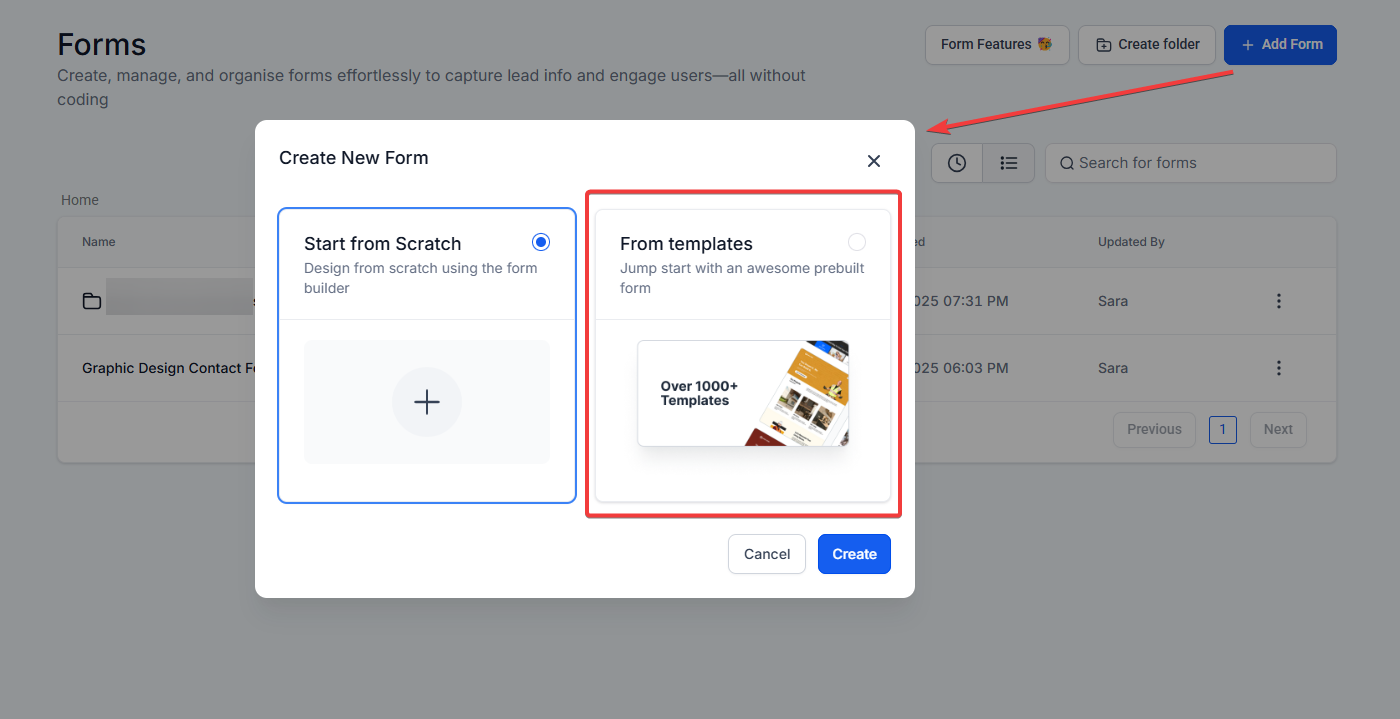
Selecting a Template:
- Choose a form template by filtering for a specific category or tag by hovering over the template and clicking the “Select” Button.
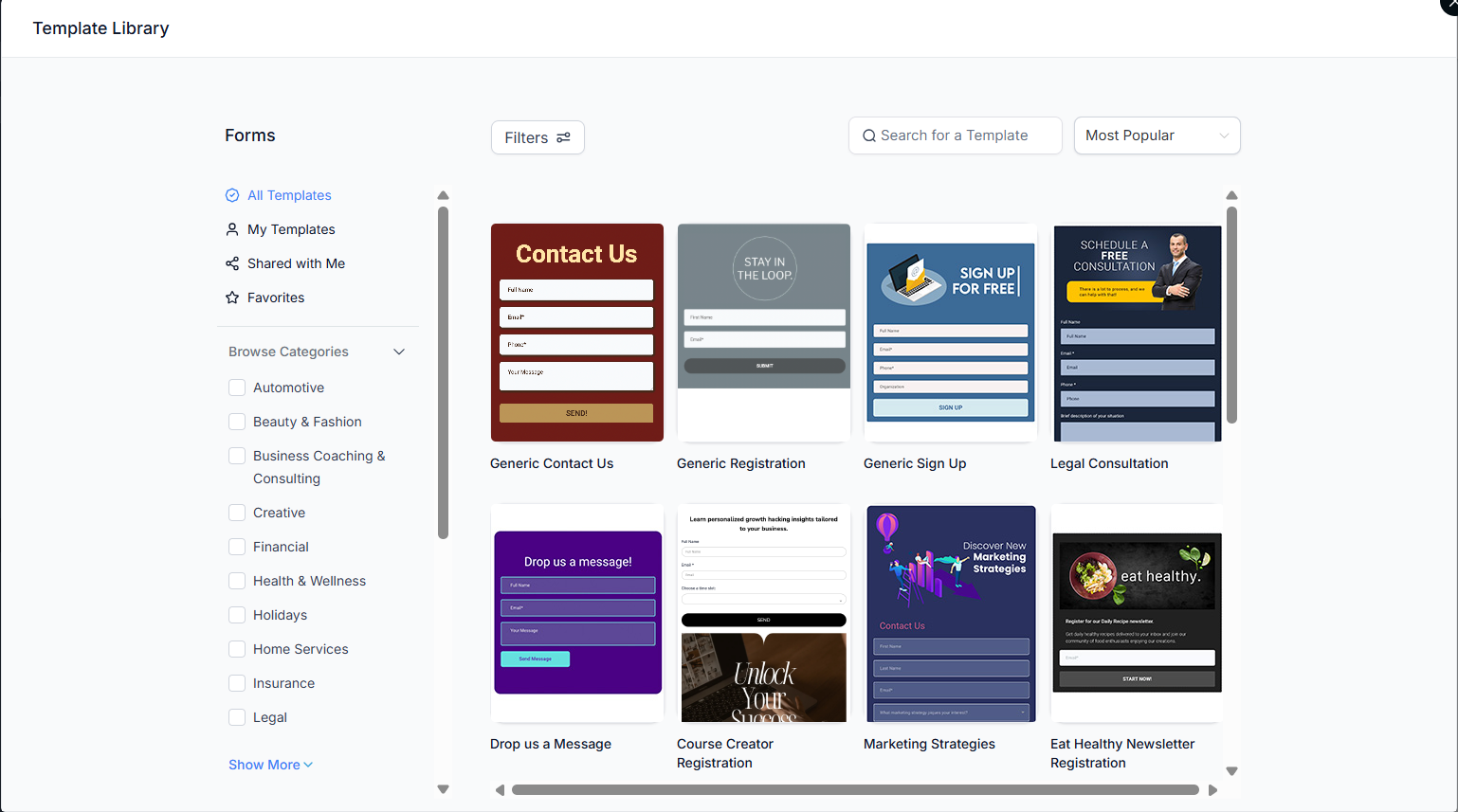
Viewing and Editing the Template:
- Click on the "Continue" button to view and edit the selected template.
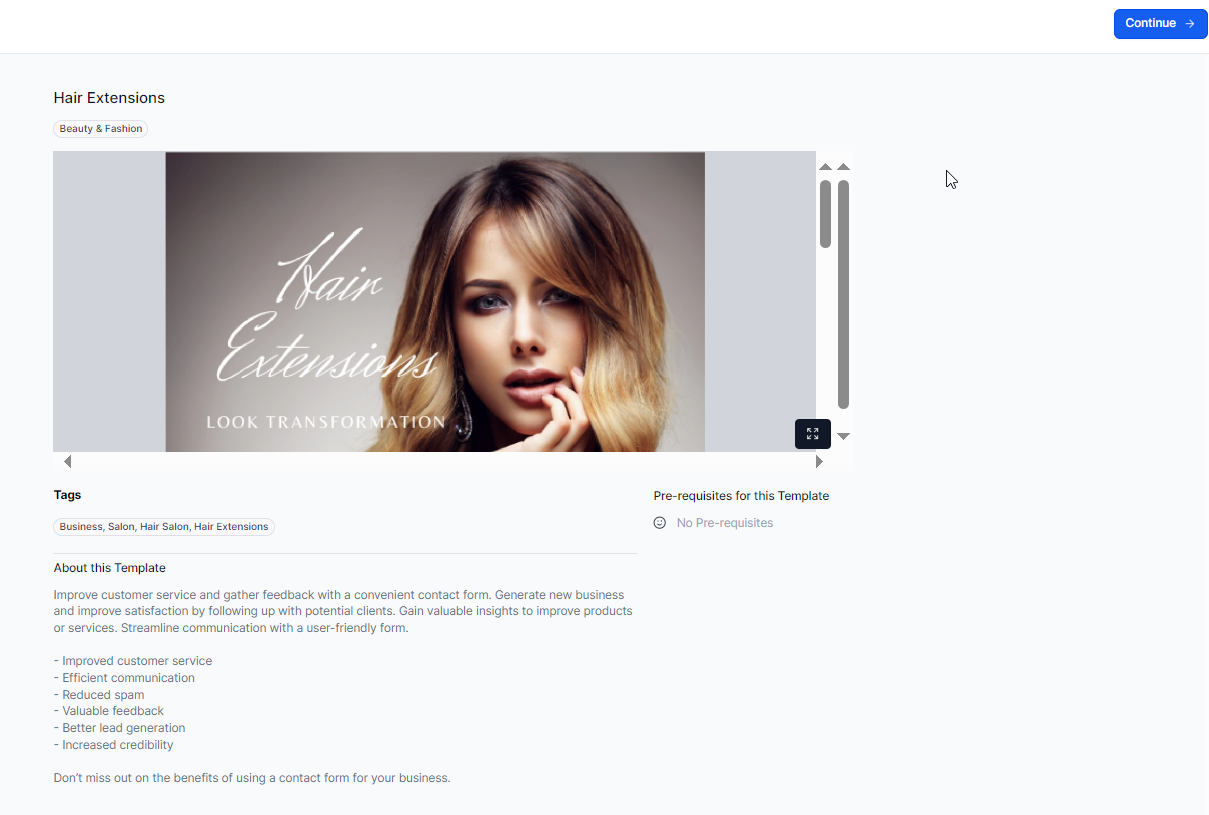
- Once ready, save your template.
FAQs
Q1: Ho do I access the Template Library?
A1: Navigate to Sites > Forms > Builder and click on "+ Add form". Then select "From Template".
Q2: Can I customize the templates?
A2: Yes, templates can be customized with personalized details, including names, choices, and custom messages to suit your specific needs.
Q3: How do I select a template?
A3: Browse or filter templates by category or tag, then hover over the one you want and click the “Select” button.
Q4: What happens after I select a template?
A4: Click "Continue" to view and edit the selected template. Make your customizations and then save your changes.
Q5: Can I use templates for different business categories?
A5: Yes, templates are available for various business categories, ensuring you can maintain consistent branding and functionality across different use cases.