
Affiliate Manager - Customize Naming conventions for your Niche
Managing an affiliate program requires a platform that is flexible enough to adapt to various business needs. offers such flexibility by allowing users to customize the names of modules in the Affiliate Manager. This article will guide you through the simple steps to rename these tabs and discuss the advantages of doing so.
Benefits of Customizing Tab Names
Customization
Tailor the name of the tab to better reflect its purpose within your business operations.
Clarity and Understanding
A more intuitive name can reduce the potential for confusion among users who may not be familiar with the term "Affiliate Manager."
Alignment with Branding
Rebrand the tabs to align with your brand identity, creating a more cohesive and professional user experience.
Increased User Engagement
A more descriptive tab name can attract more attention and encourage users to explore and engage with the features within.
Improved User Experience
Enhance the overall usability and navigation of your platform by opting for a well-chosen tab name.
Enhanced User Satisfaction
Users are more likely to enjoy a positive experience when they can easily locate and use features, leading to higher satisfaction and retention rates.
How to Customize the Naming Conventions
Follow these steps to rename the Affiliate Manager tabs:
Go to Marketing > Affiliate Manager
Navigate to the Marketing section on the left and click on 'Affiliate Manager' at the top.
Access Settings
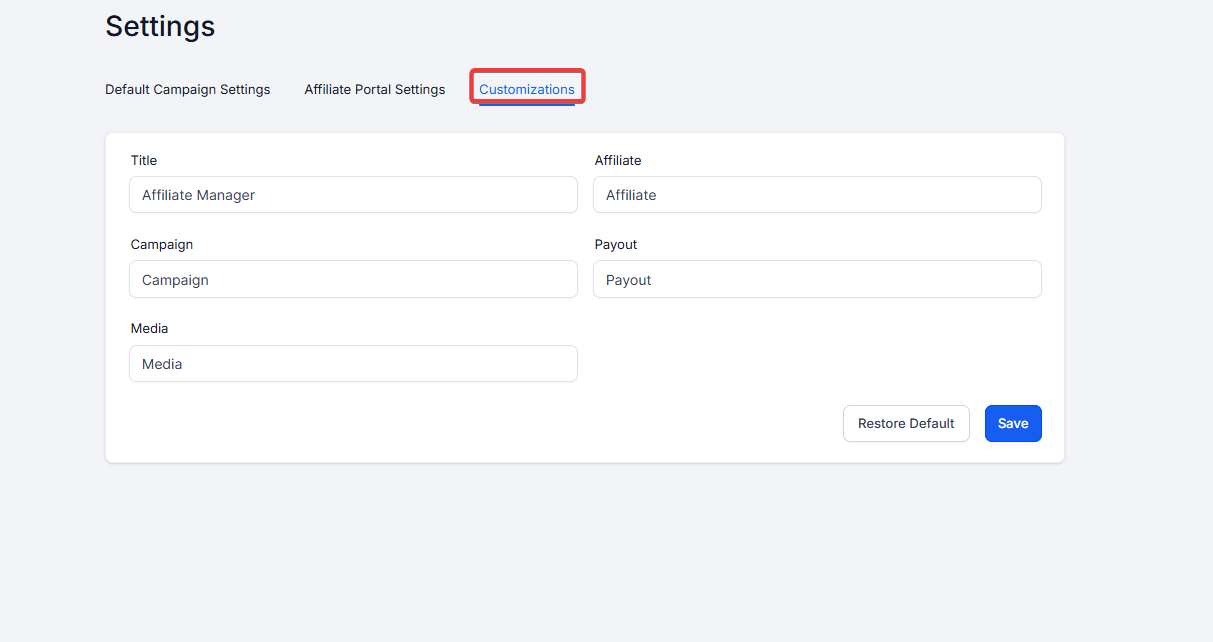
From the dropdown, select “Settings” and locate the Customizations sub-tab.
Re-Name Tabs
You will find options to rename the tabs according to your brand. For example, you could rename 'Affiliates' to 'Promoters' or 'Referrers,' 'Campaigns' to 'Funnels,' and 'Payout' to 'Payment.'
Confirm Changes
After making the desired changes, confirm to save them. Note that these new names will replace the old ones everywhere they are used within the Affiliate Manager. You can click on Restore Default to change everything back to the native default names.
FAQ
Q1: Can I change the tab names back to the original default names after customizing them?
Yes, you can revert to the original default names at any time by clicking the 'Restore Default' option in the settings. This will reset all tab names back to their native defaults.
Q2: Will changing the tab names affect any of the functionalities within the Affiliate Manager?
No, changing the tab names will not impact the functionalities. It is purely a visual change to improve clarity, branding, and user experience. All features and operations within the Affiliate Manager will continue to work as usual.
Q3: Are there any limitations on the types of names I can use for the tabs?
There are no strict limitations on the names you can use, but it's best to keep them concise, relevant, and aligned with your business terminology for clarity and consistency. Avoid using special characters that may not be supported across all platforms or devices.