
Funnels on WordPress Websites
WordPress has a plugin called LeadConnector that allows you to use Funnels on WordPress sites. In the past, this was set up using subdomains, but now it can be right on the path at the root domain(yourclientswebsite.com/something). This makes the URL cleaner and quicker.
In this article, we will go over how to add a funnel to WordPress.
Step 1: Add the Plugin
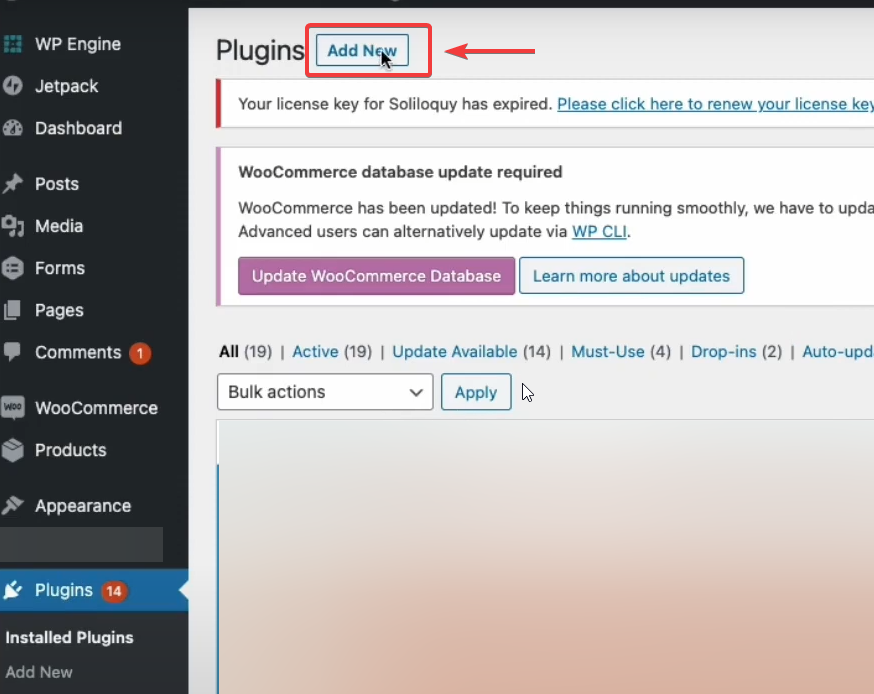
- Navigate to the plugins tab and then click on the Add New butt
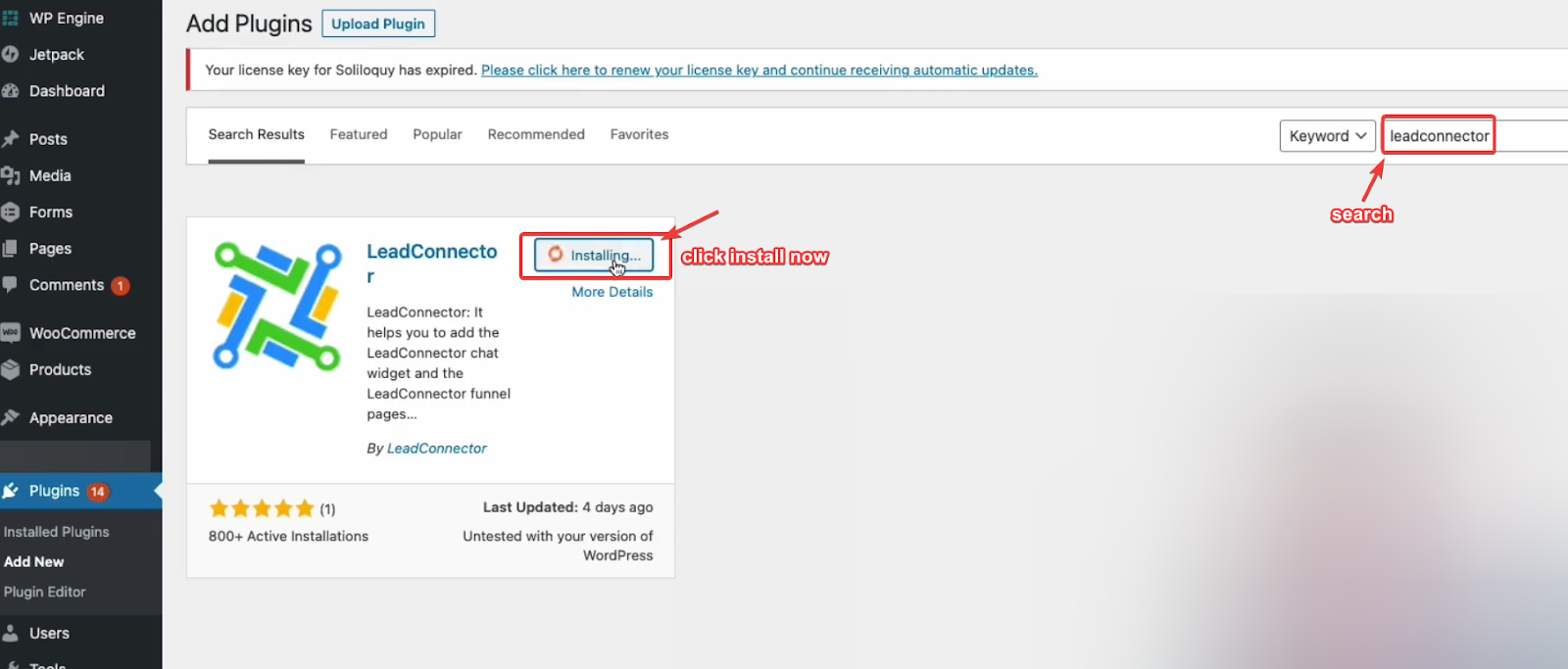
- Search for the LeadConnector application and click on Install Now.
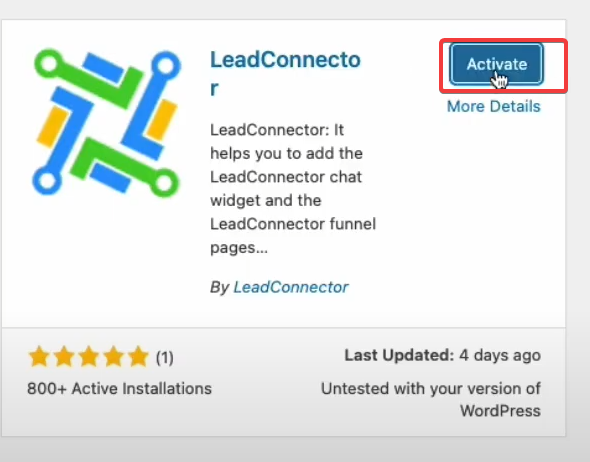
- Click on Activate when it displays after installation.
WordPress as Native HTML via the LeadConnector Plugin
- You can embed funnels directly into WordPress as Native HTML via the LeadConnector Plugin.
- The HTML embed allows for payment collection via Order Forms directly on WordPress sites, eliminating the security restrictions that some payment gateways impose when using iframe-embedded funnels. Additionally, the HTML embed enhances SEO by making the funnel content part of the page's HTML, allowing search engines to crawl and index it more effectively, improving website visibility and discoverability.
How to Use:
- Open the LeadConnector Plugin Dashboard in WordPress.
- Navigate to the Funnels tab and click "Add New Page."
- Select the desired funnel and step.
- Under Page Display Method, choose "Native HTML Embed."
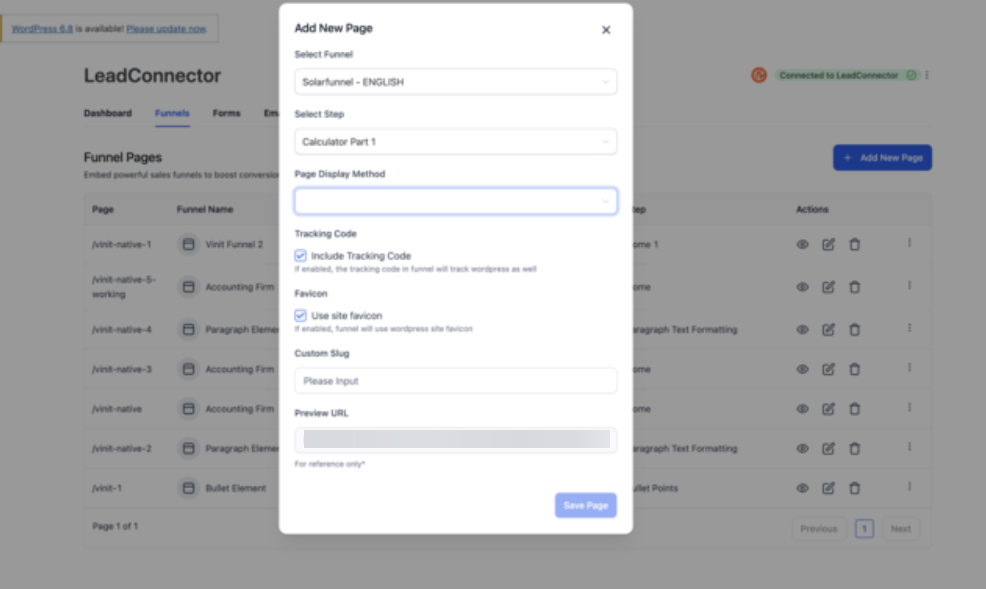
- Click "Save Page" to publish.
Note: This requires WordPress hosting with the LeadConnector Plugin installed and active. The Native HTML Embed functionality bypasses iframe limitations, making it a more versatile option for funnel integration.
Step 2: Copy and paste the API key from the system into WordPress.
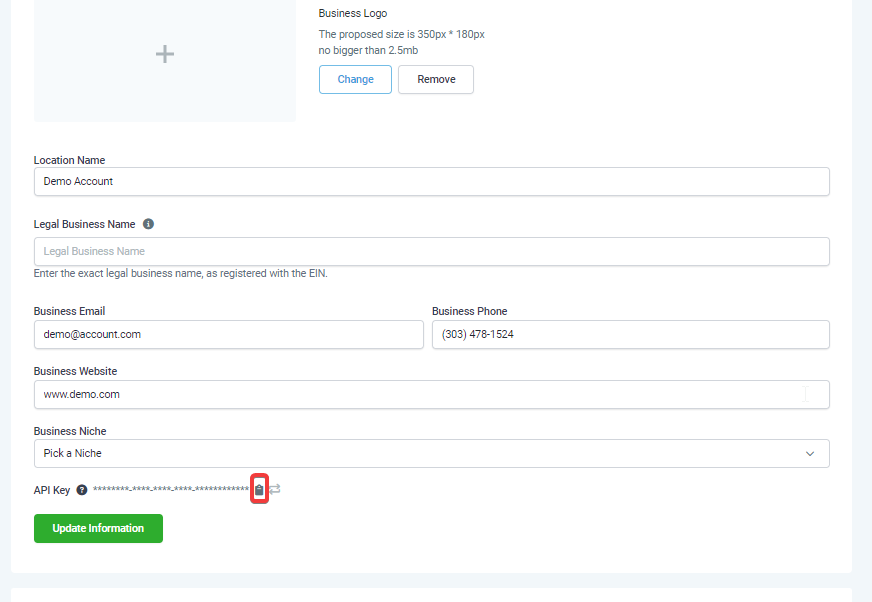
- Navigate back to the Settings, go to the Business profile, and copy the API Key.
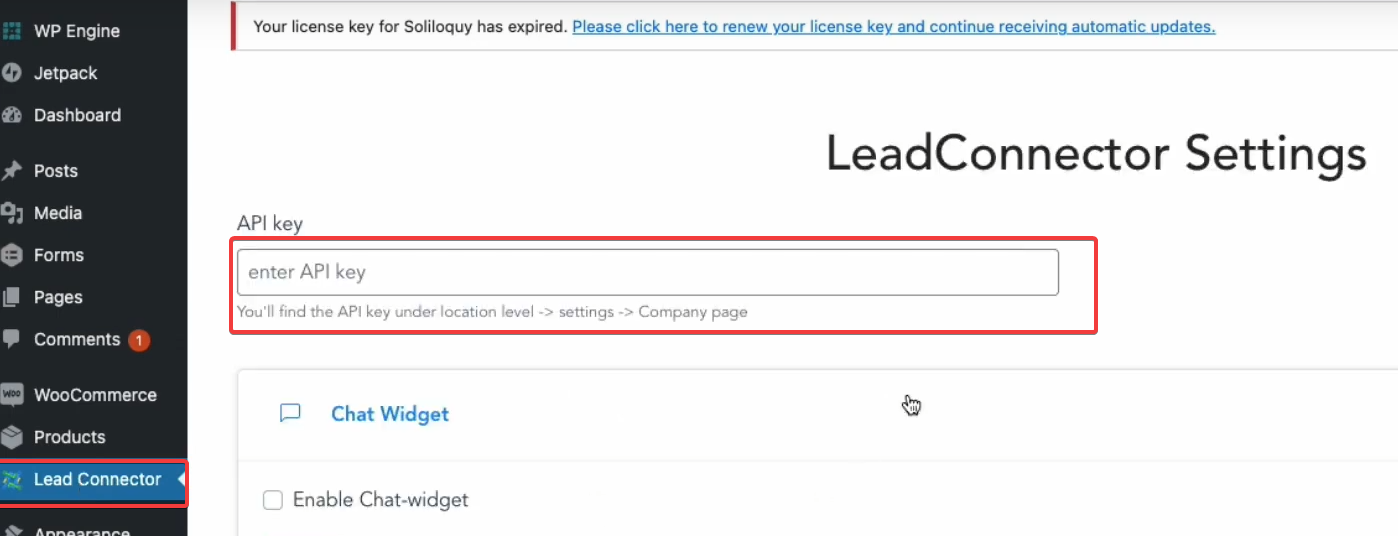
- Navigate back to the added Lead Connector tab
- Paste the API key into the correct field within the LeadConnector tab in WordPress and click save.
Step 3: Install the site on WordPress
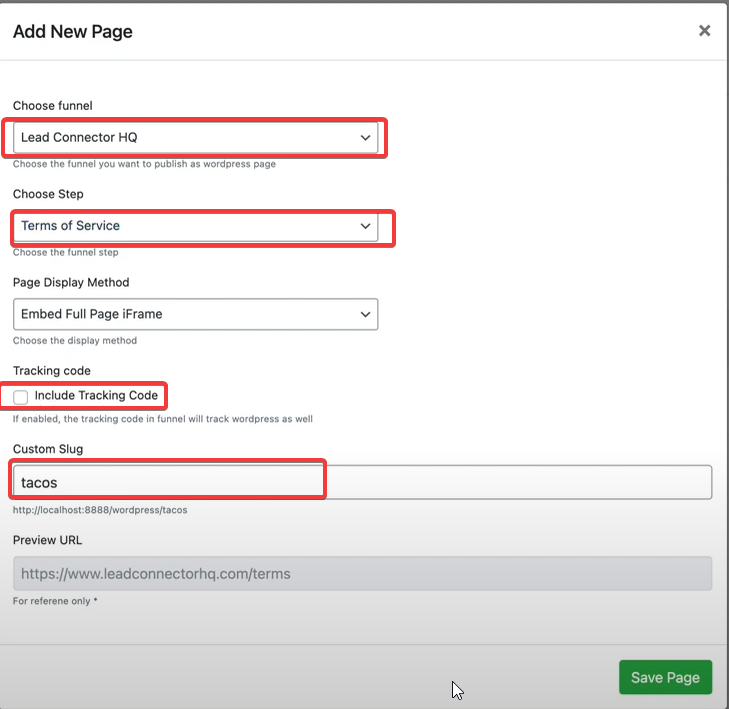
- Click Add New
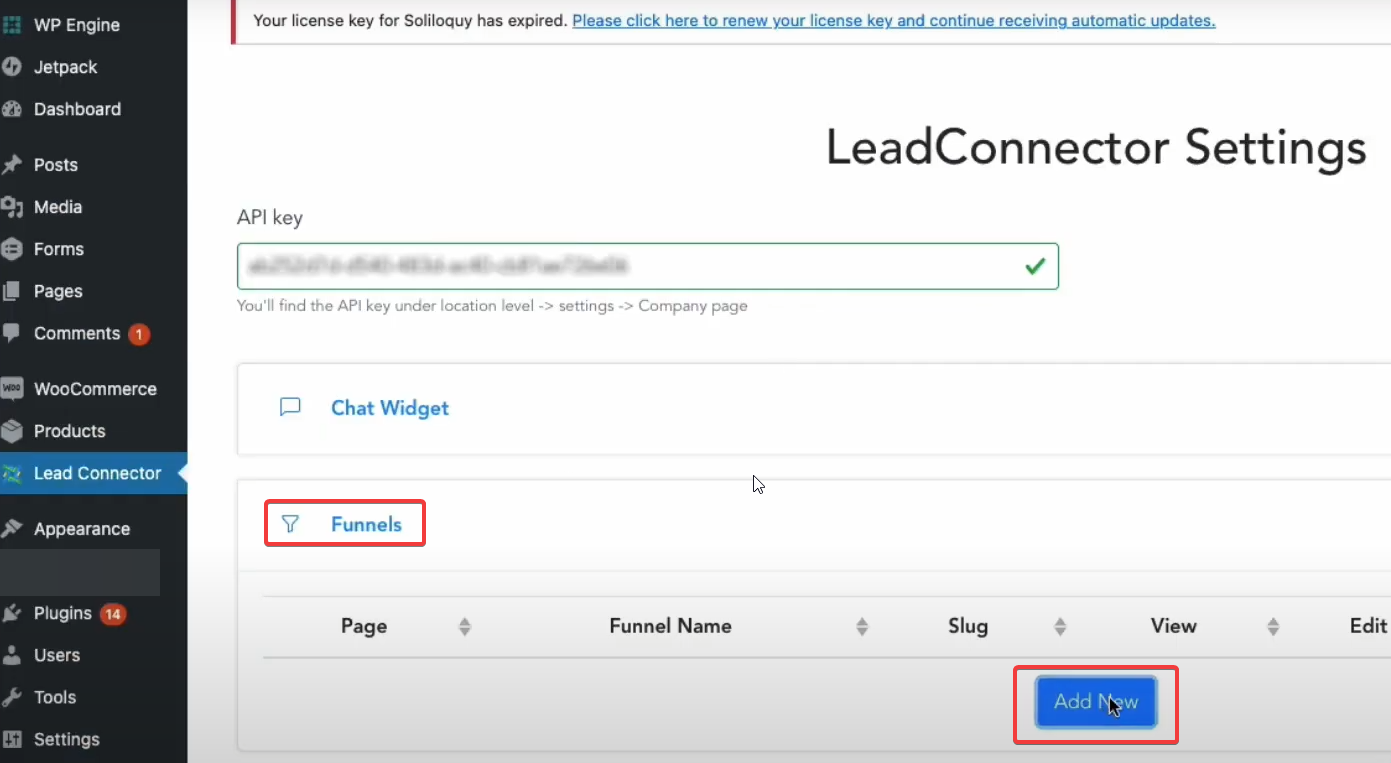
- Choose the funnel and the step
- The display method will be as Embed Full Page iFrame
- Enable tracking (If you have a tracking code in your funnel)
- Add a slug.
- Save Page
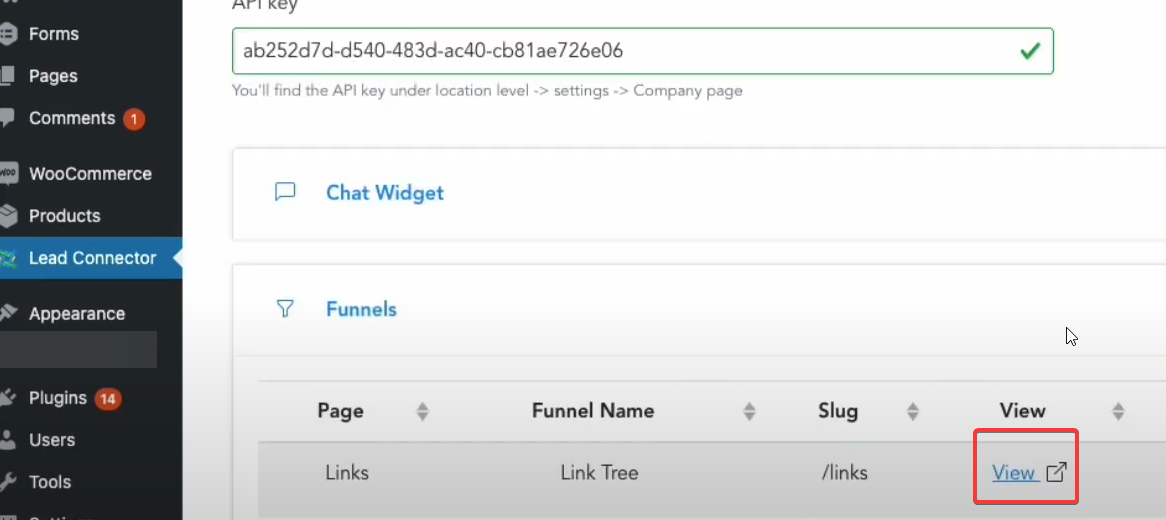
- View the added Funnel!
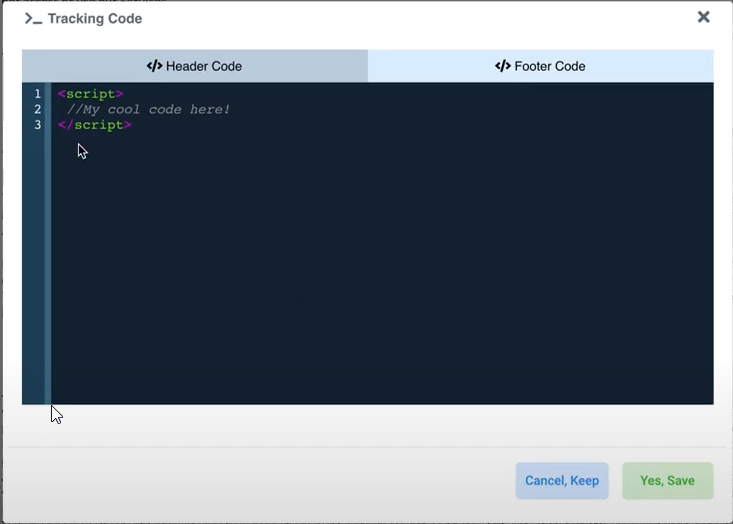
Tracking Code Details
Tracking code can be viewed from the funnel builder when editing a funnel within Settings > Tracking Code
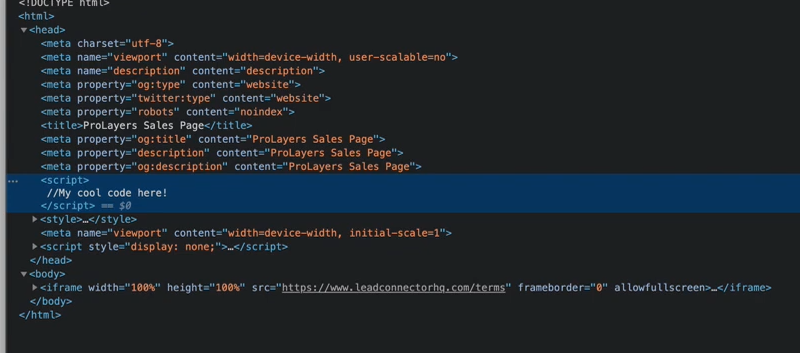
When using a funnel on WordPress, the tracking code is placed in the expected location, the website header.


If you are receiving the error message “Fingerprint is Missing” in a funnel page that’s connected using the plugin, there are 2 possible reasons and solutions:
Scenario 1 - Browser Settings:
If it is happening on a specific browser and working on a different browser, then it is happening because of some custom browser settings due to which the plugin cannot access the cookies.
Solution:
This issue is pretty rare. So for a quick fix, you can update the browser settings & enable cookies access for the plugin.
Scenario 2 - Using Different Domains:
If the issue occurs on all browsers, then your funnel domain is different from your WordPress website. You can use a different subdomain, but the domain needs to be the same for security reasons.
As per our current implementation, we are using an iFrame to render the funnel page inside WordPress. For payment, we need access to web browser cookies (storage), and the browser doesn't allow access over a cross-domain.
Solution:
Use the same domain but different subdomains of this domain for your funnel and the WordPress site.
For example, if your WordPress domain is www.mydomain.com, you can use a subdomain like site.mydomain.com with the funnel. That would fix the issue because both sites now use the same primary domain, mydomain.com.
Pro Tips
- Ensure Domain Consistency: To avoid issues with cookie access and cross-domain problems, use the same primary domain for both your WordPress site and the funnel. Different subdomains of the same primary domain (e.g., www.mydomain.com#####re...##### and site.mydomain.com) will work seamlessly.
- Enable Cookies for Plugin: If you encounter a “Fingerprint is Missing” error, check and update your browser settings to ensure cookies are enabled for the plugin. This is often the quickest solution for browser-specific issues.
- Use Tracking Code Wisely: If you have a tracking code in your funnel, make sure to enable tracking when setting up the funnel in WordPress. This ensures that all tracking functionalities are properly integrated and monitored.
FAQ
Q: How do I add the LeadConnector plugin to WordPress?
A: Navigate to the Plugins tab in WordPress, click “Add New,” search for the LeadConnector application, install it, and activate it.
Q: How does the Native HTML Embed improve payment collection on WordPress?
A: The Native HTML Embed eliminates the security restrictions that some payment gateways impose on iFrame-embedded funnels, allowing you to collect payments via Order Forms directly on your WordPress site without any limitations.
Q: How does the Native HTML Embed impact SEO for my website?
A: By embedding the funnel as Native HTML, the content becomes part of the page’s HTML, making it easier for search engines to crawl and index it. This improves your website's SEO visibility and discoverability, helping attract more traffic.
Q: How do I connect the API key from to WordPress?
A: Copy the API key from settings in your Business Profile, then paste it into the LeadConnector tab in WordPress and save.
Q: What should I do if I encounter the “Fingerprint is Missing” error?
A: Check if the issue is browser-specific and adjust browser settings to enable cookies. If the problem persists across browsers, ensure that your funnel and WordPress site use the same primary domain or subdomains of that domain.
Q: How do I set up and view a funnel on WordPress?
A: In WordPress, click “Add New,” choose the funnel and step, set the display method to Embed Full Page iFrame, enable tracking if applicable, add a slug, and save the page. You can then view the added funnel on your site.
Q: Where can I find the tracking code details for my funnel?
A: You can find the tracking code in the funnel builder under Settings > Tracking Code when editing your funnel. Ensure the tracking code is placed in the website header for accurate tracking.
Q: What is the difference between the iframe and Native HTML Embed?
A: The iframe method uses an embedded frame, while Native HTML Embed directly integrates funnel content into the page’s HTML, improving SEO and functionality.