
WordPress Plugin and Theme Management
The WordPress Plugin and Theme Management feature provides you with a comprehensive overview of all the plugins and themes installed on your WordPress site. This feature allows you to:
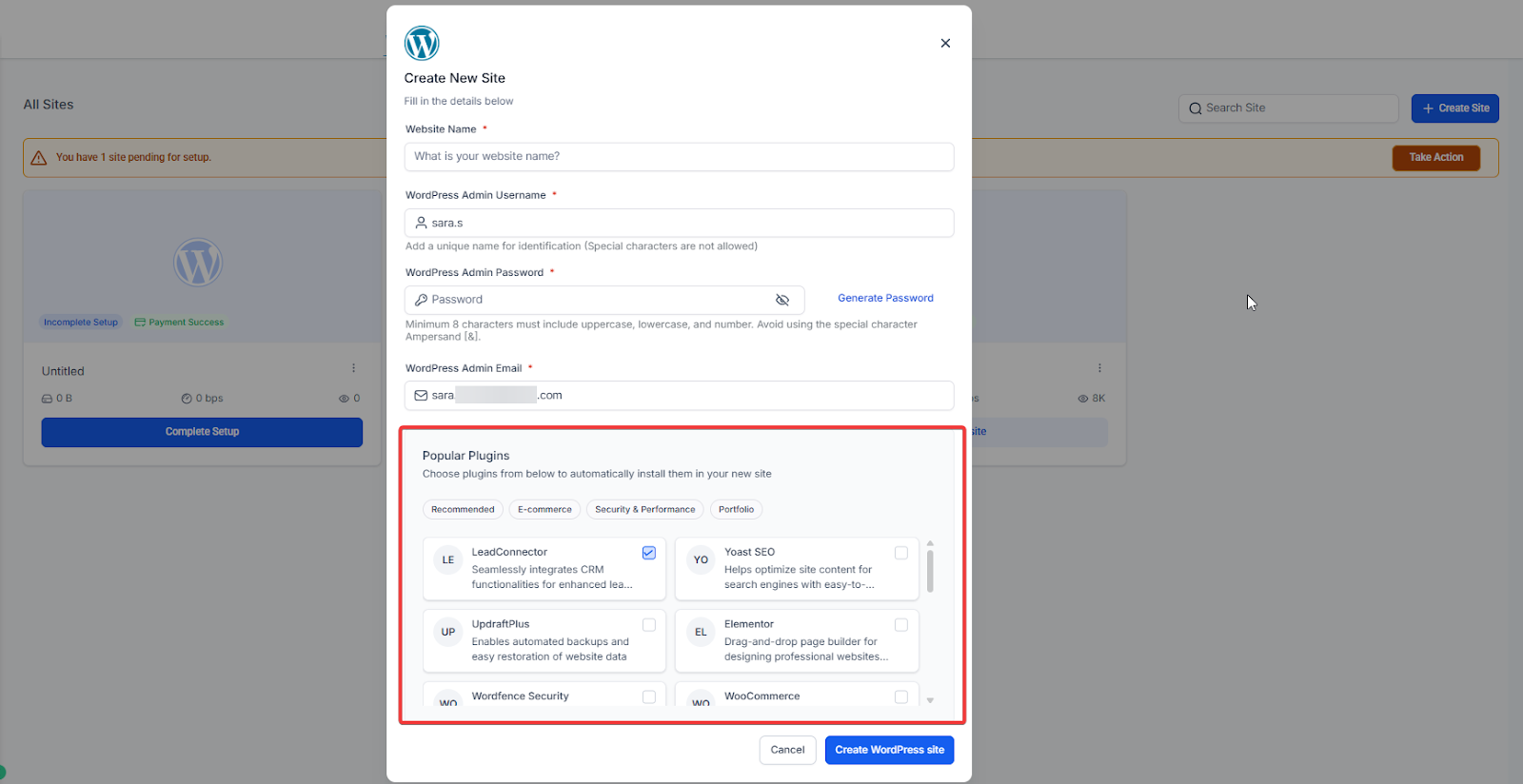
- Adding plugins during site creation
- View all installed plugins and themes
- Activate or deactivate a plugin or theme
- Delete a plugin or theme
- Update a plugin or theme to the latest version
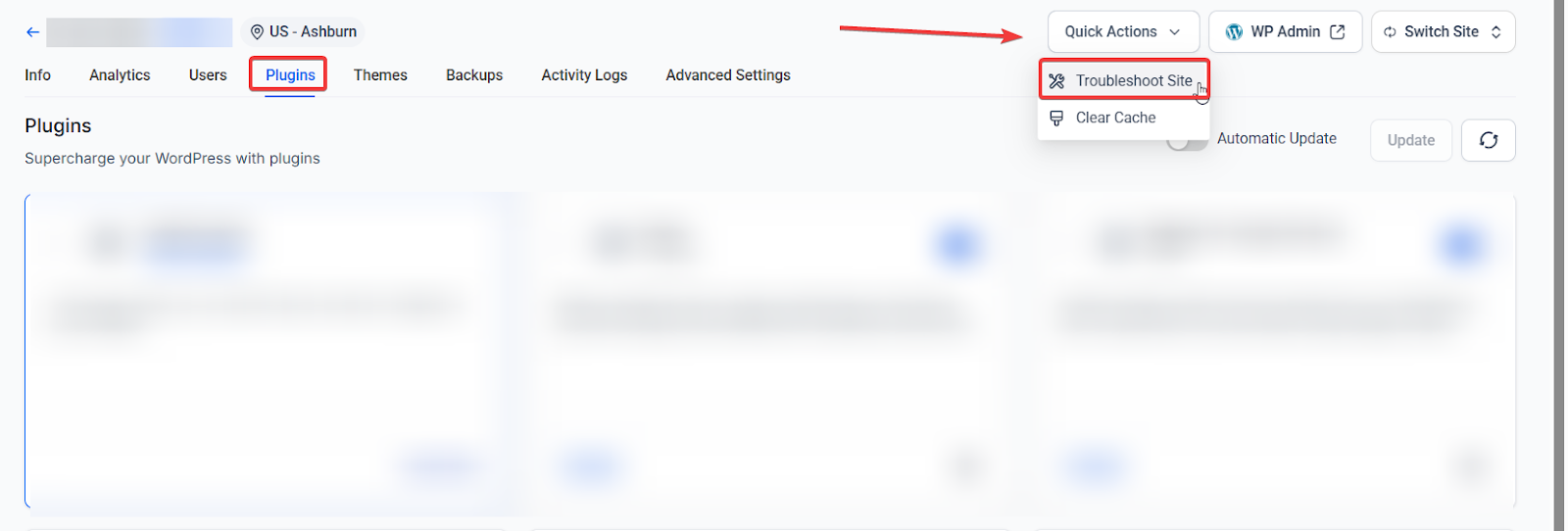
-Troubleshoot Plugins
Adding Popular Plugins on WordPress Site Setup
You can select from a curated list of popular WordPress plugins during the site creation process, making it quicker and easier to set up your site with essential tools right from the start.
You can choose only to add the plugins you want and manage, deactivate, or remove them later.
Viewing Installed Plugins and Themes
Navigation
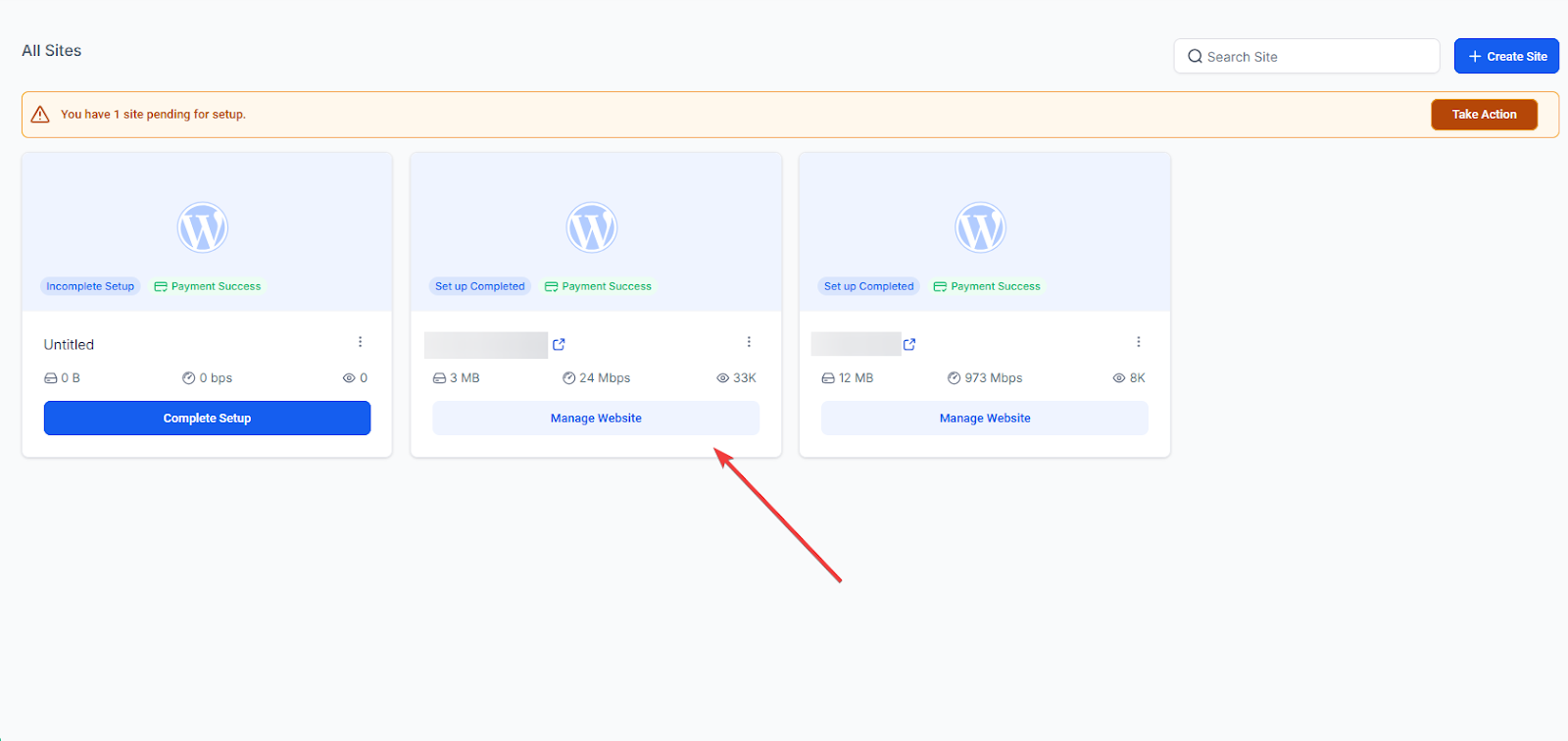
1. Log in to your Account.
2. Navigate to Sites -> WordPress -> Plugins/Themes.
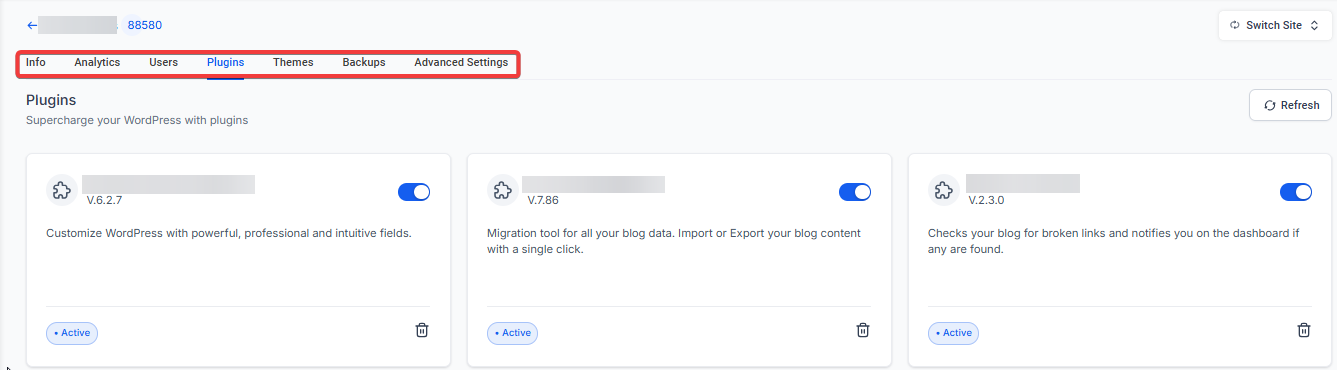
The current version of each plugin or theme is displayed in the "Installed Version" column. If an update is available, the latest version will also be shown in this column for all active plugins and themes.
Troubleshooting
WordPress Plugin Troubleshooter is an in-dashboard tool designed to help users identify and resolve plugin conflicts without requiring support intervention.
How it works: It automatically scans all active plugins, iteratively disables/enables them to pinpoint the cause of site issues, and offers a step-by-step guided interface powered by Detective Bandit. Once the culprit plugin is identified, it can be deactivated with a single click.
This tool works even when the site is partially broken, including scenarios like the White Screen of Death (WSOD), making it a valuable resource for maintaining site stability.
Updating Plugins and Themes:
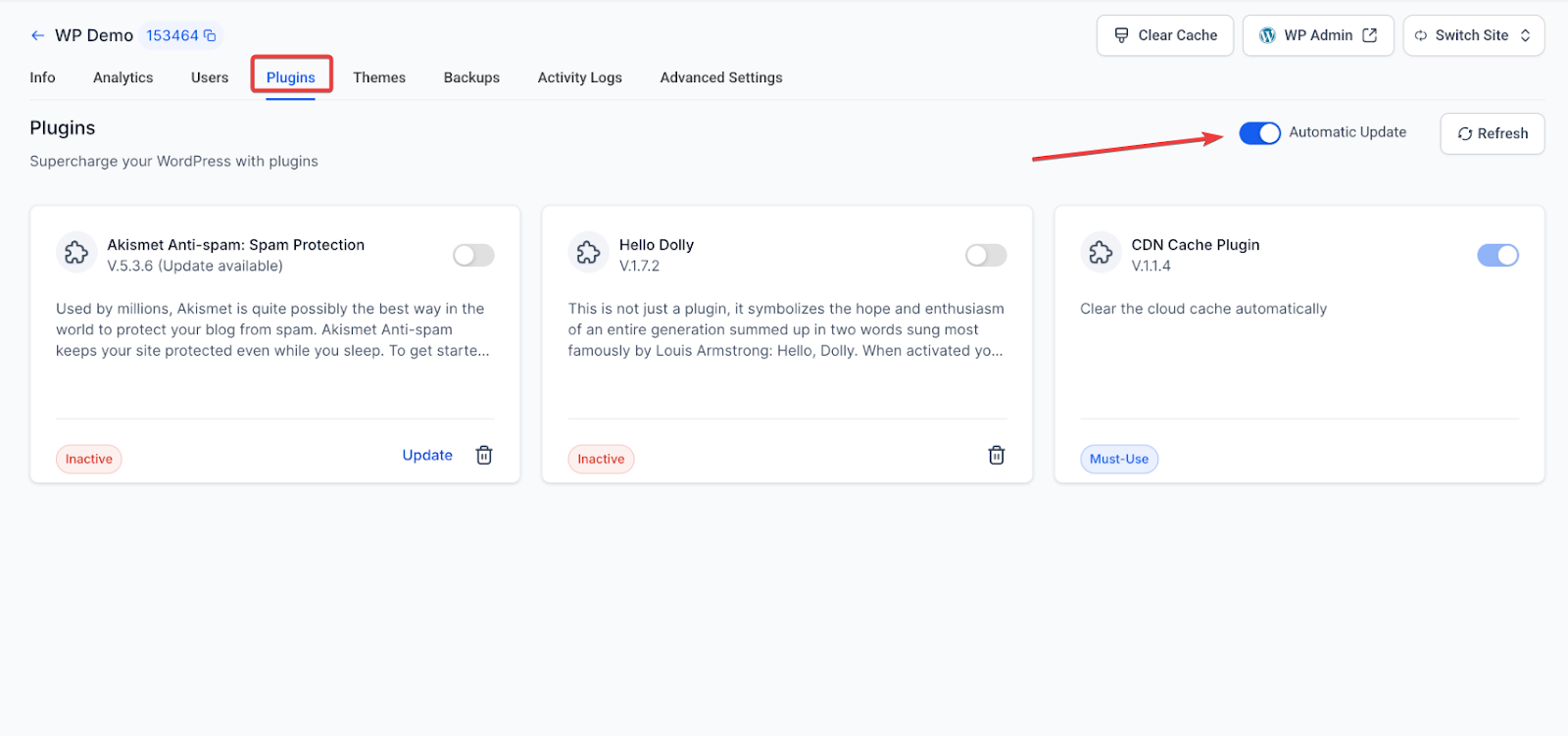
- Auto Update Plugins: Control automatic updates for each plugin directly from the Auto Update Settings panel.
Update Themes: Set up automatic updates for installed themes within their specific settings.
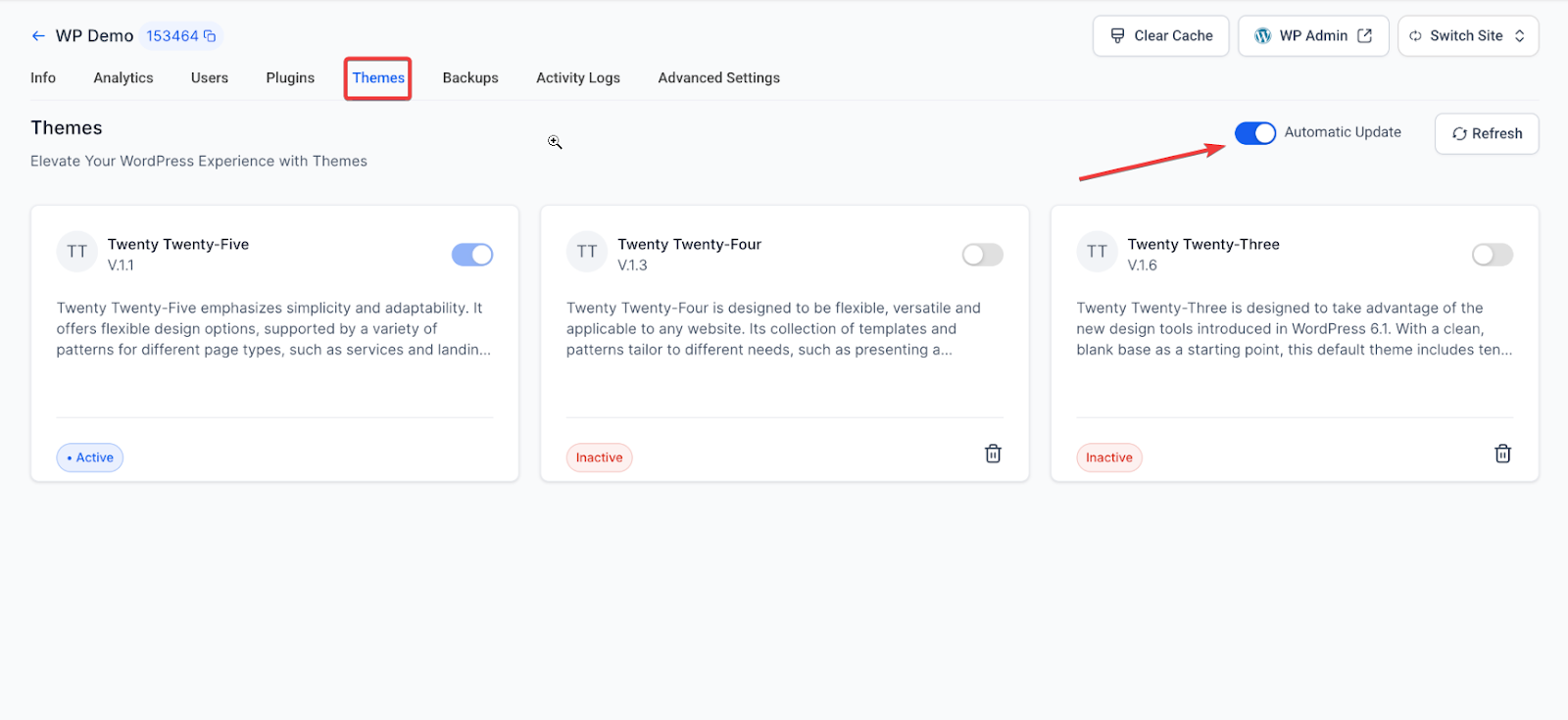
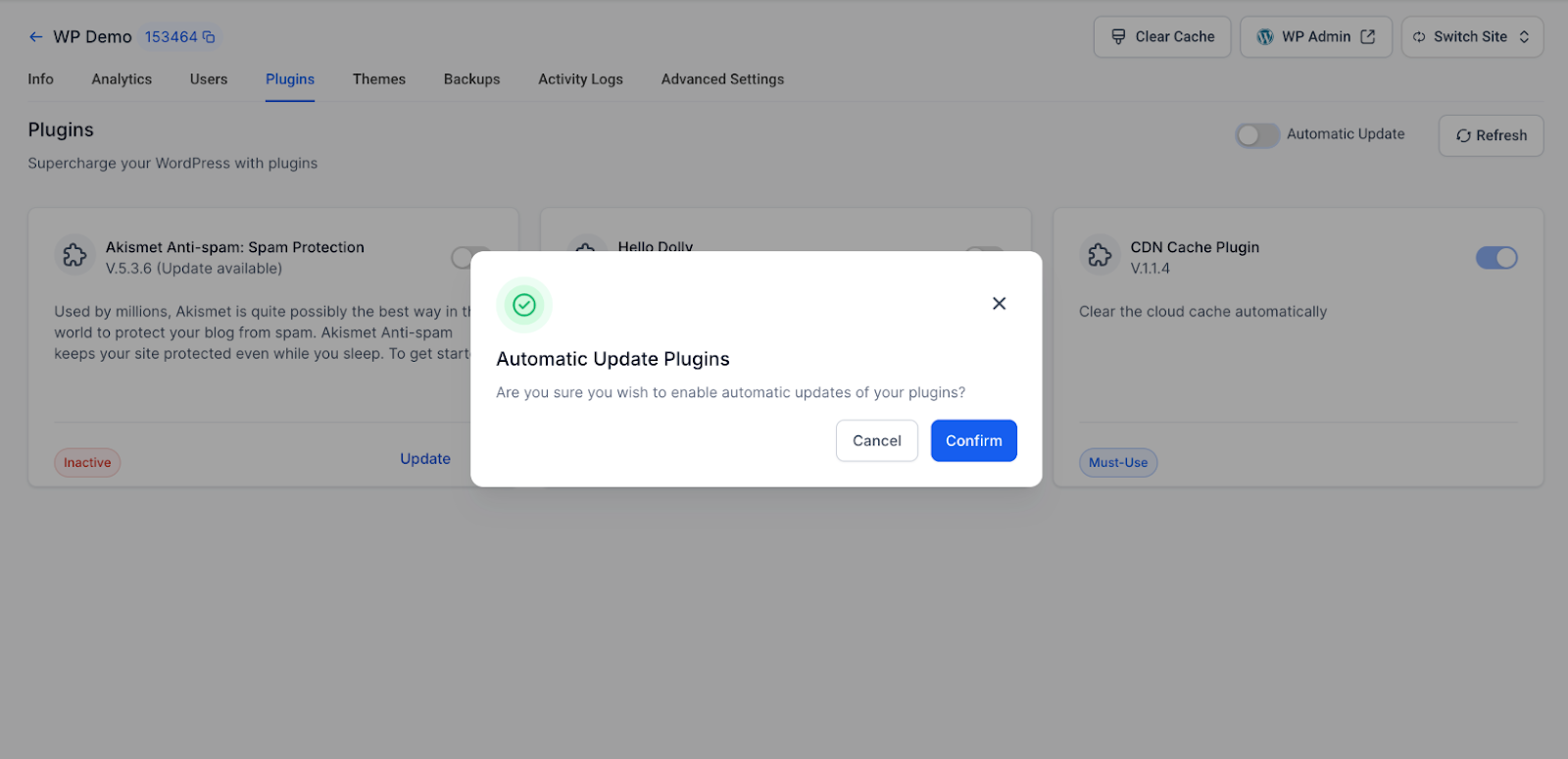
You can update active plugins and themes to the latest version available. Additionally, you can choose to activate, deactivate, or delete a plugin by clicking the "Change Status" button to proceed.
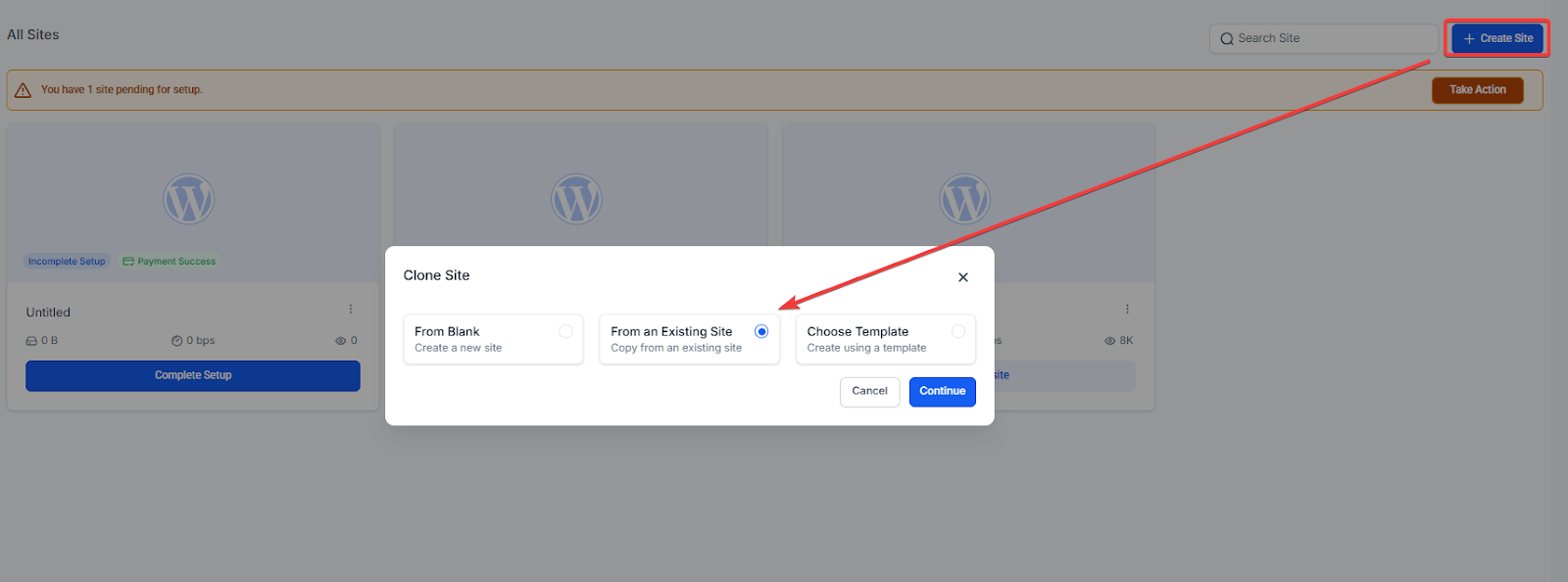
Note: You have the ability to clone your WordPress Site while maintaining all content, themes, plugins, and configurations. Cloning permissions are role-based, ensuring only authorized users can access this feature.
List of Blocked WordPress Plug-ins.
Our ongoing goal is to optimize your WordPress sites for enhanced reliability, performance, and security. Unfortunately, some plugins either duplicate our built-in features or are not compatible with our environment.
When our system administrators identify any issues associated with a plugin, we classify it as a restricted plugin. This is because such plugins could potentially cause performance problems or disrupt the smooth operation of your website.
Below, you'll find a list of WordPress plugins that are currently restricted on our platform. We continuously update this list as we encounter issues with plugins, ensuring a safer and more stable environment for your website.
| S.NO | Banned Plugins |
| 1 | allow-php-execute |
| 2 | amazon-ebay-integration |
| 3 | backupbuddy |
| 4 | backwpup |
| 5 | backwpup-pro |
| 6 | bwp-minify |
| 7 | cache-enabler |
| 8 | codistoconnect |
| 9 | duplicator-pro |
| 10 | dynamic-widgets |
| 11 | exec-php |
| 12 | inactive-user-deleter |
| 13 | jch-optimize |
| 14 | litespeed-cache |
| 15 | login-wall |
| 16 | p3 |
| 17 | p3-profiler |
| 18 | pagefrog |
| 19 | rvg-optimize-database |
| 20 | sg-cachepress |
| 21 | snapshot |
| 22 | updraft |
| 23 | wonderm00ns-simple-facebook-open-graph-tags |
| 24 | woocommerce-amazon-ebay-integration |
| 25 | wordpress-gzip-compression |
| 26 | wordpress-popular-posts |
| 27 | wp-rss-multi-importer |
| 28 | wp-db-backup |
| 29 | wp-db-backup-made |
| 30 | adminer |
| 31 | async-google-analytics |
| 32 | backup |
| 33 | backup-scheduler |
| 34 | backupwordpress |
| 35 | bad-behavior |
| 36 | broken-link-checker |
| 37 | content-molecules |
| 38 | contextual-related-posts |
| 39 | duplicator |
| 40 | dynamic-related-posts |
| 41 | ezpz-one-click-backup |
| 42 | file-commander |
| 43 | fuzzy-seo-booster |
| 44 | gd-system-plugin |
| 45 | gd-system-plugin.php |
| 46 | google-xml-sitemaps-with-multisite-support |
| 47 | hc-custom-wp-admin-url |
| 48 | hcs.php |
| 49 | hello.php |
| 50 | jr-referrer |
| 51 | jumpple |
| 52 | missed-schedule |
| 53 | no-revisions |
| 54 | ozh-who-sees-ads |
| 55 | pipdig-power-pack |
| 56 | portable-phpmyadmin |
| 57 | quick-cache |
| 58 | quick-cache-pro |
| 59 | recommend-a-friend |
| 60 | seo-alrp |
| 61 | si-captcha-for-wordpress |
| 62 | similar-posts |
| 63 | spamreferrerblock |
| 64 | ssclassic |
| 65 | sspro |
| 66 | super-post |
| 67 | superslider |
| 68 | sweetcaptcha-revolutionary-free-captcha-service |
| 69 | text-passwords |
| 70 | the-codetree-backup |
| 71 | toolspack |
| 72 | tweet-blender |
| 73 | versionpress |
| 74 | w3-total-cache |
| 75 | wp-cache |
| 76 | wp-database-optimizer |
| 77 | wp-dbmanager |
| 78 | wp-engine-snapshot |
| 79 | wp-file-cache |
| 80 | wp-phpmyadmin |
| 81 | wp-postviews |
| 82 | wp-slimstat |
| 83 | wp-super-cache |
| 84 | wp-symposium-alerts |
| 85 | wpengine-migrate |
| 86 | wpengine-migrate.tar.gz |
| 87 | wpengine-migrate.zip |
| 88 | wpengine-snapshot |
| 89 | wpengine-snapshot.tar.gz |
| 90 | wponlinebackup |
| 91 | Really Simple SSL |
FAQ's:
1. Can I update the Plugin and Theme to the Version of my choice?
No. The updation happens to the Latest version available.
2. Can I Downgrade the Version of the Plugin or Theme?
No. The plugins and themes cannot be restored to the older version.
3. Can I manage the Plugins and Themes from WordPress Dashboard directly as well?
Yes. you can continue to handle plugins and themes through WordPress.
4. How do I select plugins during setup?
During the site creation process, on the "Popular Plugins" step, simply select the plugins you want to install.
5. Are the selected plugins installed automatically during site setup?
Yes, the selected plugins are automatically installed and activated during the site creation process.