
How to Install and Configure the Plugin for WordPress
In this guide, we'll walk you through the process of installing and configuring the plugin that integrates your WordPress website with the app management system. This allows you to seamlessly connect your WordPress site with your app to enhance functionality, whether it’s embedding funnels, managing chat widgets, or configuring other settings.
Step 1: Install the Plugin
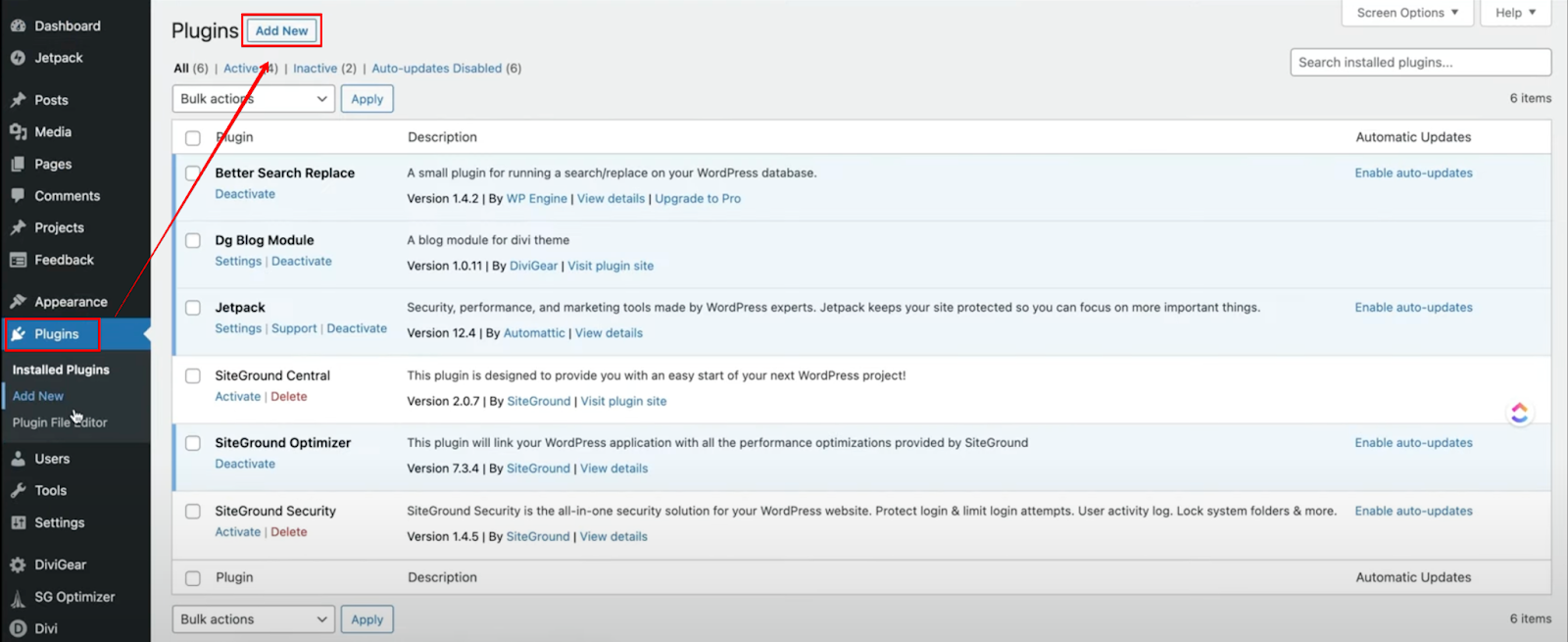
1- Log into your WordPress Website & Navigate to Plugins:
Begin by accessing the backend of your WordPress site. On the left sidebar, go to the Plugins section and click on Add New.
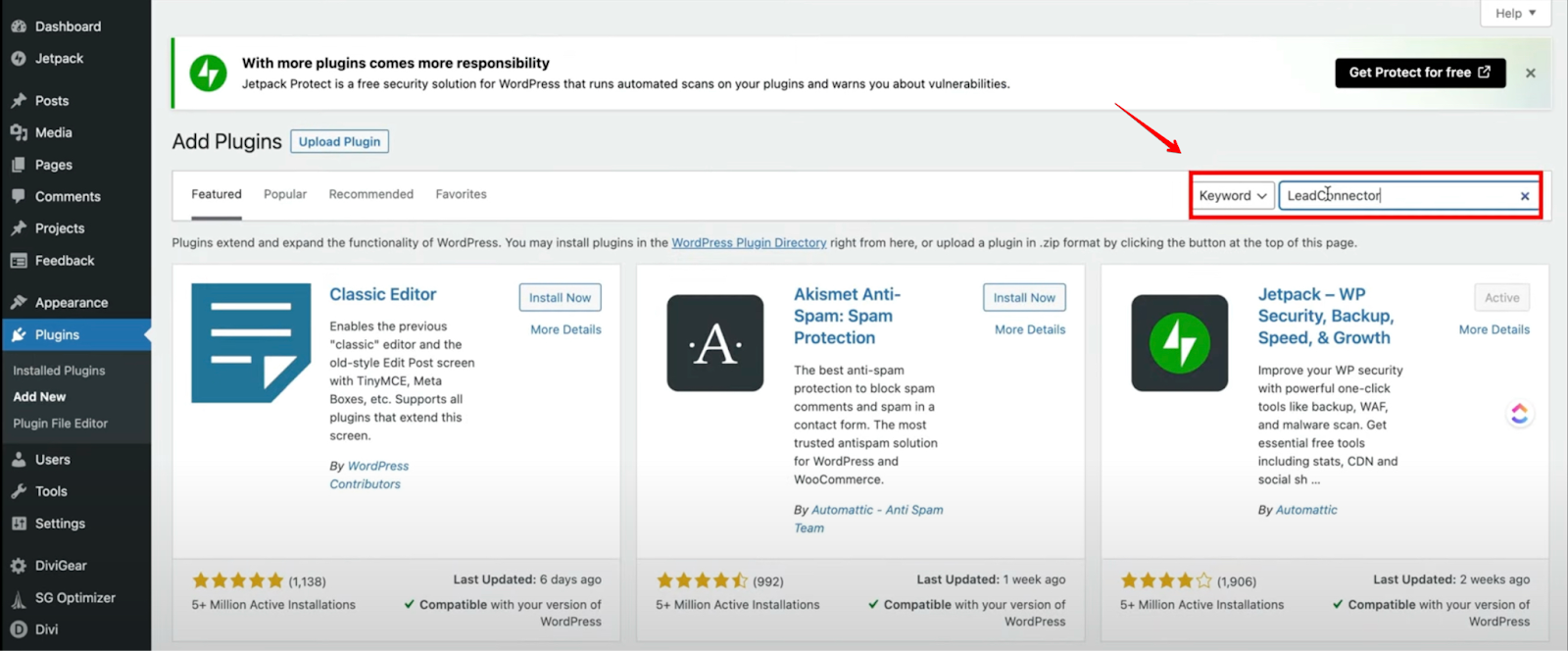
2- Search for the Plugin:
In the search bar at the top right, type “Lead Connector.” This will bring up the official plugin.
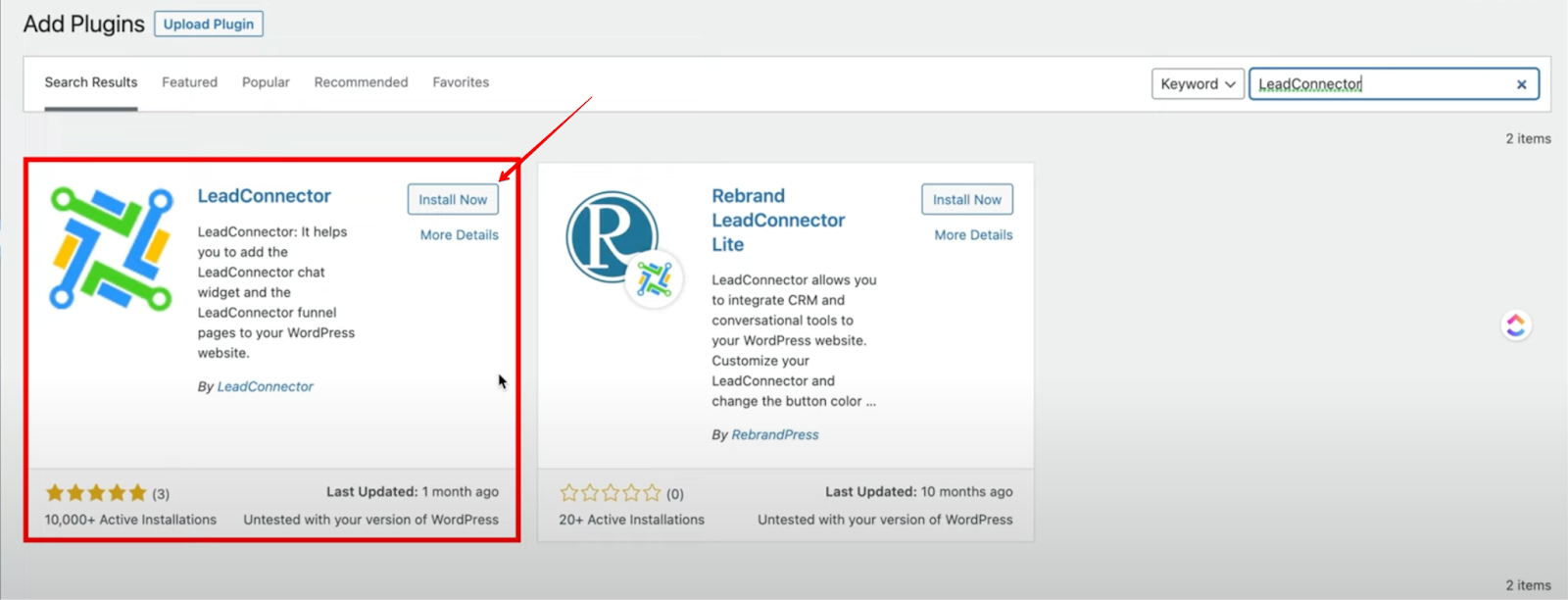
3- Install the Plugin:
Click Install Now and allow the plugin to be installed.
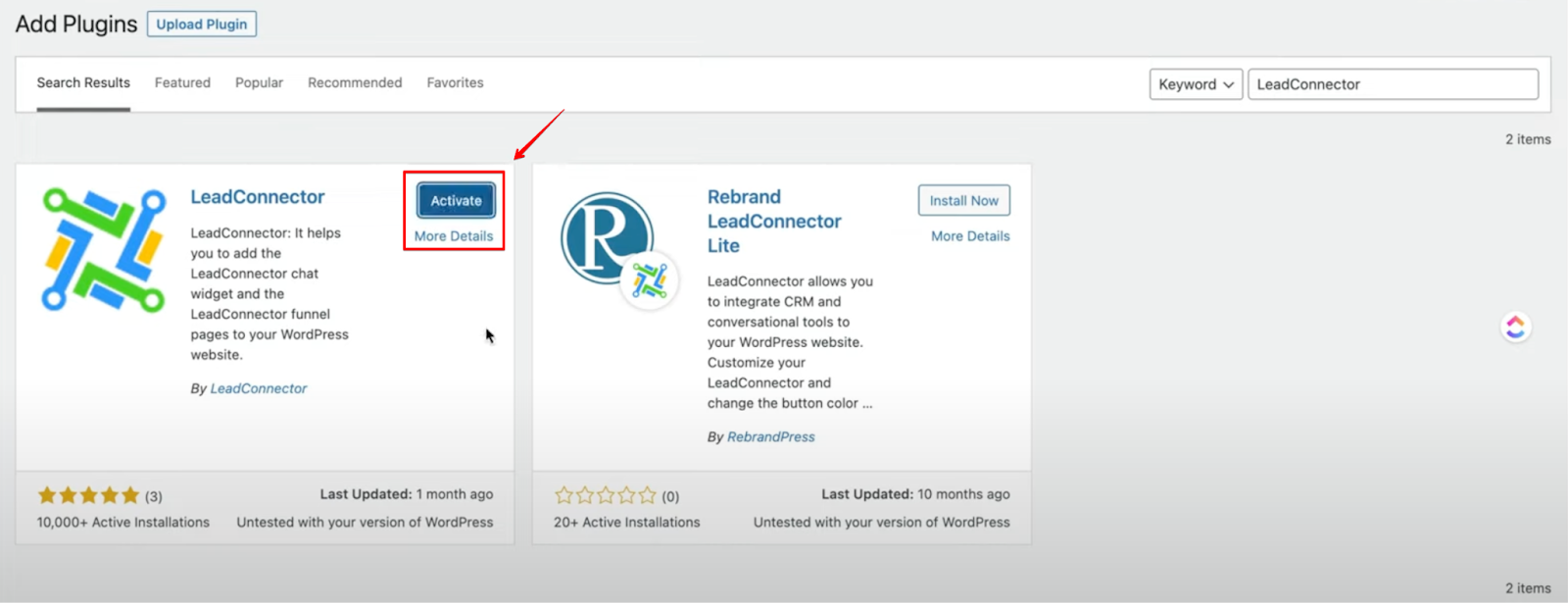
4- Activate the Plugin:
Once the installation is complete, click Activate to enable the plugin on your website.
Step 2: Configure the Plugin
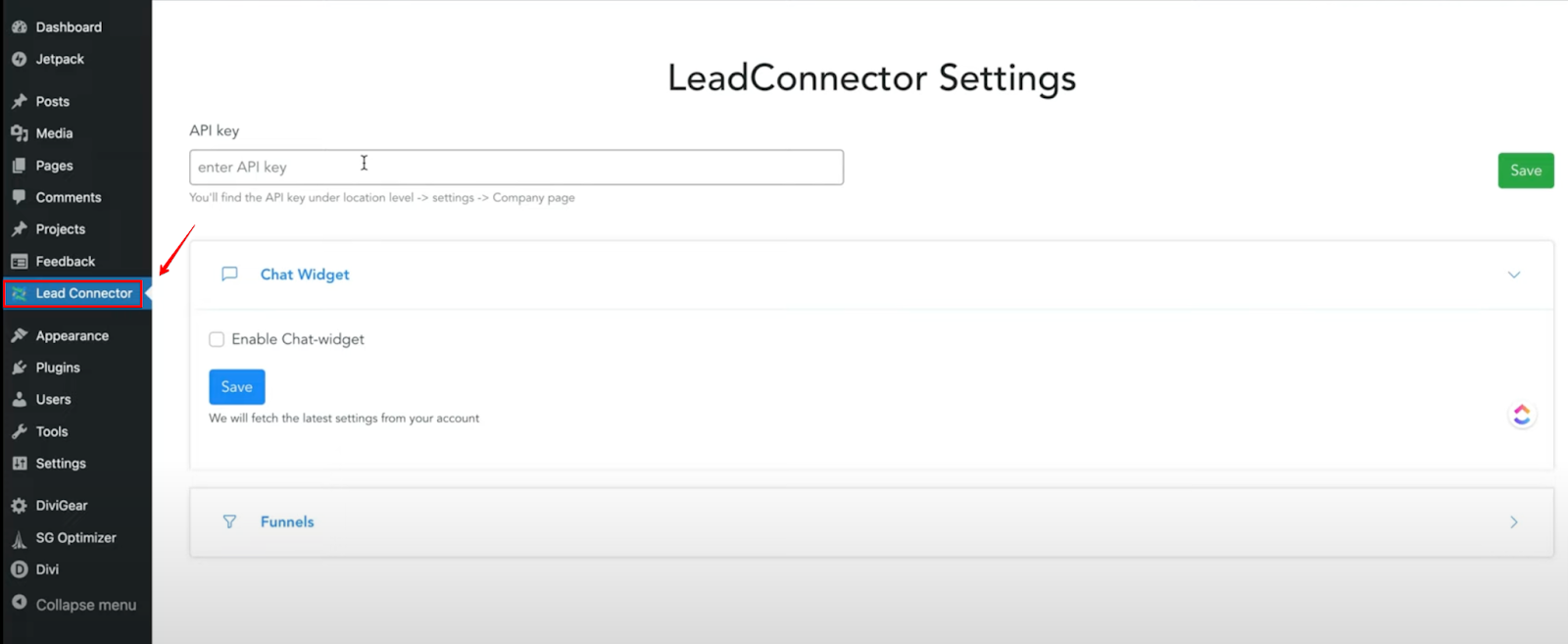
1- Go to Lead Connector Settings:
In the left sidebar, you’ll see the Lead Connector option. Click on it to start the configuration.
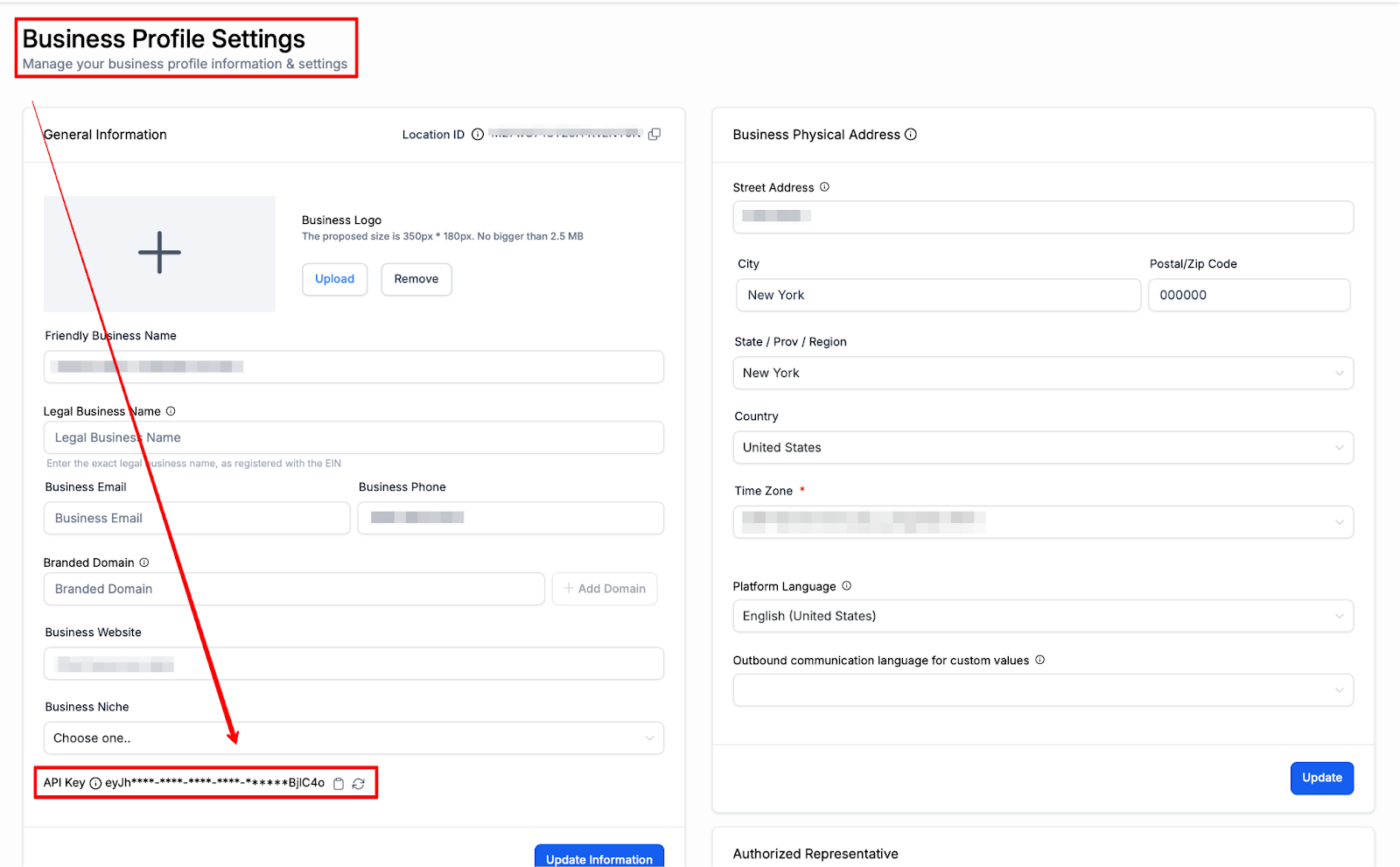
2- Obtain Your API Key:
Log into your account, go to Settings, and select Business Profile. Scroll to the bottom to find your API key.
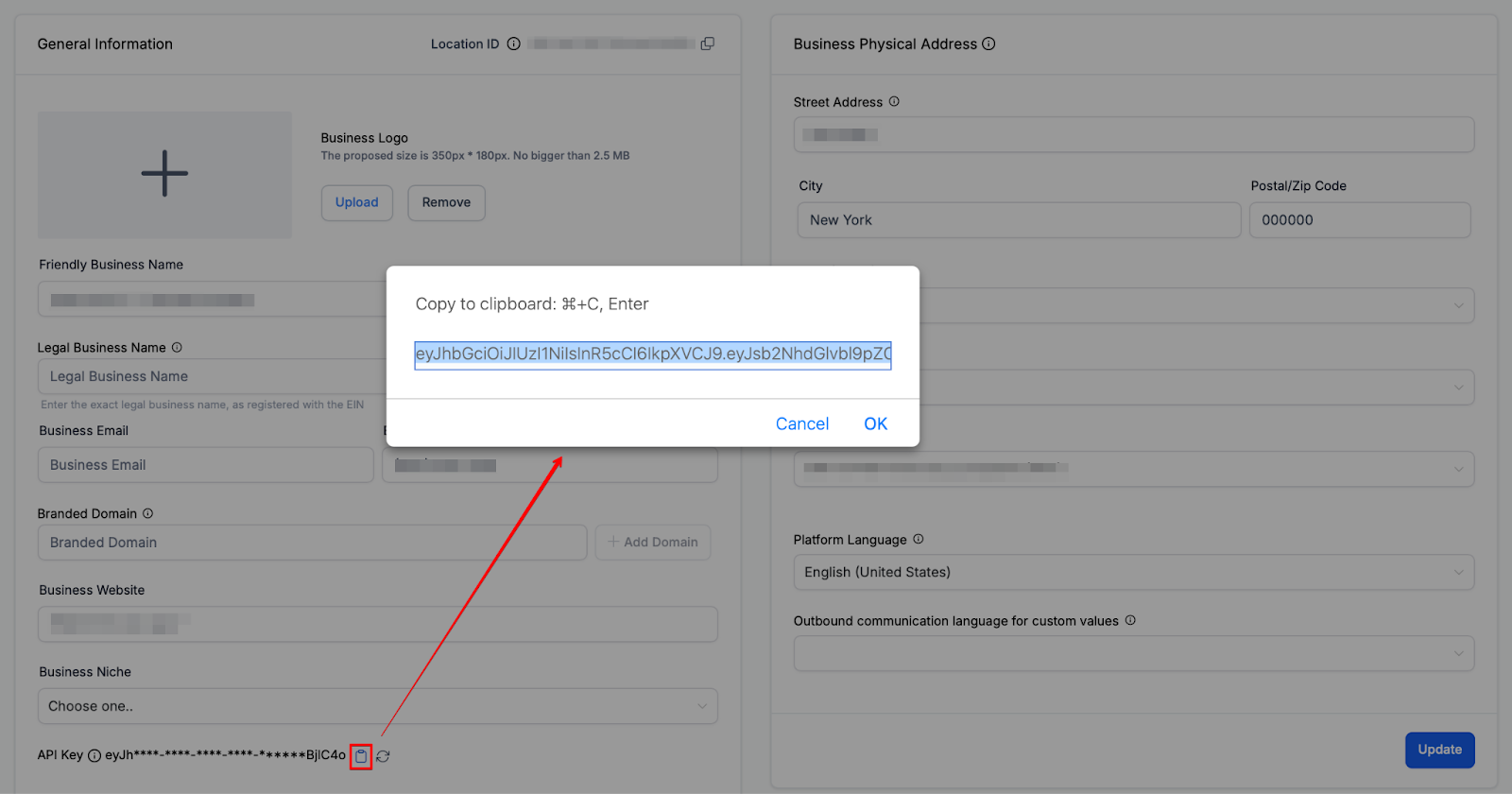
3- Copy the API Key:
Click the copy icon next to the API key and go back to the WordPress plugin settings.
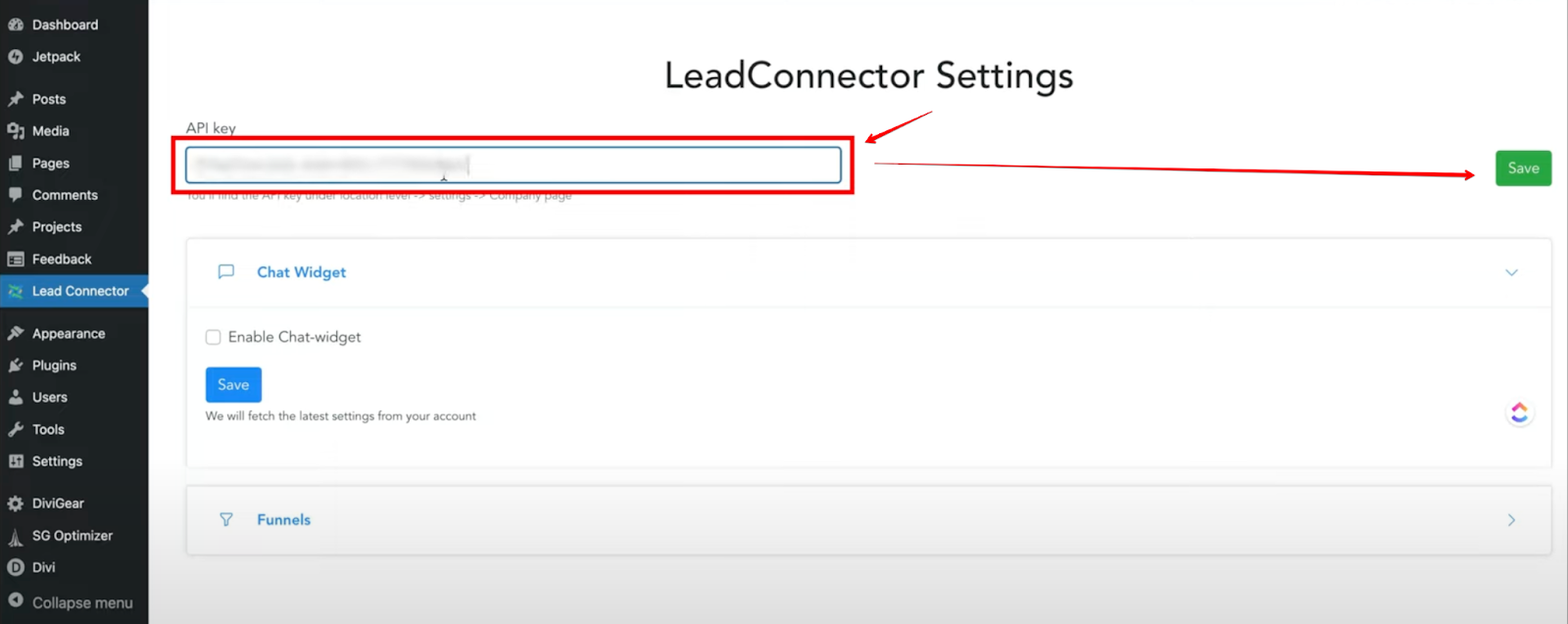
4- Paste the API Key:
Paste the API key into the Lead Connector settings and click Save to establish the connection.
Step 3: Enable the Chat Widget
1- Enable Chat:
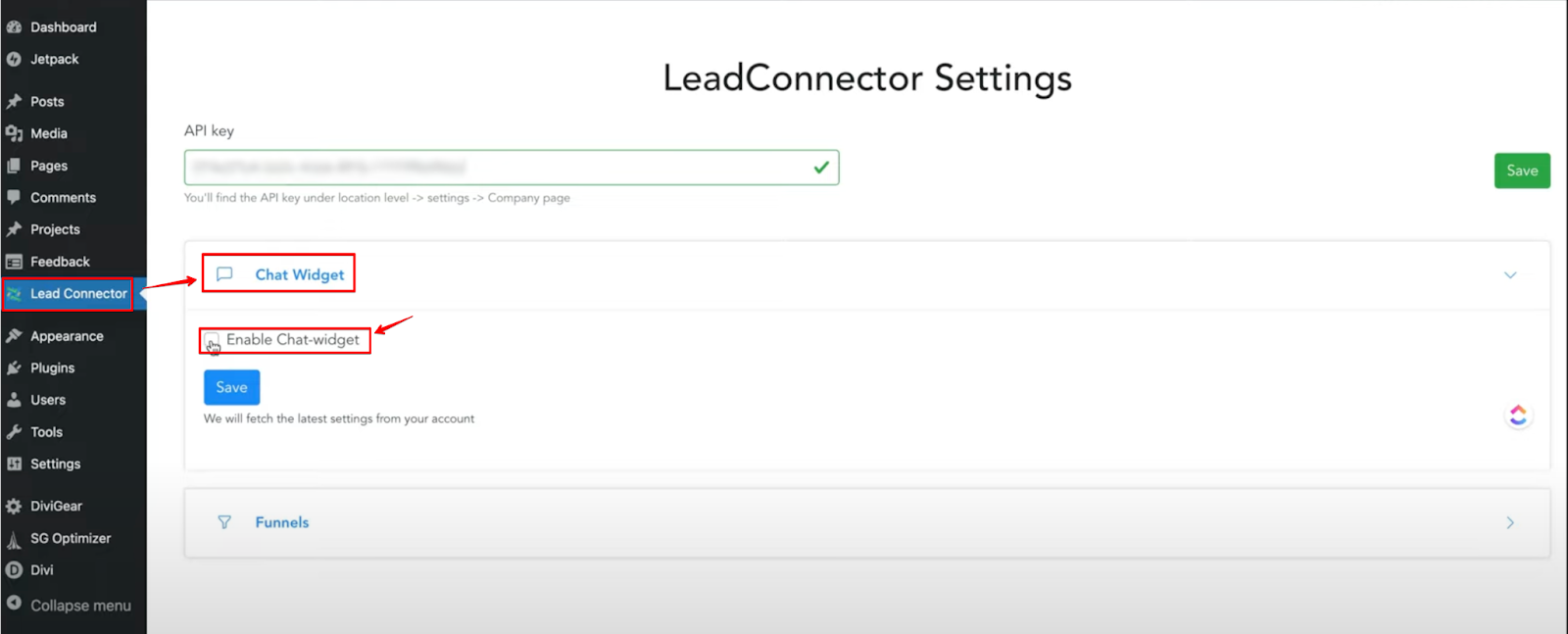
In the Lead Connector settings, locate the Chat Widget option and enable it.
2- Customize the Chat Widget:
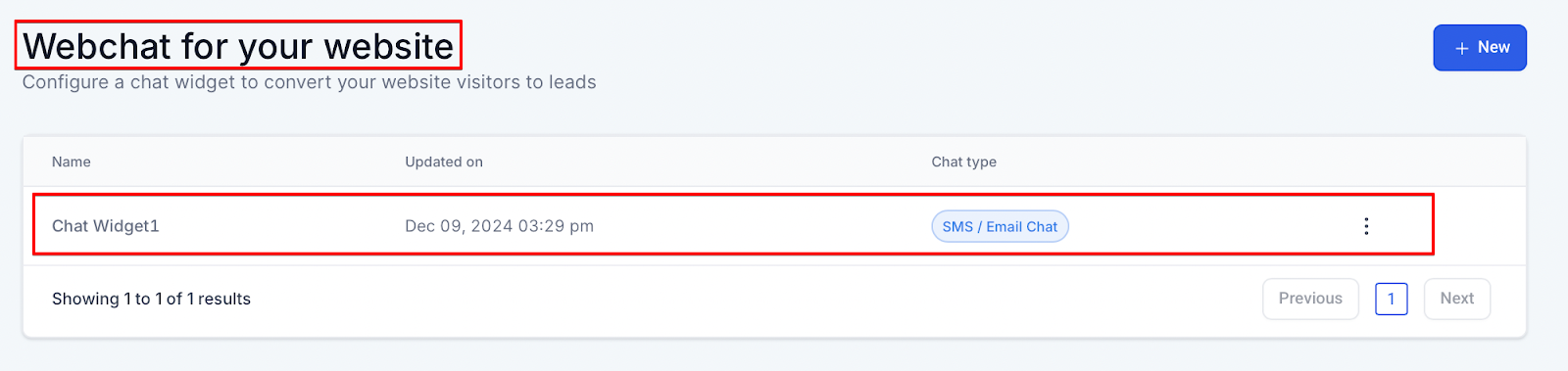
Go back to the Chat Widget settings in your app, configure the design, update the language, and modify the widget appearance (like changing colors or pictures).
3- Save Changes:
Once you're happy with the settings, click Save. Your chat widget is now ready to appear on your website.
Step 4: Add a Funnel Page
1- Go to the Funnels Section:
In your app management system, navigate to the Funnels section to select the funnel you want to embed.
2- Select the Funnel:
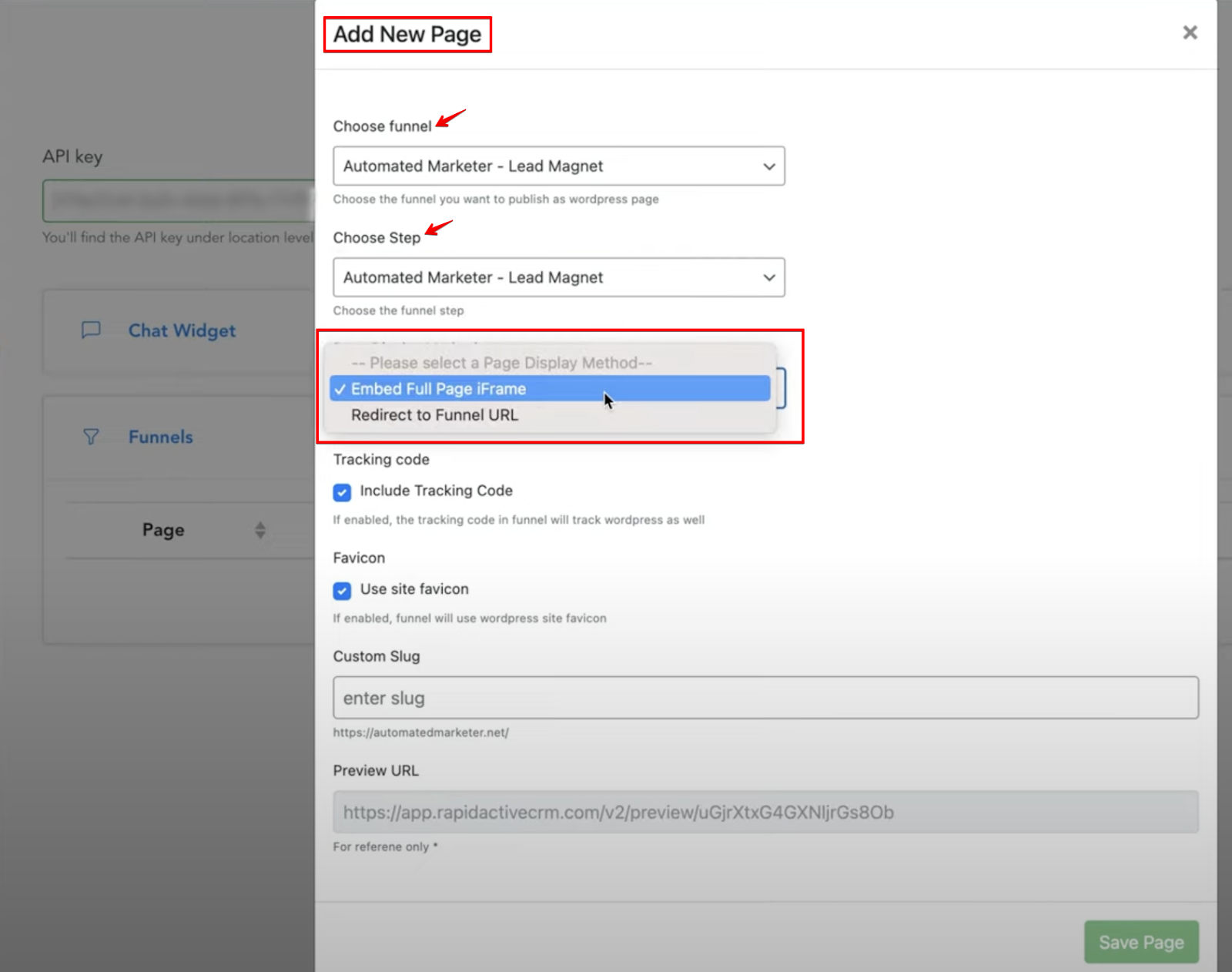
Choose the funnel you wish to add to your WordPress site and select the page (e.g., Lead Magnet) to embed.
3- Embed the Funnel:
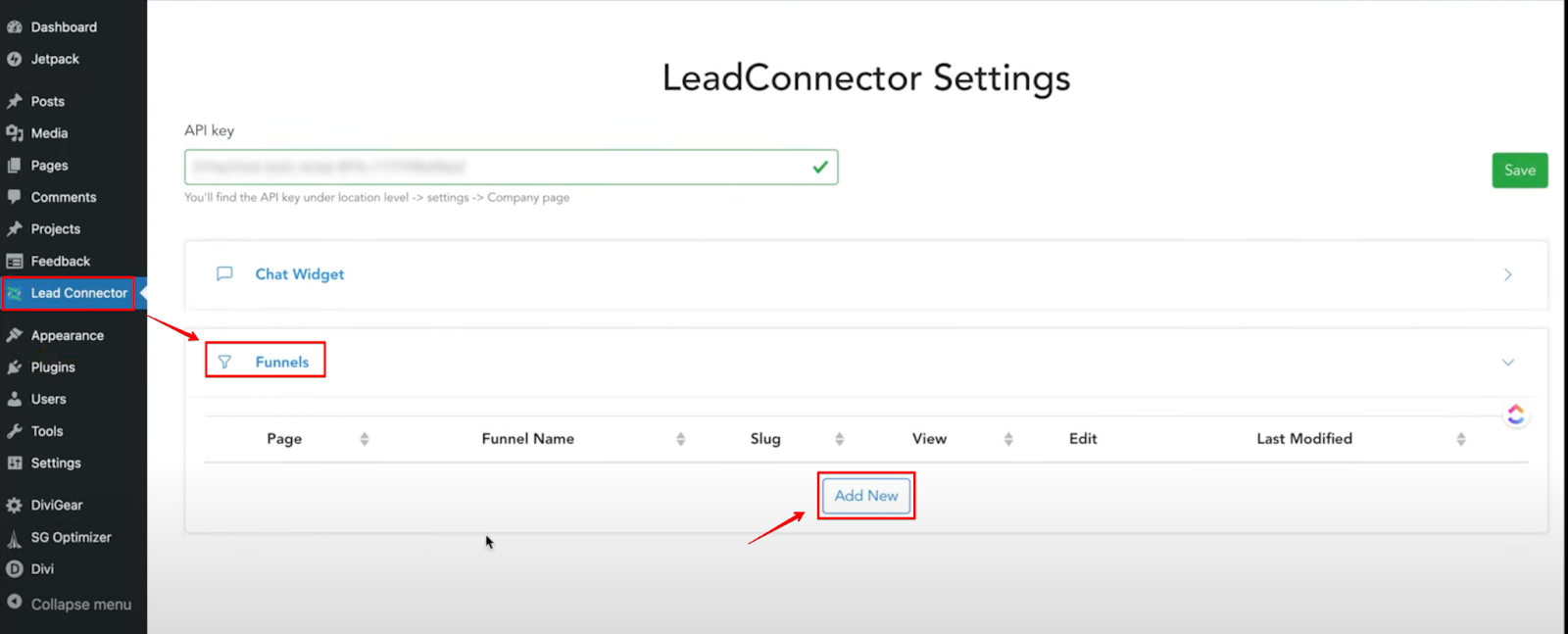
In the WordPress plugin, go to the Lead Connector settings, click on Funnels, and then Add New. Choose the funnel page, adjust the settings, and hit Save.
4- Preview the Funnel:
After saving, you can preview your funnel page on your WordPress site to ensure it's properly embedded.
Step 5: Finalizing the Setup
- Edit the Funnel If Needed:
If you need to make changes to the funnel, click Edit to be redirected back to the app management system. You can now adjust the funnel content as required.
- Check the Live Chat:
Finally, visit your website’s homepage, and you’ll see the chat widget pop up at the bottom right. Click on it to start interacting with the chat.
Conclusion
By following these steps, you can successfully install and configure the plugin for seamless integration between your WordPress site and app. This enables smooth funnel embedding, chat widget management, and enhanced user experience.
FAQ
Q1: How do I install the plugin on WordPress?
A1: Navigate to the Plugins section, click Add New, search for "Lead Connector," install it, and click Activate.
Q2: What is the API key used for in the plugin?
A2: The API key connects your WordPress site to the app management system, allowing seamless data sharing and integration.
Q3: How can I customize the chat widget?
A3: You can customize the chat widget by changing colors, text, and images from the Chat Widget settings in the app.
Q4: How do I add a funnel page to my website?
A4: Go to the Funnels section, select the funnel page, and use the Lead Connector plugin in WordPress to embed it.
Q5: Can I edit the funnel once it's added to the site?
A5: Yes, you can go back to the app management system and click Edit to make changes to the funnel.