
Conversations 101-Overview
Effective communication is the cornerstone of any successful business, and streamlining the way teams handle messages can significantly improve productivity. The redesigned Conversations module offers a more efficient and organized approach to managing messages and collaboration. This article explains the core features of the Conversations experience and provides a guide on how to use it to maximize its benefits.
Key Features and Benefits of the Conversations Experience
The Conversations interface offers a variety of features that streamline communication and enhance overall efficiency. Below, we’ll explore the main features and how they benefit teams:
- Performance and Responsiveness:
- Improved load times and actions that are faster, ensuring smoother communication experiences.
- Faster navigation enhances the ease of finding information quickly and seamlessly.
- Reduced memory usage contributes to better performance across all devices.
- Organized Layout:
- The interface includes four flexible panels that allow you to manage your workspace effectively. These panels are collapsible, giving users control over how much space each panel occupies.
- Context at Your Fingertips:
- The right panel provides quick access to all relevant contact details, documents, payments, and activities. This feature reduces the need to switch between screens, making communication and data retrieval faster.
- Advanced Filtering:
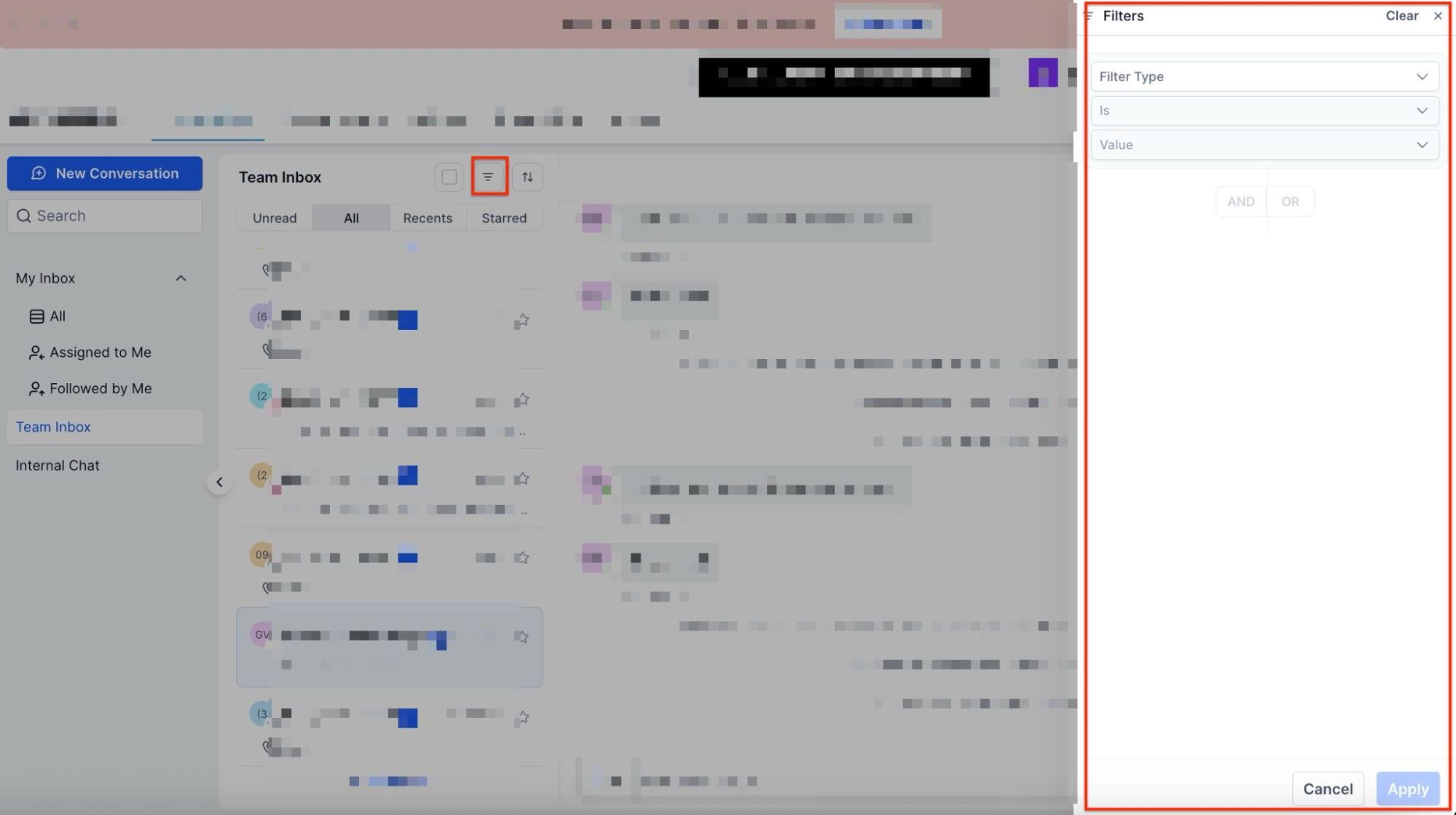
- The addition of tags and the support for AND/OR operators allows for more precise filtering. This helps you sort conversations by various criteria, improving workflow efficiency and saving time.
- Enhanced Email Composer:
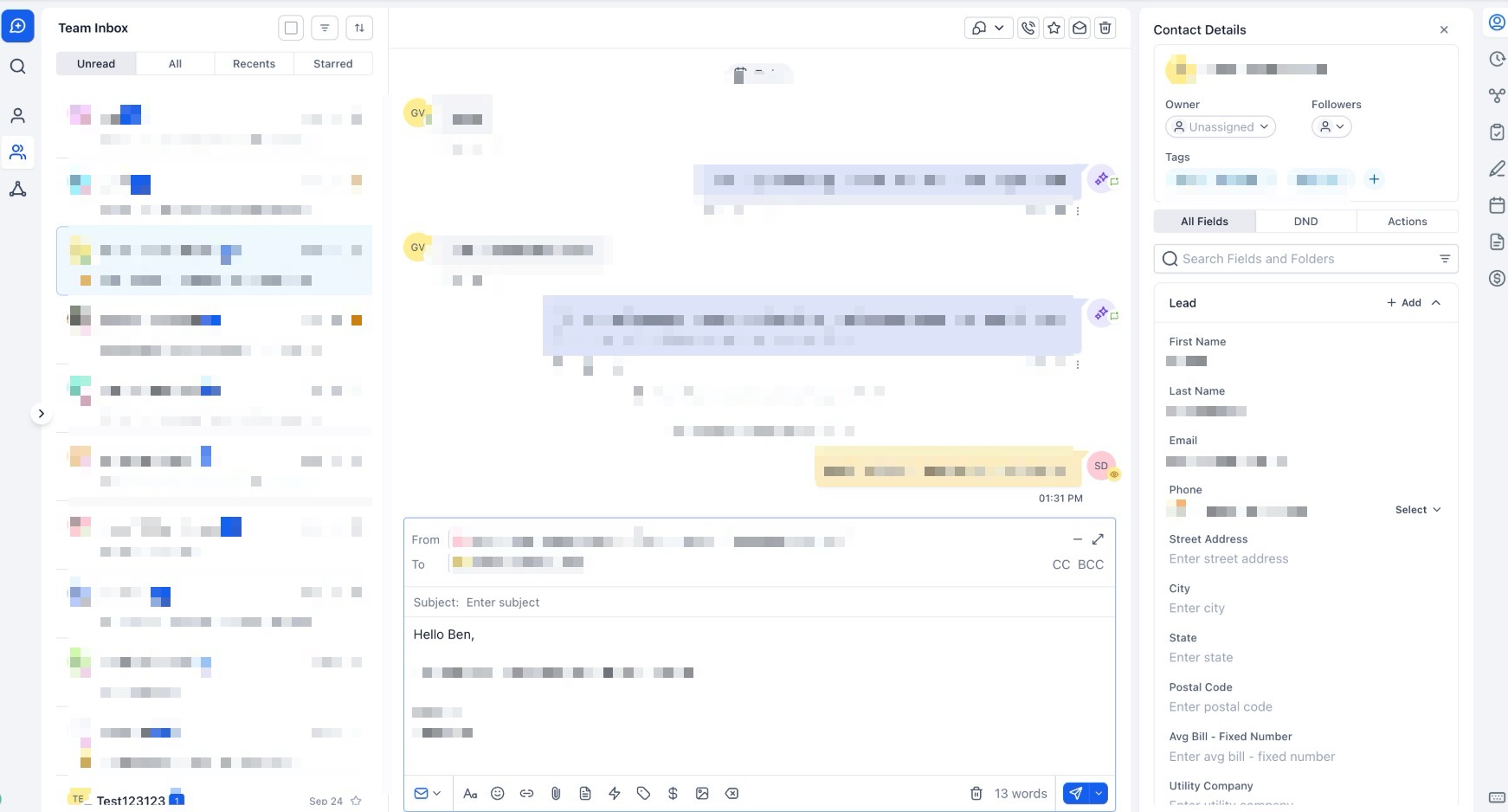
- The email composer includes a full-screen option for drafting long emails, providing more space and flexibility for composing detailed messages. Inline replies allow for faster responses without losing the context of the conversation.
- Built-in Collaboration:
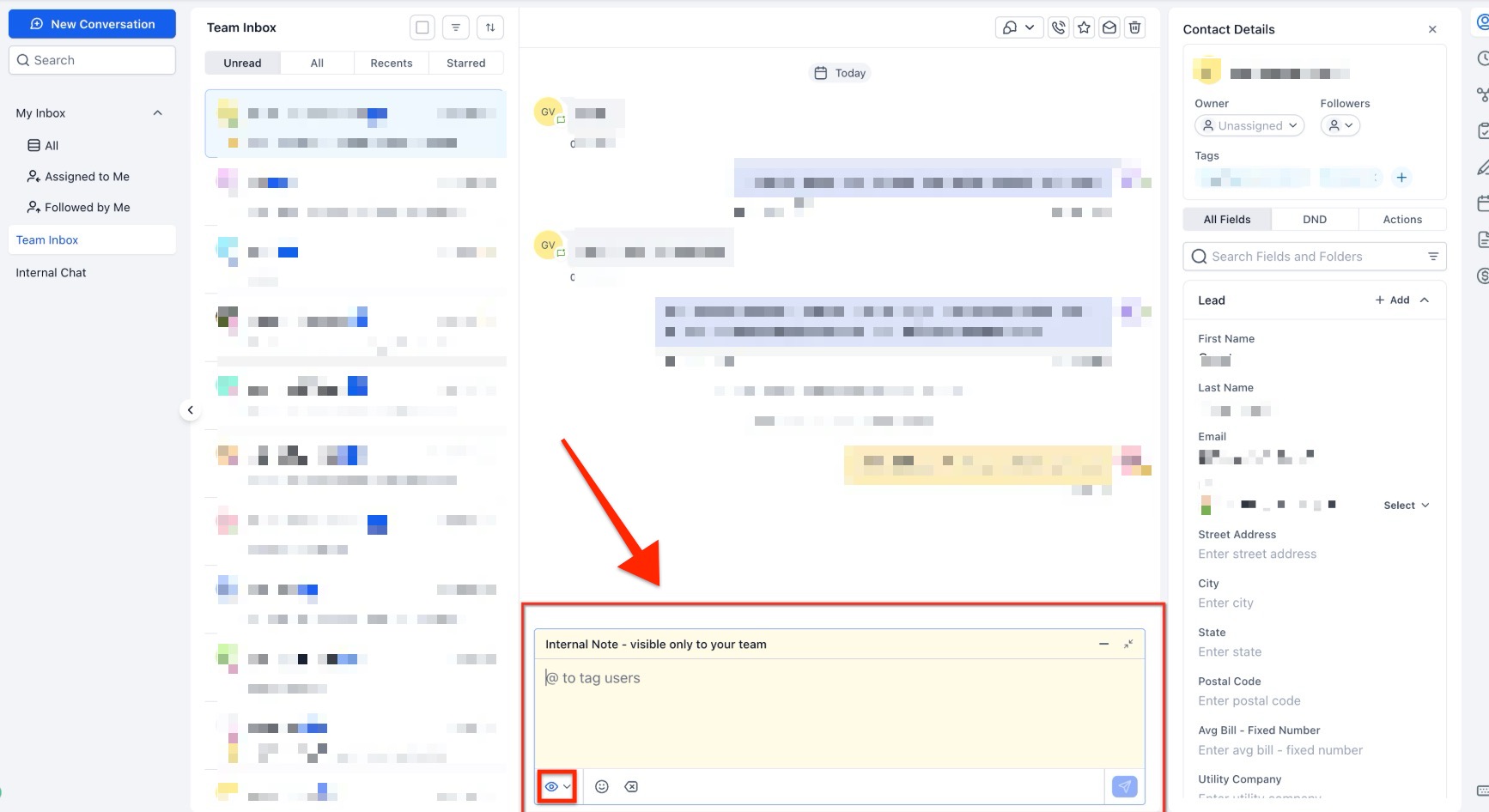
- Internal comments and @mentions keep team discussions organized and private, ensuring that all necessary information is communicated efficiently without interrupting the customer-facing thread.
How to Use the Conversations Experience
1. Navigating to the Conversations tab
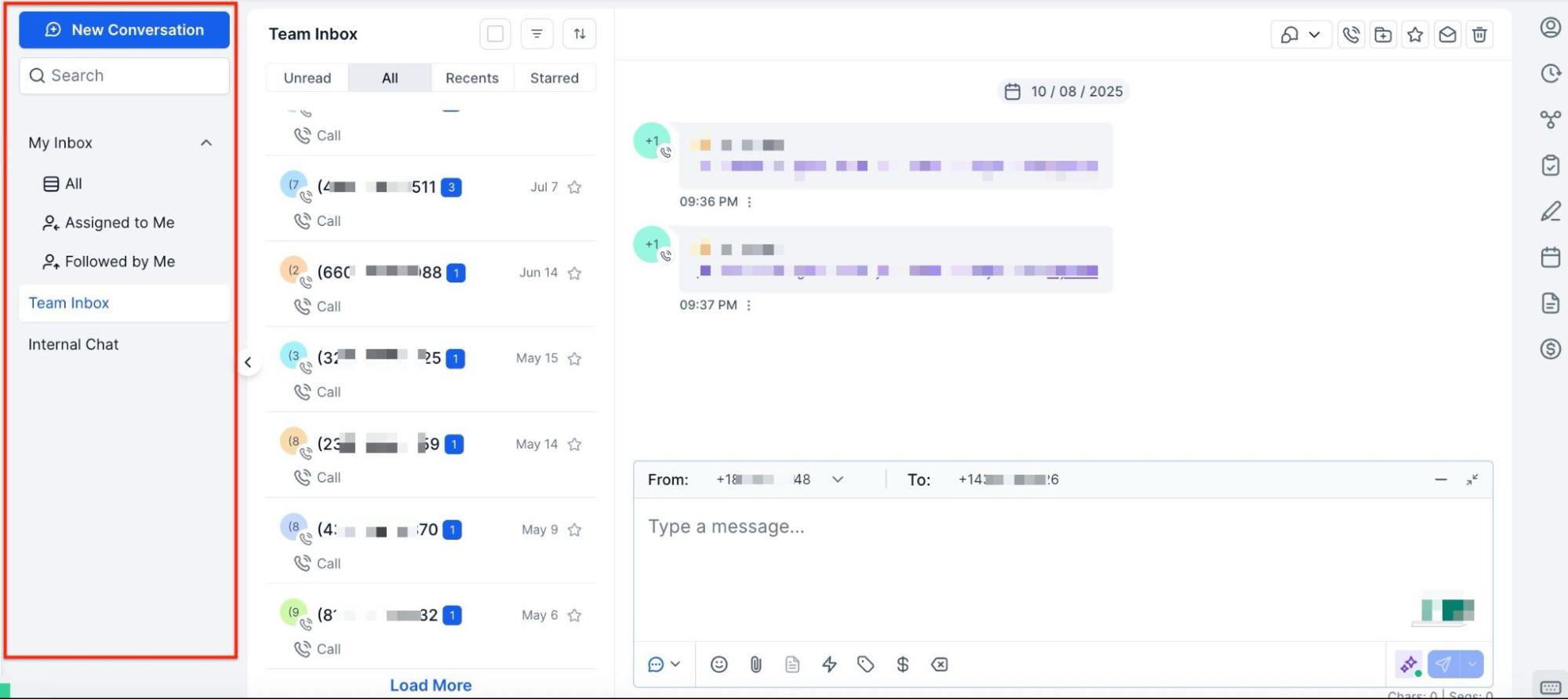
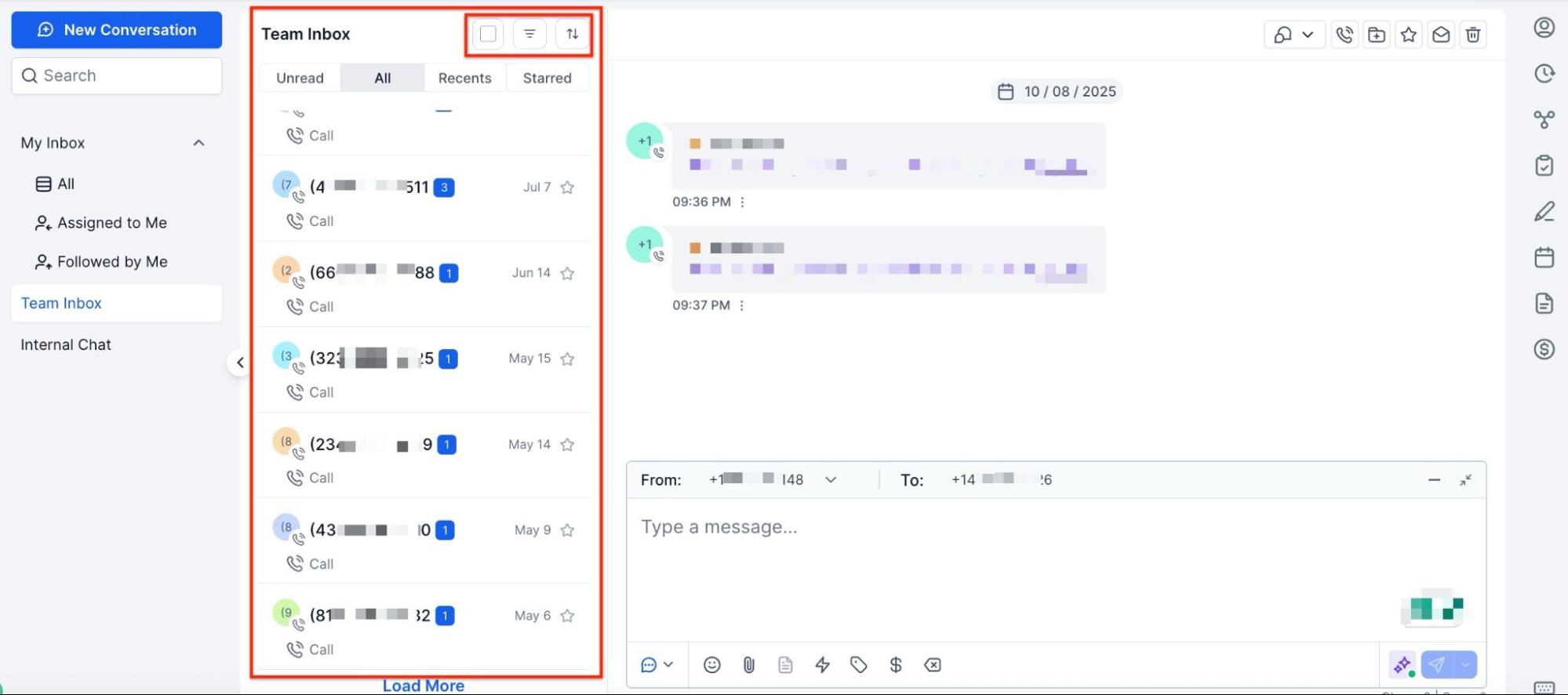
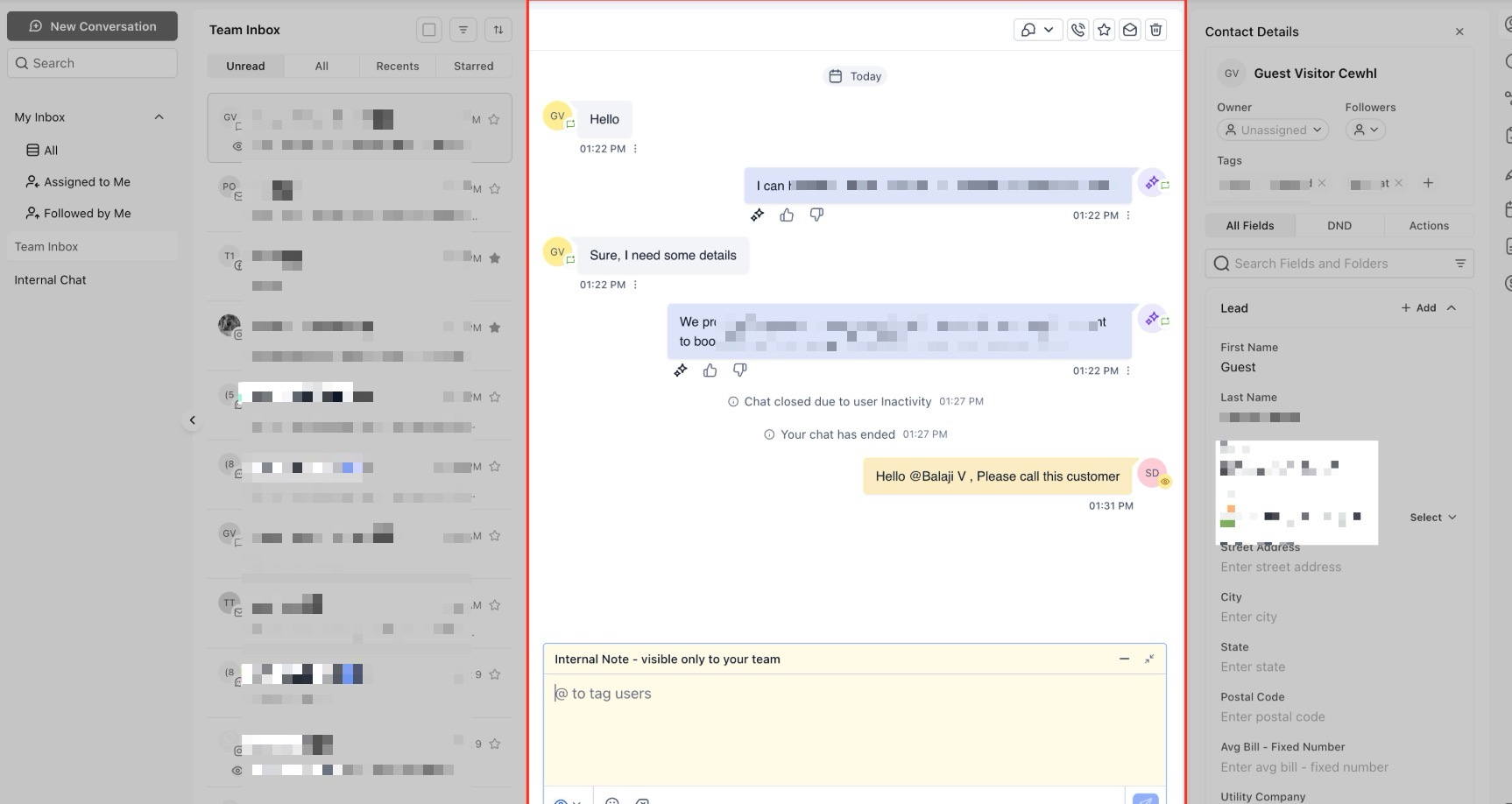
The interface has four main panels:
Inbox Panel: Controls which set of conversations you are viewing. You can toggle between personal, team, or internal chat inboxes
Chat List Panel: Displays all conversations within the selected inbox. You can filter conversations by channel, owner, and date, and even take bulk actions such as marking messages as read/unread or deleting them.
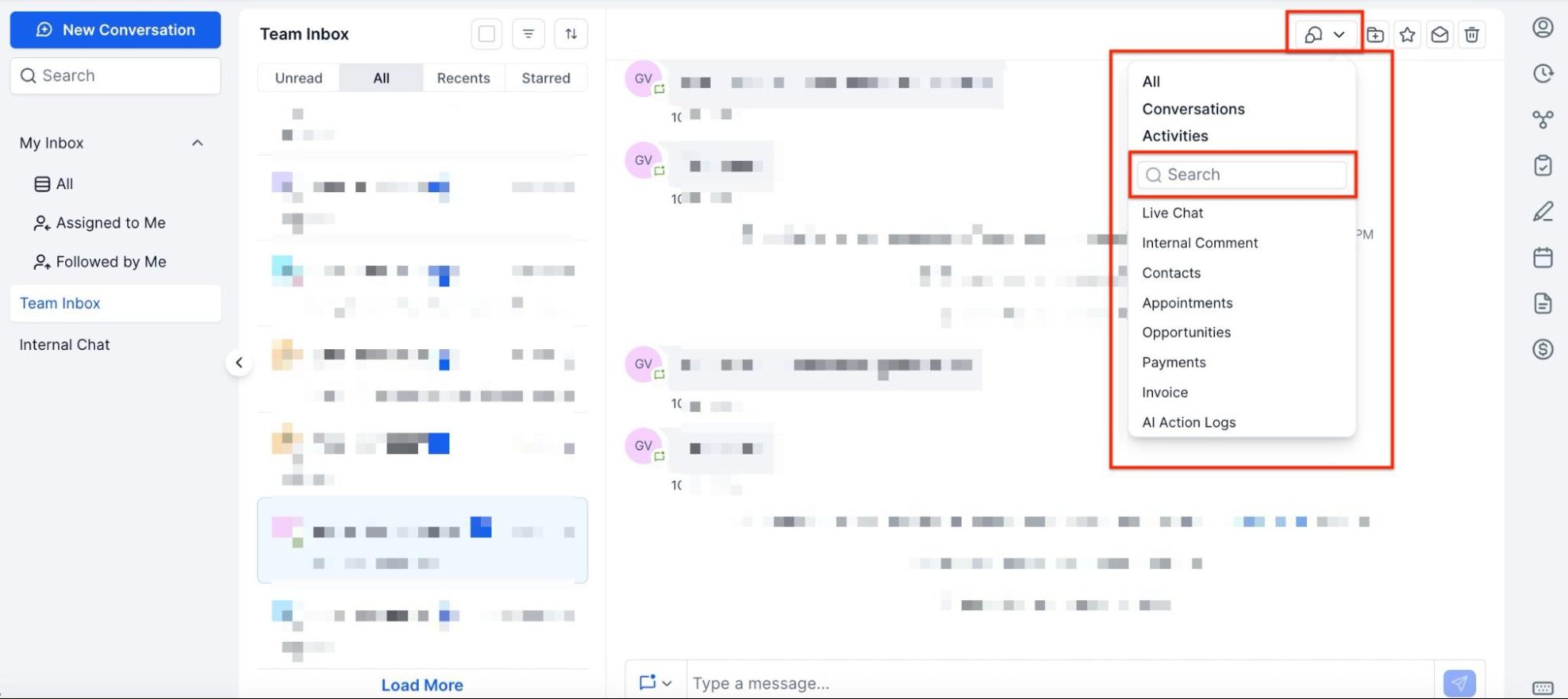
Message History Panel: This is where you read and reply to messages. You can filter the visible timeline to focus on specific types of messages, such as emails or internal comments.
Right Panel: Centralizes contact context. View and edit contact fields, manage appointments, and access related documents without leaving the conversation.
2. Composing and Replying to Messages
Full-Screen Composer: To draft long emails or messages, switch to the full-screen composer for more space.
Inline Replies: For quick replies, use the inline reply option, which opens directly below the active message, allowing you to stay focused on the conversation.
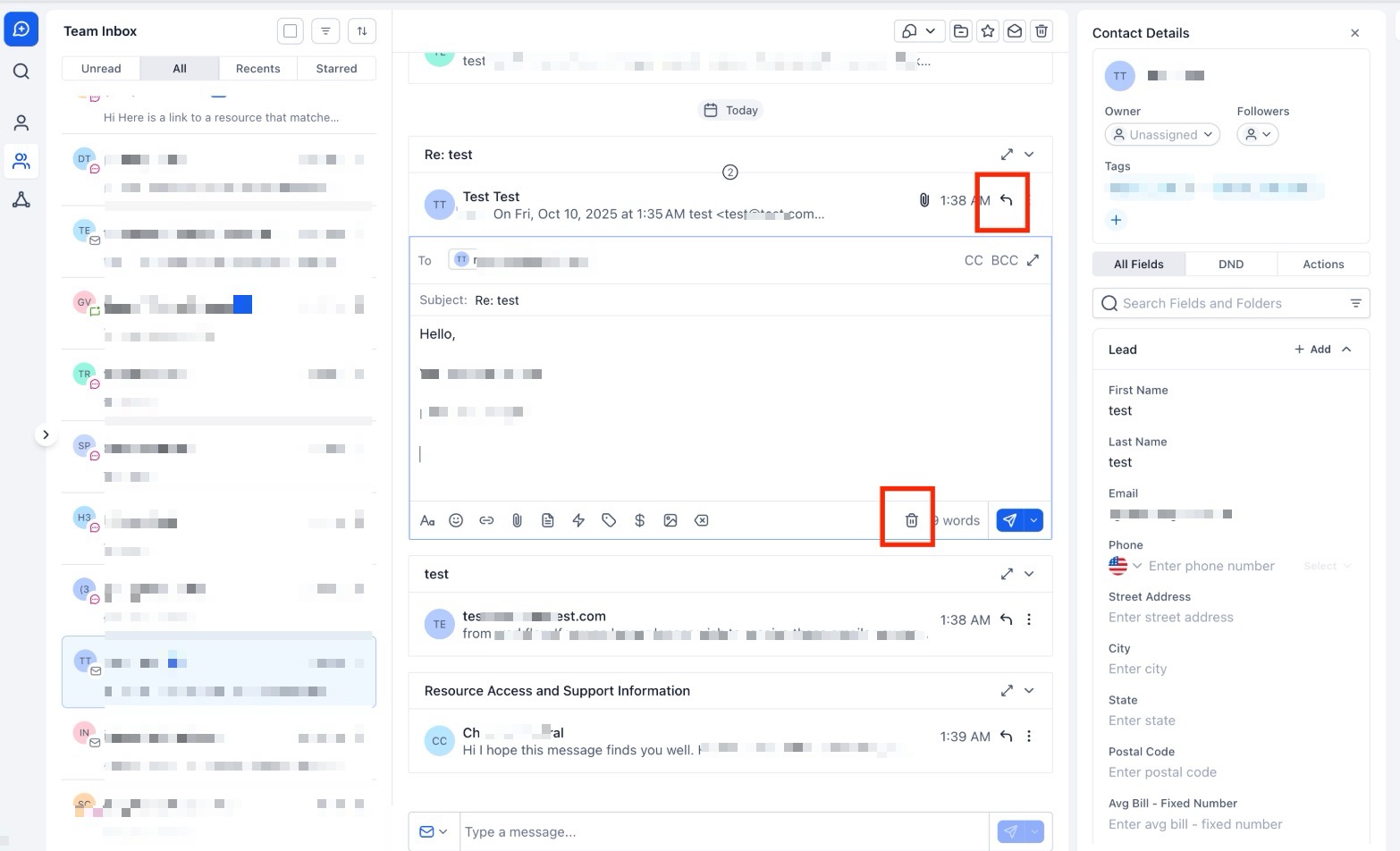
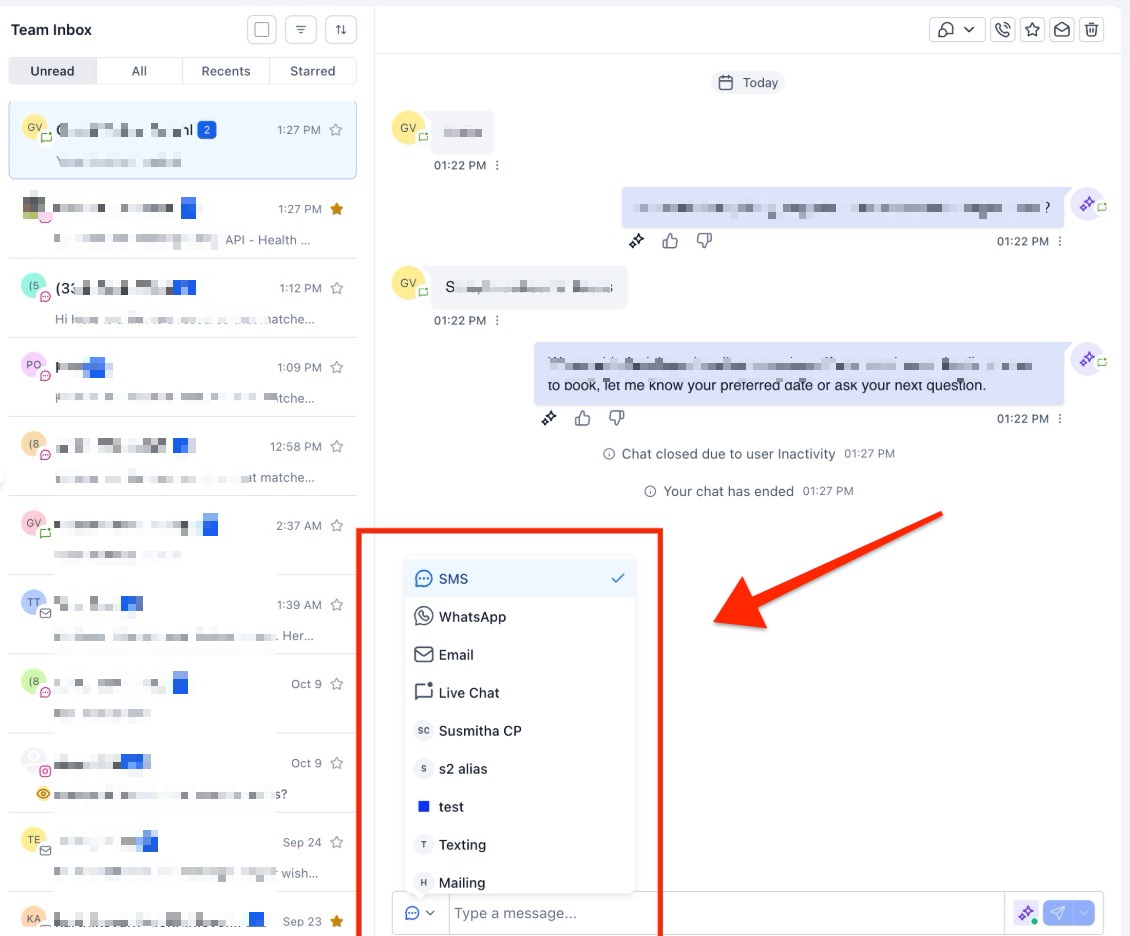
Switching Between Channels: You can respond via different channels (e.g., email, SMS, internal comments) within the same conversation thread, providing flexibility to switch channels based on the nature of the message.
3. Filtering Conversations
Use the advanced filtering system to focus on specific parts of the conversation:
- Filters: Apply tags, dates, and other criteria to segment conversations. Use the AND/OR operators to combine multiple filters and narrow down your search.
Tags: Apply tags to organize conversations by priority, type, or other categories, and filter by these tags to find relevant conversations quickly.
4. Collaborating with Your Team
- Use internal comments to discuss matters privately within the team, without the customer seeing these discussions.
Use @mentions to notify specific team members of important points or tasks within a conversation.
Pro Tips
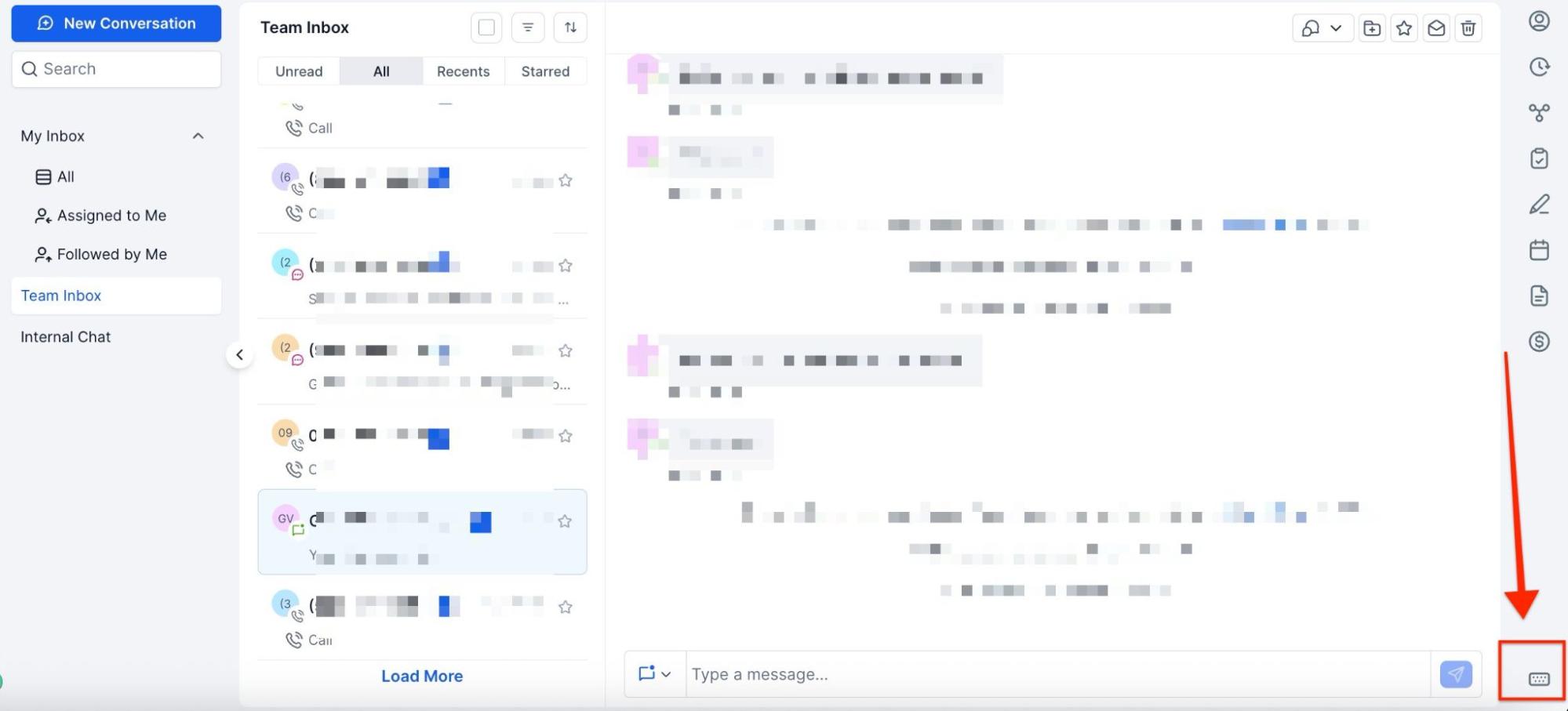
- Leverage Keyboard Shortcuts: Using keyboard shortcuts can save you time. For example, pressing ⌘/Ctrl + Enter sends a message immediately, while ⌘/Ctrl + K opens global search. Explore all available shortcuts to speed up your workflow.

- Utilize the Tagging System: If you manage multiple workflows or support teams, tags can be a powerful tool to organize conversations. By tagging messages by priority, project, or customer type, you can quickly retrieve information that is critical to your workflow.
- Save Filters for Quick Access: If you find yourself regularly filtering conversations based on the same criteria, save these filters as views. This allows for one-click access to the relevant threads in the future.
FAQ
1. How do I switch between different conversation types?
You can switch between personal, team, or internal chat conversations from the Inbox Panel. Simply click on the desired inbox to view the relevant conversations.
2. Can I filter conversations by specific tags?
Yes, you can apply tags to your conversations and use the advanced filtering options (AND/OR operators) to refine your search. This allows you to find conversations by specific categories or workflows.
3. How do I collaborate with my team within a conversation?
You can use internal comments and @mentions to discuss matters privately. Internal comments allow you to share notes with your team, and @mentions help notify specific team members.
4. Can I compose long messages easily?
Yes, the full-screen composer allows you to draft longer messages in a spacious layout, making it easier to format, review, and send your email or message.
5. Is it possible to manage multiple channels from within a single conversation?
Yes, you can switch between channels (email, SMS, internal comments) while staying within the same conversation thread. This flexibility allows you t