
Conversations: Group Chat for SMS
The Group Chat feature in allows you to initiate SMS group conversations, bringing multiple contacts together in one streamlined message thread. With this addition, you can enhance collaboration and maintain real-time communication with multiple participants, whether you're coordinating deals, providing updates, or fostering teamwork.
Key Features and Benefits
- Expanded Communication: Communicate with up to 10 contacts (including yourself) in one group, allowing participants to engage as a team.
- Real-Time Updates: Every participant receives messages in real-time, ensuring everyone stays informed and connected.
- Seamless Interaction: Group chat behaves like any typical group SMS, providing a familiar experience.
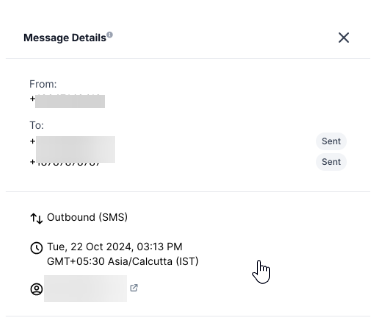
- Status Tracking: Easily track message statuses, including sent, delivered, and failed indicators for each participant.
How to Use Group Chat
Step 1: Create a New Group Chat
- In the Conversations section, click + New.
- Select Group Message as your message type.
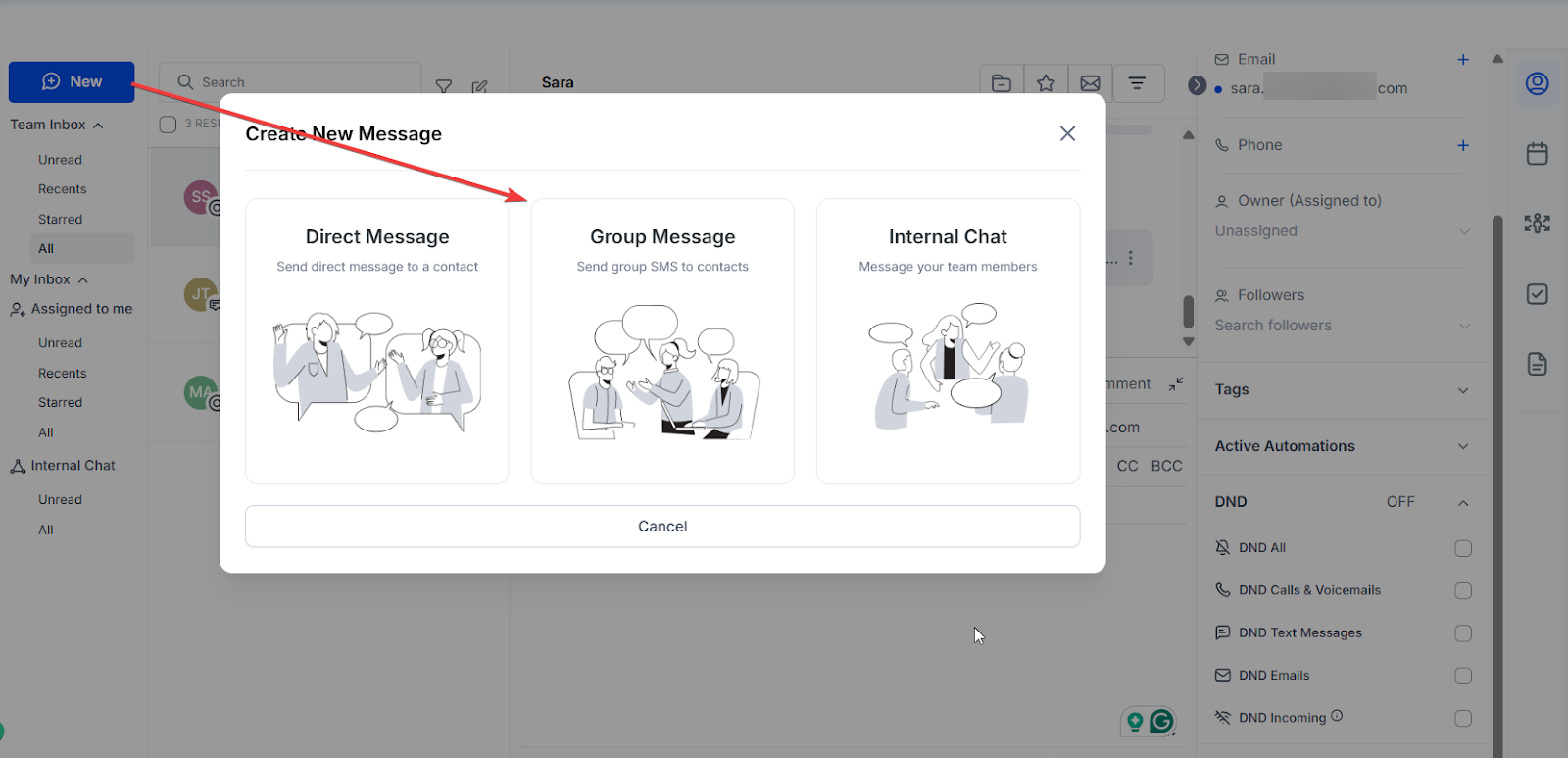
Step 2: Select Contacts and Phone Number
- Choose the phone number (US/Canada) that you’ll use for the group chat.
- Add up to 10 participants by selecting their primary or secondary phone numbers from your contact list.
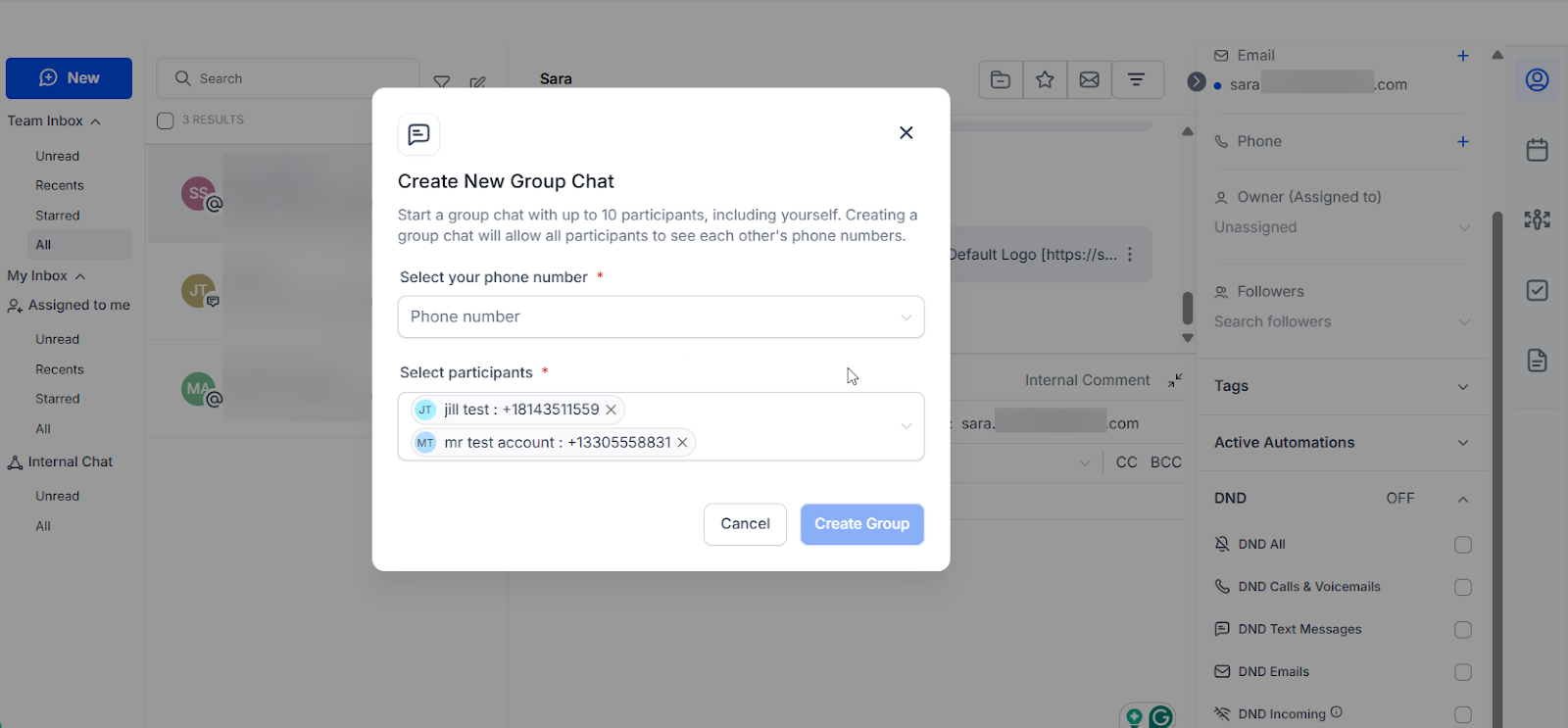
Step 3: Start the Conversation
- After creating the group, type your message and click Send.
- Any replies from participants will appear in the group, keeping everyone updated in real-time.
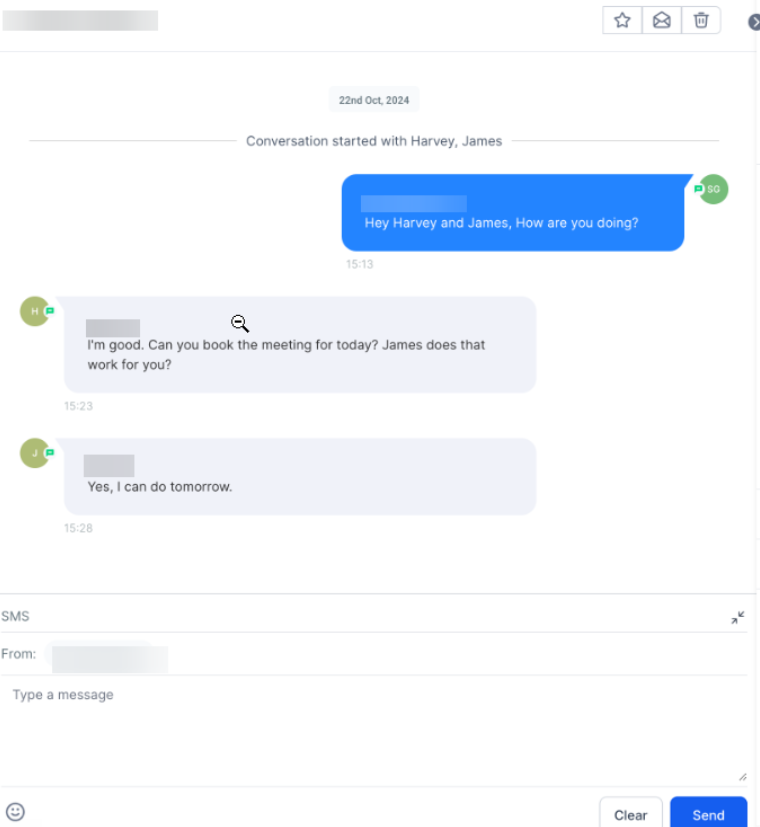
Step 4: Manage Group Details
- You can view contact details in the group chat by clicking on the chevron icon next to their names.
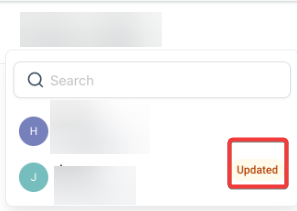
- Updated or deleted contacts will show tags to notify you of changes, ensuring transparency within the group.
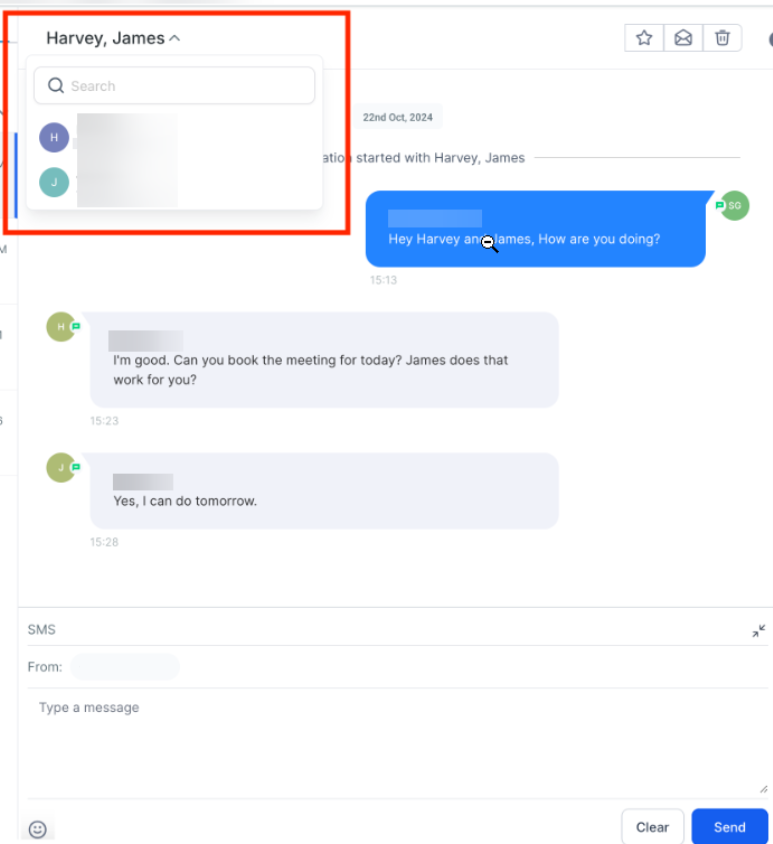
Access & Permissions
- Assigned Data Access: Users with limited data access will only see group chats with contacts assigned to them.
- Admin Privileges: Admins have full access to all phone numbers and group chats across locations.
Important Notes:
- Participant Changes: Once a group is created, you cannot change the participants or the business phone number you selected for the group chat. If a contact already in the group is deleted from your , the messages will continue to be sent to the phone number that was originally added. Even if the contact's number is modified in the , the messages will continue to go to the initially added number.
- DND (Do Not Disturb): If a contact in the group enables Do Not Disturb (DND) after the group chat is created, you will no longer be able to send messages to that contact via the group chat. To continue group messaging, a new group will need to be created, excluding the participant who has been marked as DND.
Benefits of Group Chat
- Enhanced Collaboration: Streamlines group discussions, reducing the back-and-forth of individual messages.
- Efficient Coordination: This keeps everyone on the same page with a single group message, ideal for scenarios requiring teamwork.
- Improved Response Time: By keeping all participants engaged in real-time, decisions can be made faster.
Pro Tips Add Key Contacts. Carefully select relevant contacts to ensure effective communication within the group.
- Keep It Organized: Use group chats for messages that require a coordinated response to avoid separate threads.
- Track Updates: Monitor message status indicators (sent, delivered) to ensure your message reaches every participant.
Use Cases
- Team Coordination for Sales & Deals
- Sales teams can collaborate in real time with multiple contacts involved in a deal.
- Example: A real estate agent, mortgage broker, and homebuyer can discuss property updates in one group chat, reducing the need for separate messages.
- Client Support & Customer Service Teams
- Businesses can add multiple support agents to a chat with a customer for faster issue resolution.
- Example: A technical support agent, a customer success manager, and a client can communicate in one place to troubleshoot an issue efficiently.
- Project Management & Task Coordination
- Internal teams working on a project can stay aligned with updates and deliverables using a single chat.
- Example: A marketing team, a graphic designer, and a content writer can discuss campaign progress without switching between multiple conversations.
- Appointment Coordination for Service-Based Businesses
- Doctors, salons, or wellness clinics can manage scheduling changes by keeping clients and staff informed.
- Example: A clinic receptionist, doctor, and patient can coordinate an appointment rescheduled within the same chat.
- Vendor & Supplier Communication
- Businesses dealing with multiple vendors or suppliers can streamline logistics and supply chain discussions.
- Example: A restaurant owner, food supplier, and delivery coordinator can confirm orders and delivery times in one chat.
- Event Planning & RSVP Tracking
- Event organizers can coordinate event details with guests, vendors, and team members.
- Example: A wedding planner, couple, and catering service can discuss food preferences and final confirmations.
- Real-Time Emergency Notifications
- Businesses can alert employees or key contacts about urgent matters instantly.
- Example: A school administration, teachers, and security staff can communicate quickly in case of an emergency.
- Coordinating Limited-Time Offers & Promotions
- Businesses can inform VIP customers or loyalty members about exclusive deals.
- Example: A retail store manager, sales rep, and top customers can discuss a limited-time pre-sale event.
- Team Training & Internal Announcements
- Managers can train new hires by adding them to a group chat with experienced team members.
- Example: A senior sales rep, manager, and new employee can discuss strategies and share training resources.
- Client Onboarding & Follow-Ups
- Businesses can guide new clients through onboarding steps with multiple team members assisting.
- Example: A real estate agent, loan officer, and client can discuss mortgage approval status in one place.
FAQs
Q: How do I start a Group Chat?
A: Navigate to the Conversations section, click Create a New Message, select Group Message, and add up to 10 participants. You’re all set to start the conversation.
Q: Can I see the message status for each participant?
A: Yes, message status (sent, delivered, or failed) is shown for each contact, helping you keep track of communication.
Q: Who can use Group Chat?
A: Admins and users with access to the phone numbers can use the Group Chat feature, following assigned data permissions.
Q: What happens if a contact in the group changes or is deleted?
A: Messages will continue to be sent to the original number, with “Updated” or “Deleted” tags beside their names for clarity.
Q: Is Group Chat available internationally?
A: Currently, Group Chat only supports US and Canadian phone numbers associated With Group Chat in , improve team efficiency and engagement, keeping everyone connected and informed.
Q: What happens if a participant enables Do Not Disturb (DND)?
If a participant in the group activates DND, you will no longer be able to send messages to them in the current group chat. To keep communicating, you’ll need to create a new group chat without the DND participant.
Q: How can I ensure effective communication in a Group Chat?
Carefully select key contacts, keep messages organized, and monitor message status indicators to ensure every participant receives updates.