
CTA Buttons under WhatsApp Interactive Message
In customer communications, clarity and simplicity are essential to building trust and increasing engagement. Long, raw URLs in WhatsApp messages can create clutter and discourage users from clicking. To improve user experience and streamline workflows, businesses can use Interactive Call-to-Action (CTA) URL Button Messages within WhatsApp automations.
Key Features & Benefits
Clean CTA Buttons
Display clear, branded buttons like “Visit Website” instead of raw URLs. This improves visual presentation and builds trust with the end user.
Branching Logic
Branch automation workflows based on interaction outcomes:
- Link Opened
- Not Delivered
- Timeout (No Action)
Rich Media Headers
Support for Text, Image, Video, or Document headers allows you to provide additional context for your message.
Timeout Configuration
Set how long the interactive button remains active between 5 minutes and 2 days.
Trackable Engagement
Monitor exactly which contacts interacted with the CTA, allowing for smarter follow-ups and performance optimization.
Multi-Channel Resilience
If WhatsApp delivery fails, workflows can automatically fall back to other channels like SMS or email.
How to Use
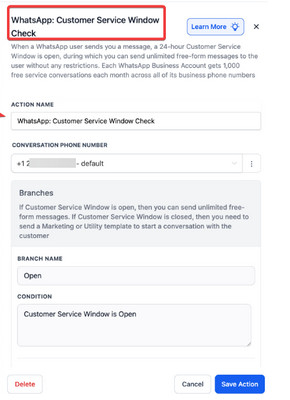
- Ensure Customer Service Window is Open
- Before using CTA Button Messages, confirm the 24-hour WhatsApp Customer Service Window is active. This begins when a customer messages your business.
- Add the WhatsApp Interactive Message Action
- In your automation:
- Click Add Trigger
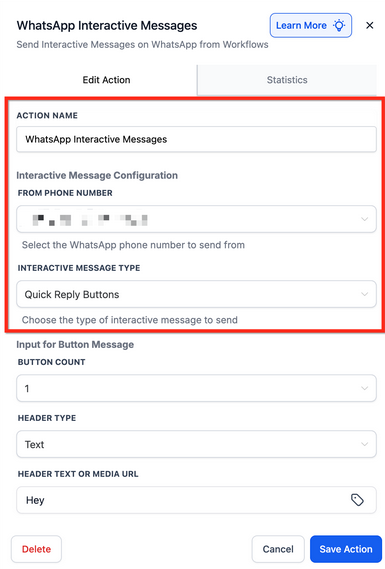
- Select WhatsApp Interactive Messages
- (Optional) Rename the trigger for clarity
- Choose Message Type
- Set INTERACTIVE MESSAGE TYPE to Visit Website Button
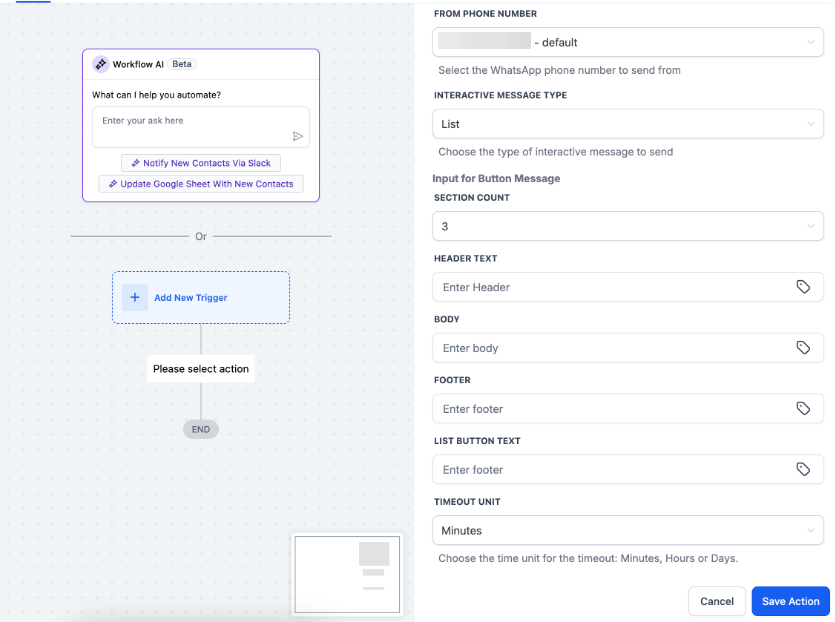
- Fill in Required Fields
- HEADER TYPE: Choose Text, Image, Video, or Document
- HEADER TEXT / MEDIA URL: Input relevant content
- BODY: Add the main message (max 1024 characters)
- FOOTER: Optional, supporting text (max 60 characters)
- URL: Enter the destination URL ( variables supported)
- BUTTON TEXT: Example: “Book Now” (max 20 characters)
- TIMEOUT UNIT & VALUE: Between 5 minutes and 2 days
- Configure Workflow Branches (Optional)
- Add branches for:
- Link Opened
- Not Delivered
- Timeout
- Save and Test
- Use a sample contact to test:
- Link functionality
- variable population
- Button appearance
Customer Service Window
The 24-hour Customer Service Window must be open to send interactive messages.
How it works:
- The window is activated when a customer messages your business via WhatsApp.
- Within this period, you can send unlimited interactive messages without additional cost.
- If the window is closed, you must send a Marketing or Utility Template to reopen it.
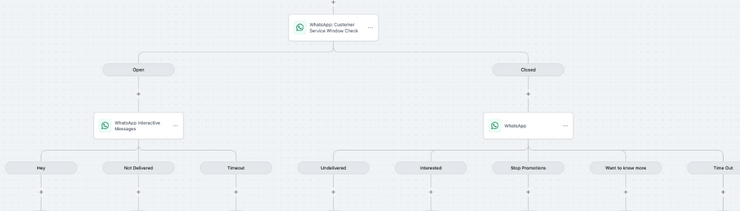
How to check or trigger:
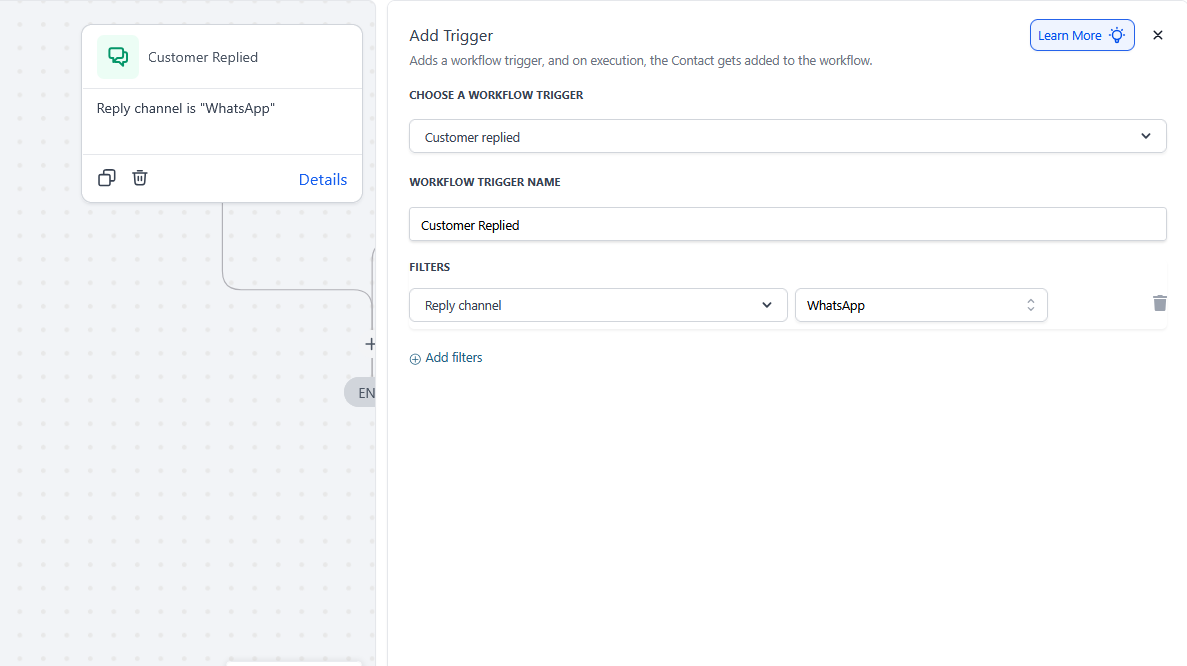
- Trigger: Customer Replied (Channel = WhatsApp)
- Action: Customer Service Window Check
- Branch: Open → proceed with the message
- Branch: Closed → send a reactivation template
(FAQ)
Q1: Do Interactive WhatsApp Messages incur any extra cost?
A: No. If sent within the 24-hour Customer Service Window, there is no additional charge for using interactive messages, including CTA URL buttons.
Q2: What if I try to send a message after the service window is closed?
A: You must send a pre-approved Marketing or Utility Template message to reopen the window before continuing with interactive messaging.
Q3: Can I include more than one CTA button in a single message?
A: No. Only one CTA button is allowed per interactive message. To send multiple options, use Quick Reply Buttons instead.
Q4: Can I use personalization in the button link?
A: Yes. variables (e.g., {{contact.name}}) can be used within the URL to personalize each contact’s link dynamically.
Q5: What happens if the contact doesn’t click the button?
A: You can set up a Timeout branch in the automation to trigger a fallback message or reminder after the button expires.
Q6: Can I track if the button was clicked?
A: Yes. Workflow branches allow you to react to Link Opened, providing engagement data for further segmentation or follow-up.
Q7: What kind of content can I use in the header?
A: Headers can include Text, Images, Videos, or Documents, depending on your use case and message type.
Q8: Can I use this feature for promotional campaigns?
A: Only if the recipient initiates the conversation. For cold outreach or inactive contacts, you must use a compliant template message first.
Q9: Are these messages supported on all devices?
A: Yes. Interactive messages are supported across all WhatsApp-enabled devices. However, user experience may vary slightly between platforms.
Q10: What happens after the timeout period?
A: The button becomes inactive, and your workflow can use the Timeout branch to trigger alternative actions or reminders.