
CSV Blog Importer in Blogs
Managing and publishing large volumes of blog content can be time-consuming, especially when migrating from other platforms or setting up new websites. The CSV Blog Importer is designed to simplify this process by allowing users to import multiple blog posts at once through a structured CSV or Excel file. Whether you're managing a personal site or onboarding multiple clients at once, this feature helps streamline blog content management with precision and speed.
Key Features and Benefits
- Drag-and-Drop CSV Import
- Upload your CSV or Excel files easily using the built-in drag-and-drop uploader.
- Pre-Built Sample File
- Download a ready-made CSV template to ensure your formatting is correct and avoid common import errors.
- Smart Field Validation
- The system auto-detects required fields and highlights errors inline, reducing the chance of incorrect or incomplete imports.
- Scheduling Flexibility
- Control the publishing timeline by setting post dates:
- Past date = Published
- Future date = Scheduled
- Blank = Draft
- Bulk Upload Capability
- Upload up to 60 blog posts at once, significantly cutting down manual effort and onboarding time.
How to Use the CSV Blog Importer
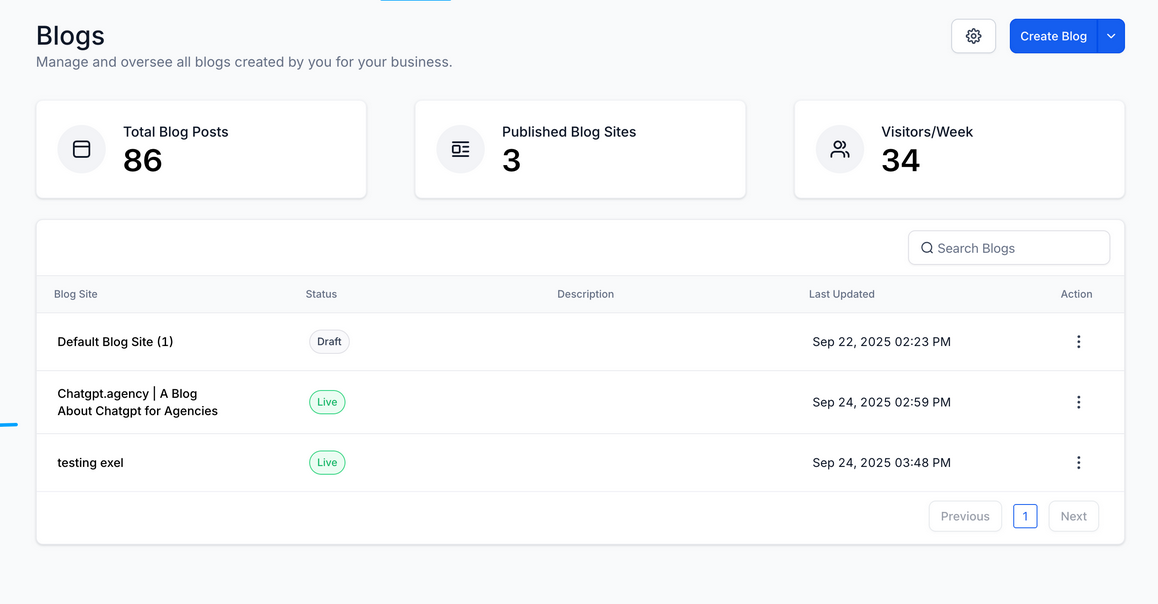
Step 1: Navigate to the Blog Importer
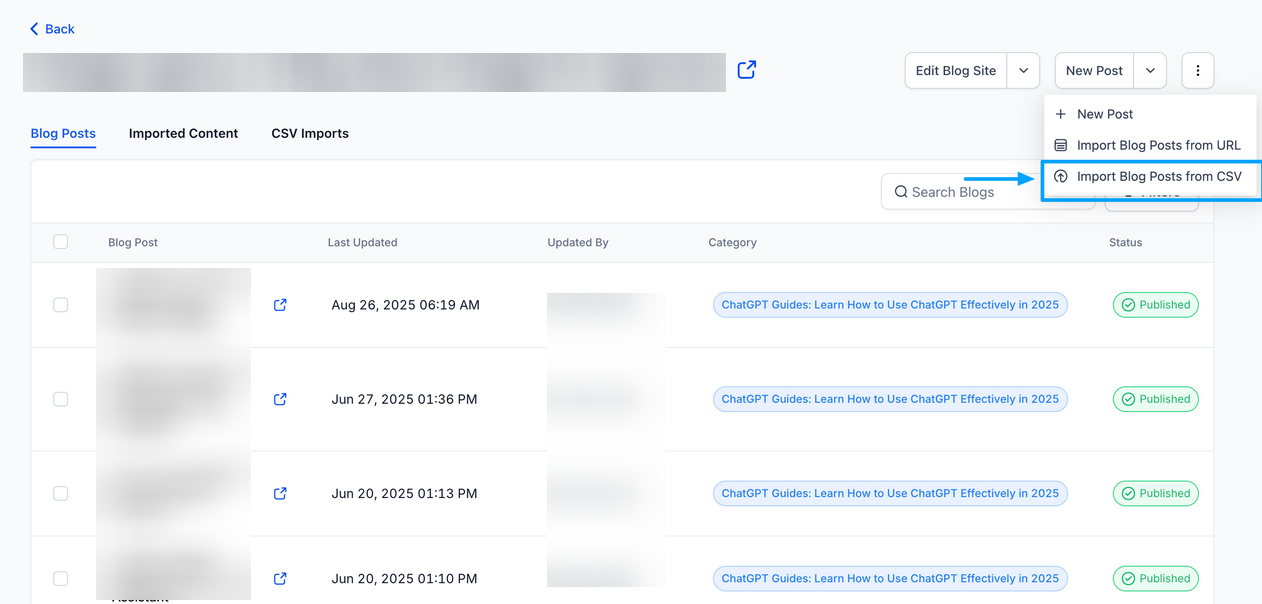
Go to Sites → Blogs, select your Blog Site, click New Post, and then choose Import Blog Posts from CSV.
Step 2: Download and Prepare the Template
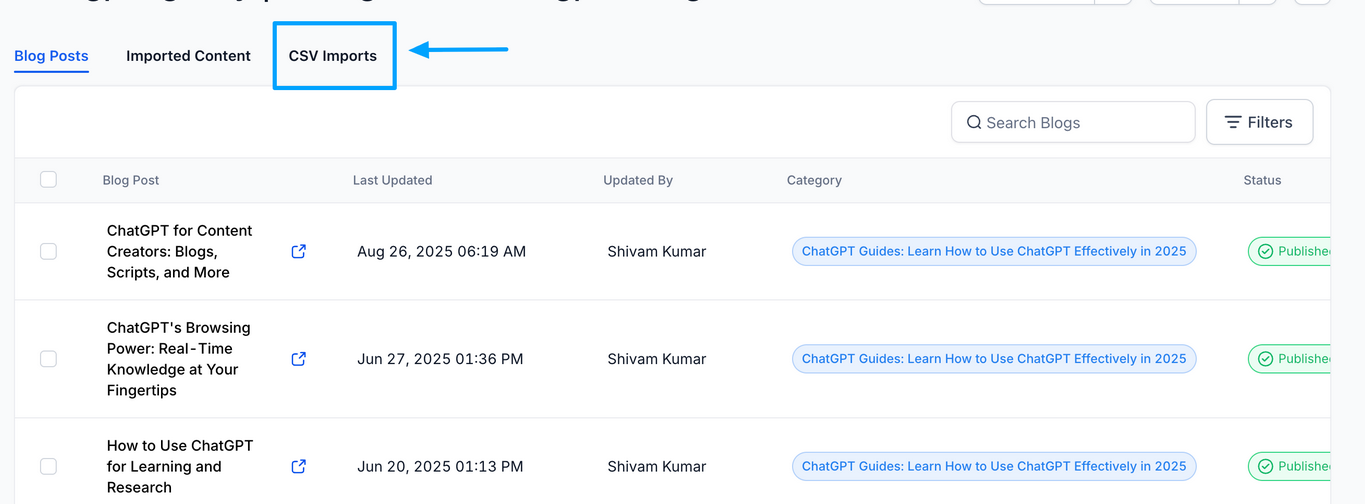
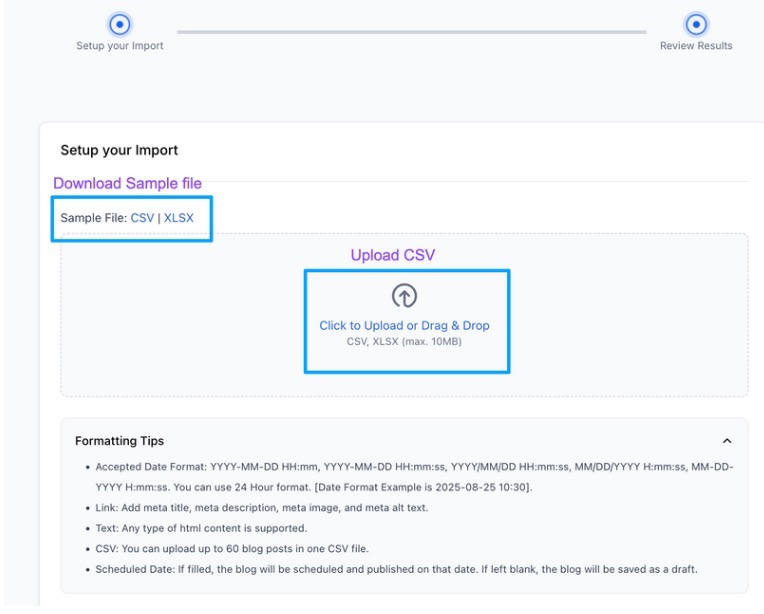
Click to download the Sample CSV file.
Step 3: Upload Your CSV File
Drag and drop your CSV or Excel file into the uploader. You may also use the file picker to select it manually.
Step 4: Review Content in Bulk Composer
After upload, your posts appear in the Bulk Composer view where you can preview titles, content, and publishing details.

Step 5: Fix Errors (if any)
Inline error messages will notify you of missing fields or formatting issues.

Step 6: Confirm and Import
Once everything is correct, confirm the import. Posts will be saved Published, scheduled, or Draft.

Pro Tips
- Use Descriptive Titles: Ensure blog post titles are clear and unique to avoid duplicates during bulk uploads.
- Always Preview First: Use the review screen to verify content alignment and formatting before finalizing the import.
- Group by Publish Status: When preparing your file, sort rows based on desired post status (e.g., all drafts at the bottom) to make review faster.
- Match Categories Exactly: Reuse existing categories to keep your blog organized. Typos in category names will create new, unintended categories.
- Save a Backup: Keep a copy of the uploaded CSV for quick edits or re-imports in case anything goes wrong.
FAQ’S
Q1: What file types are supported for blog import?
CSV and Excel (.xlsx) files are supported. Use the provided sample file to ensure proper formatting.
Q2: How many blog posts can I import at once?
You can import up to 60 blog posts in a single upload session.
Q3: What happens if I leave the publish date field blank?
Posts with no date specified will be saved as Drafts.
Q4: Can I edit blog posts after import?
Yes, all imported posts can be edited like any other blog post via the post editor.
Q5: What if my CSV file has errors?
The system highlights any issues during the Review stage. You can fix errors directly in the Bulk Composer before confirming the import.