
Custom Object & Company Object Fields in Forms, Surveys & Quizzes
The purpose of this article is to explore a powerful feature that allows you to enhance the data collection experience by seamlessly integrating Custom and Company Objects directly into forms, surveys, and quizzes. This integration ensures that all data collected is directly linked to the appropriate contact, providing an organized, dynamic, and streamlined process. No more manual workarounds or tedious linking — everything happens automatically, making it easier to manage your data.
Key Features and Benefits
This feature brings significant benefits to businesses looking to optimize how they capture and organize data. Here are the key functionalities:
- Native Integration with Custom and Company Objects: You can add fields from both Custom Objects (like car details, pet information, or property listings) and Company Objects (such as company name, email, and address) directly within forms, surveys, or quizzes.
- Flexible Association Setup: Choose the type of connection between the objects and contacts, such as one-to-one, one-to-many, or many-to-many relationships. This ensures the data is structured precisely as you need it.
- Automatic Primary Field Protection: The system automatically detects essential fields (e.g., Company Name, Car Number Plate) and ensures that they are included, maintaining data integrity.
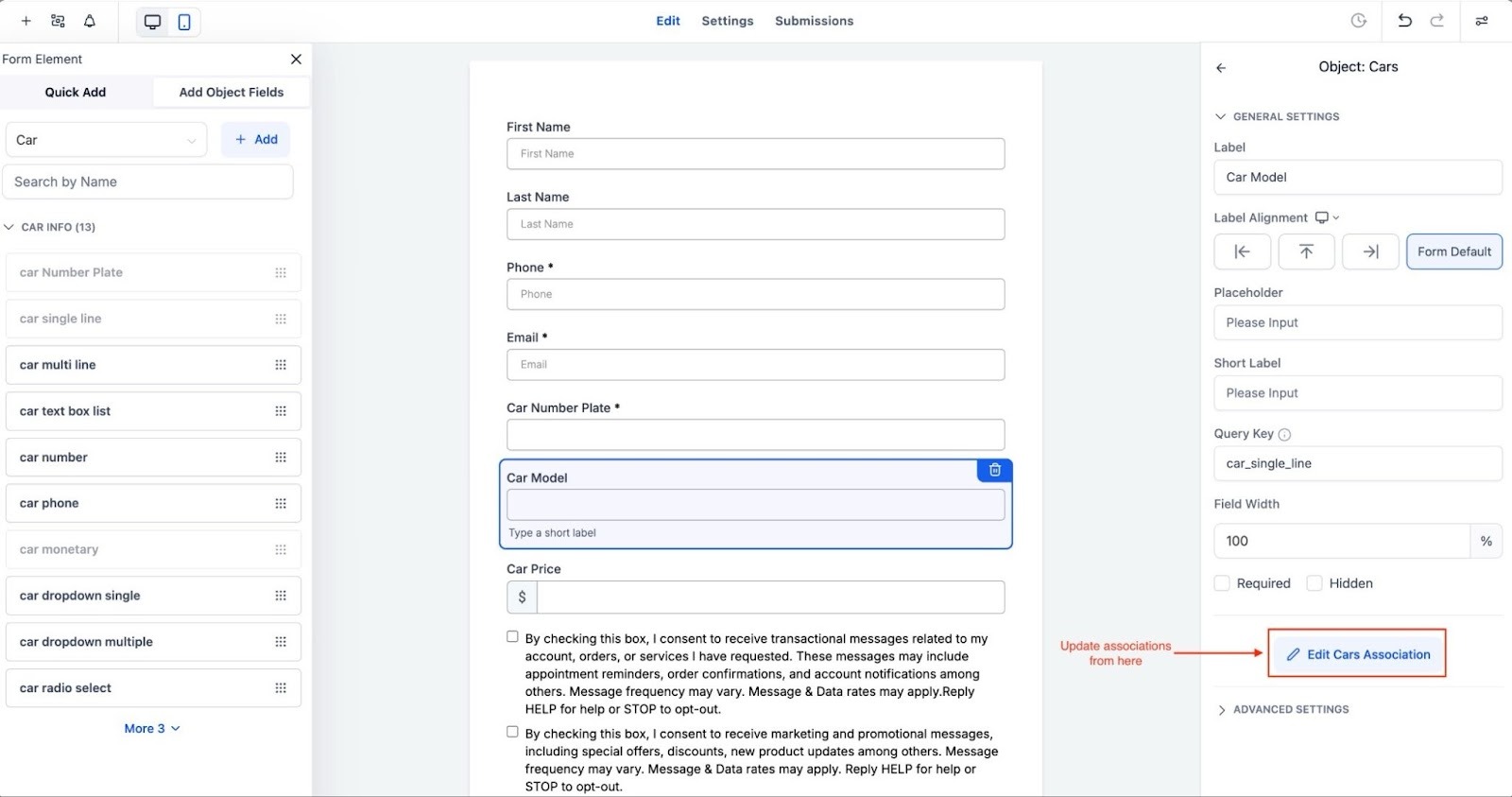
- In-Builder Editing: You can manage associations and update settings without leaving the form builder. This flexibility allows you to make adjustments easily while working within the form editor.
- Instant Data Sync: Once a form, survey, or quiz is submitted, the data is automatically synchronized, updating both the contact record and linked object records. This ensures the information stays current and avoids discrepancies.
How to Use This Feature
Here’s a simple step-by-step guide on how to use this functionality to streamline your data collection:
1- Open the Form Builder: Start by opening the form builder within your platform.
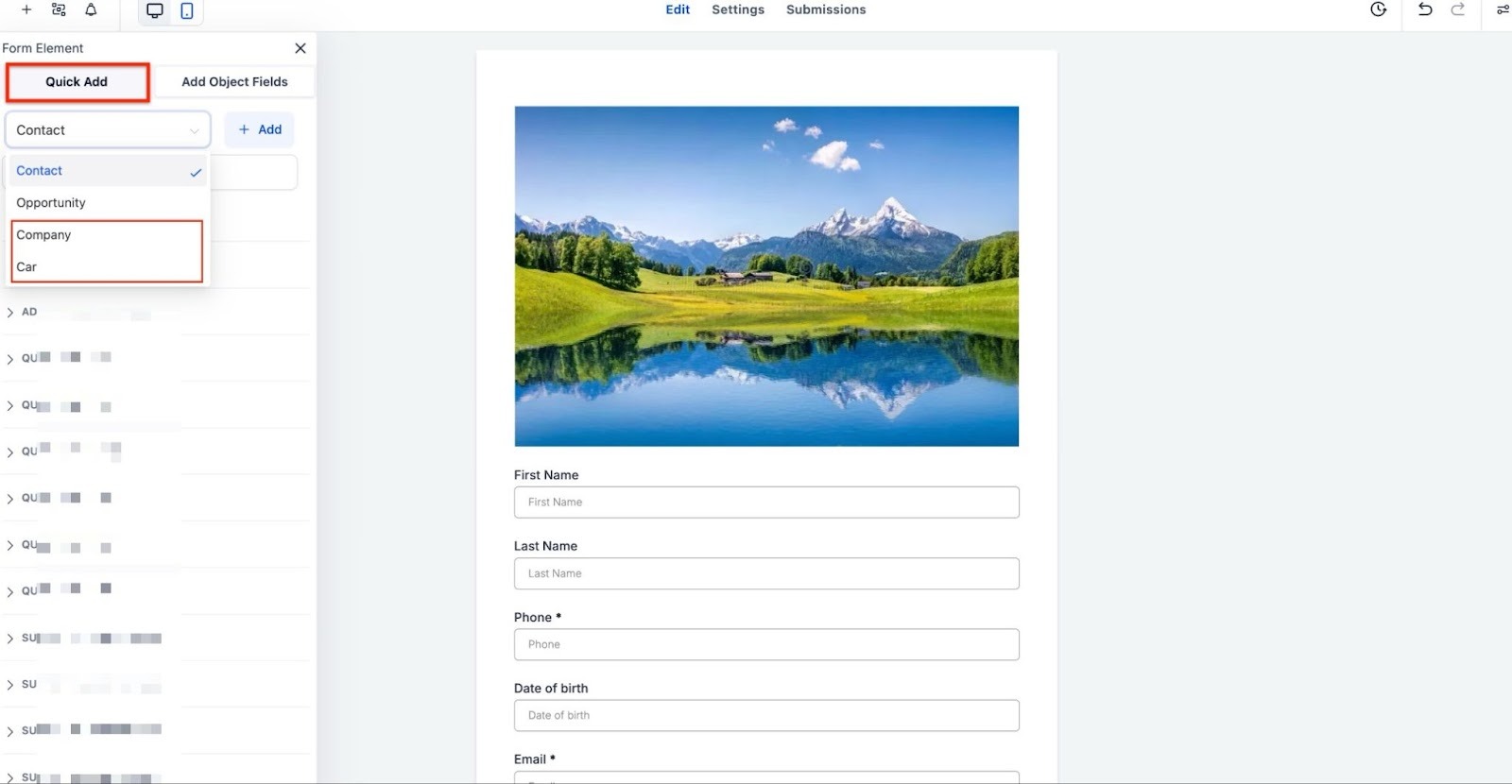
2- Select Your Object: From the Quick Add menu, choose the object you want to add, which could be a Contact, Opportunity, Company, or a Custom Object like a Car or Property.
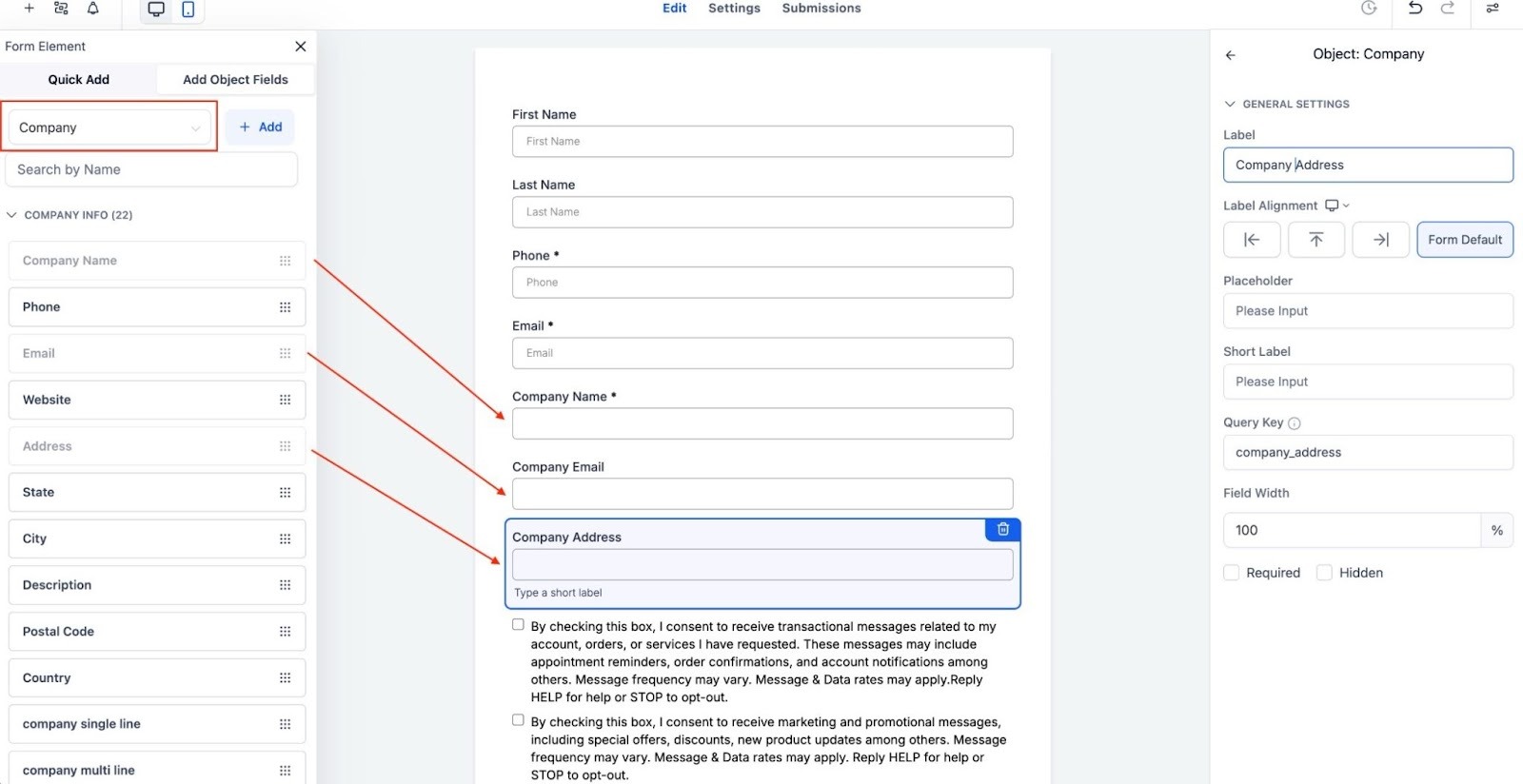
3- Add Object Fields: Insert the fields relevant to the object (e.g., Company Name, Car Model, etc).
4- Configure Associations: Decide how these objects should be linked to the contact (one-to-one, one-to-many, or many-to-many).
5- Save and Publish: After setting up the form, save and publish it. Upon submission, the system will automatically update the contact and linked object records.

Pro Tips
- Use Associations Wisely: When defining relationships, take advantage of the flexibility of one-to-many or many-to-many associations. This can help you model more complex business scenarios, such as linking multiple assets (e.g., cars or properties) to a single contact.
- Keep Primary Fields Consistent: Always ensure that your primary fields are protected and remain part of the form. This helps prevent data errors and maintains integrity.
- Regularly Review Form Design: As your business evolves, make sure to review and adjust your form and association designs to meet changing data collection needs.
Frequently Asked Questions
1. Can I use both Company Objects and Custom Objects in the same form?
No, you cannot combine both object types within a single form, survey, or quiz. They need to be used separately.
2. What happens if I remove the primary field from an object?
If you attempt to remove the primary field (e.g., Company Name or Car Number Plate), the system will prompt you to either keep it or remove all related fields to avoid data issues.
3. What types of associations can I configure?
You can configure one-to-one, one-to-many, and many-to-many relationships between objects and contacts, depending on how your data should be structured.
4. Will data be automatically synced across all linked records?
Yes, any submission will instantly sync data between the contact and linked object records, ensuring everything is up-to-date.
5. Are there any restrictions on what fields can be added?
The fields you add to the forms must align with the object types you’re working with (Company, Custom Objects, etc.). Make sure that all required fields are included to avoid errors.