
Workflow Triggers: Call Transcript Generated
In today's fast-paced communication environment, the ability to act instantly on conversation outcomes is essential. The Call Transcript Generated trigger enables automation the moment a call transcript becomes available, giving your team immediate access to post-call data across voice channels. This feature is designed to streamline follow-ups, enhance personalization, and improve operational efficiency by turning conversation insights into actionable workflows.
Key Features & Benefits
- Instant Workflow Activation
- Automatically trigger actions as soon as a call transcript is ready, ensuring no time is lost between a conversation and the next step.
- AI-Driven Personalization
- Use keywords or phrases from the transcript to tailor communications, segment contacts, or initiate targeted follow-ups.
- Multi-Channel Compatibility
- Works across Voice AI, IVR, and standard call types, providing unified support for various communication methods.
- Rich Transcript Data
- Access detailed call metadata including full transcript, call duration, direction, user identity, location, and more.
- Smarter Task Management
- Automatically create tasks, assign users, or update fields based on specific call content or outcomes.
How to Use the Call Transcript Generated Trigger
Step 1: Add the Trigger
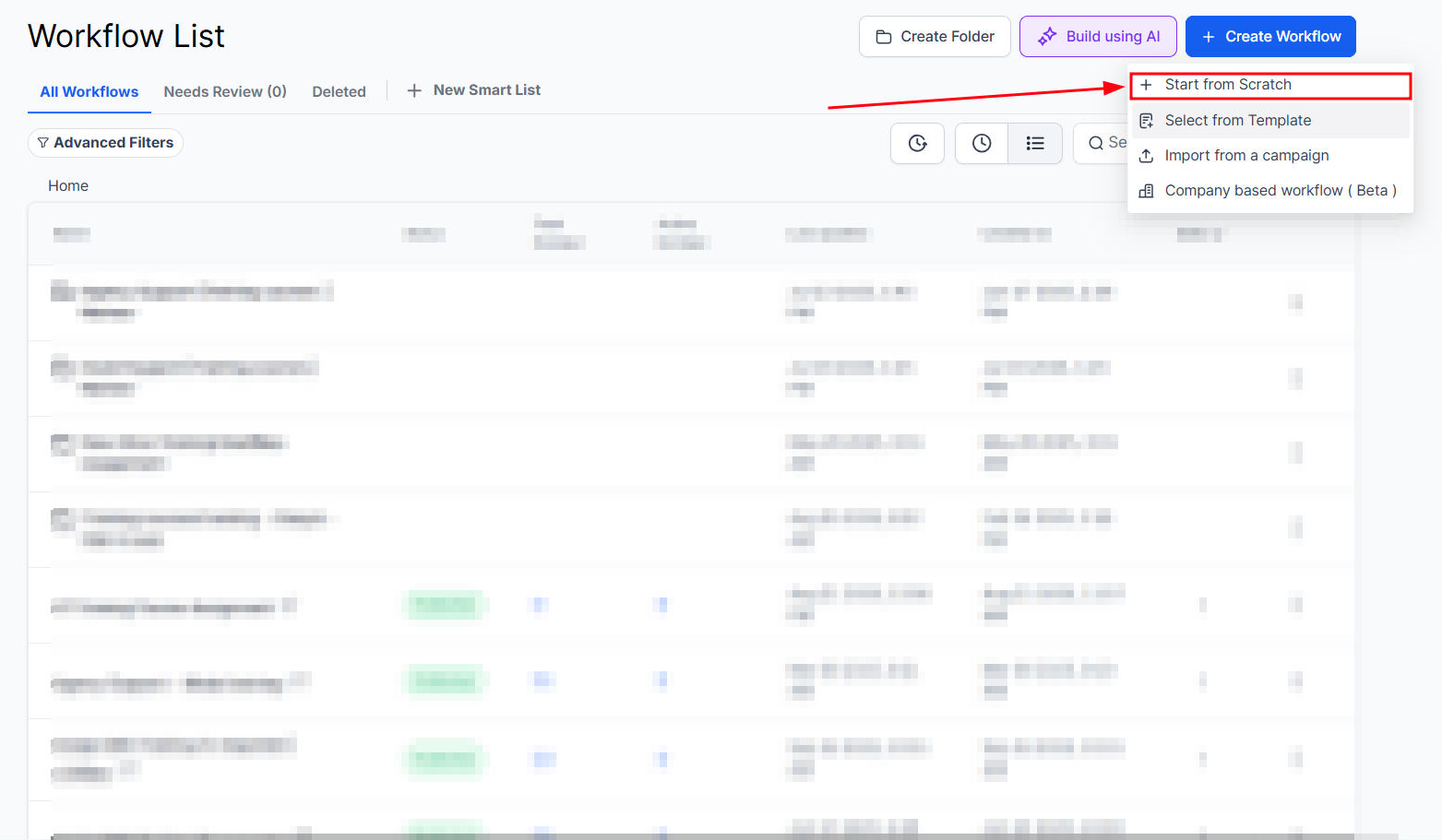
- Go to Automations → Workflows and click Create Workflow to start a new automation.
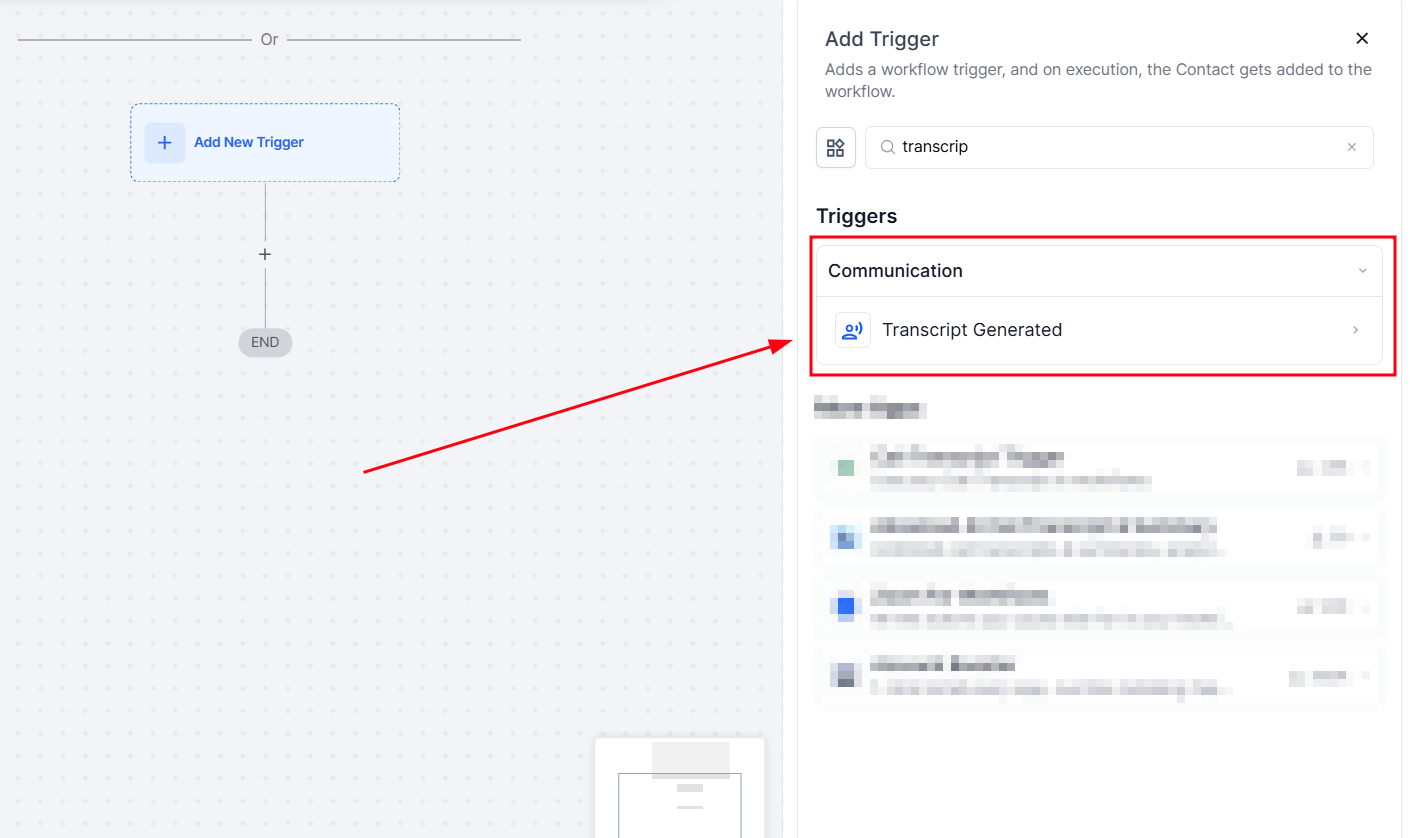
- In the workflow builder, select “Transcript Generated” from the list of available triggers.
- This trigger activates the workflow automatically once a call transcript is generated.
Step 2: Enable Transcription (If Not Active)
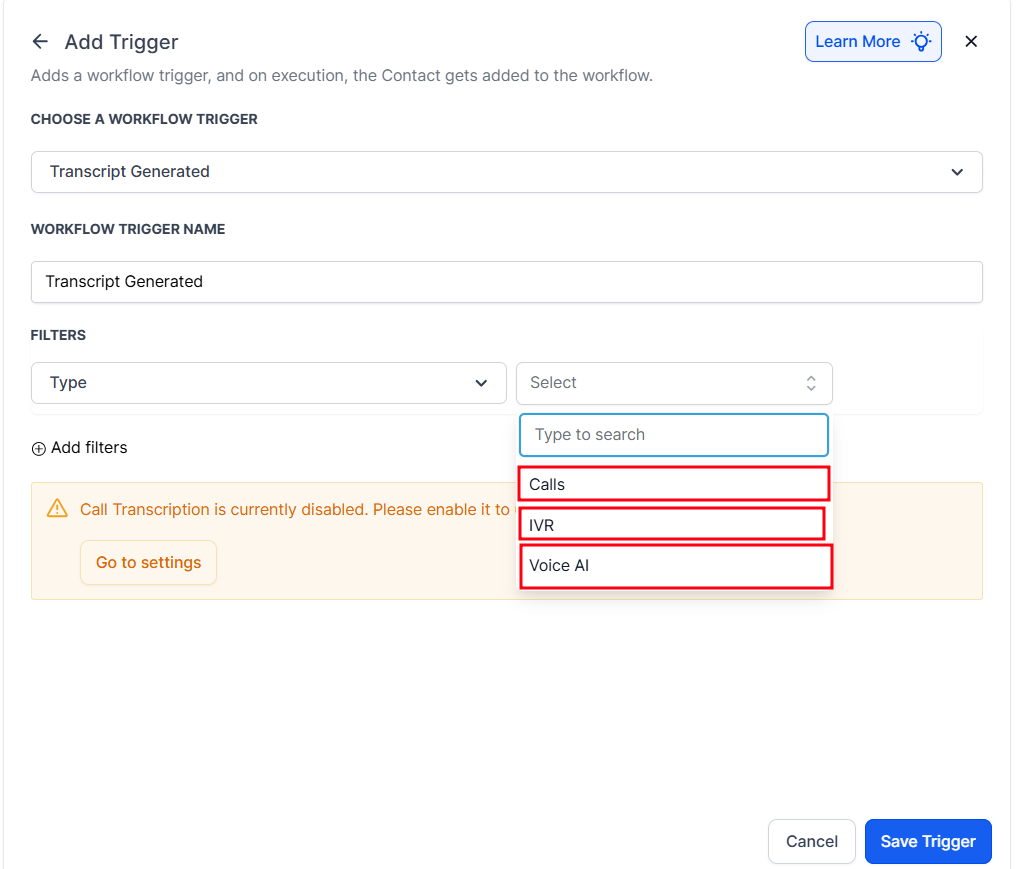
- Voice AI: Transcription is automatically enabled.
- IVR & Standard Calls: Use the CTA in the trigger configuration to activate call transcription manually.
Step 3: Configure Filters
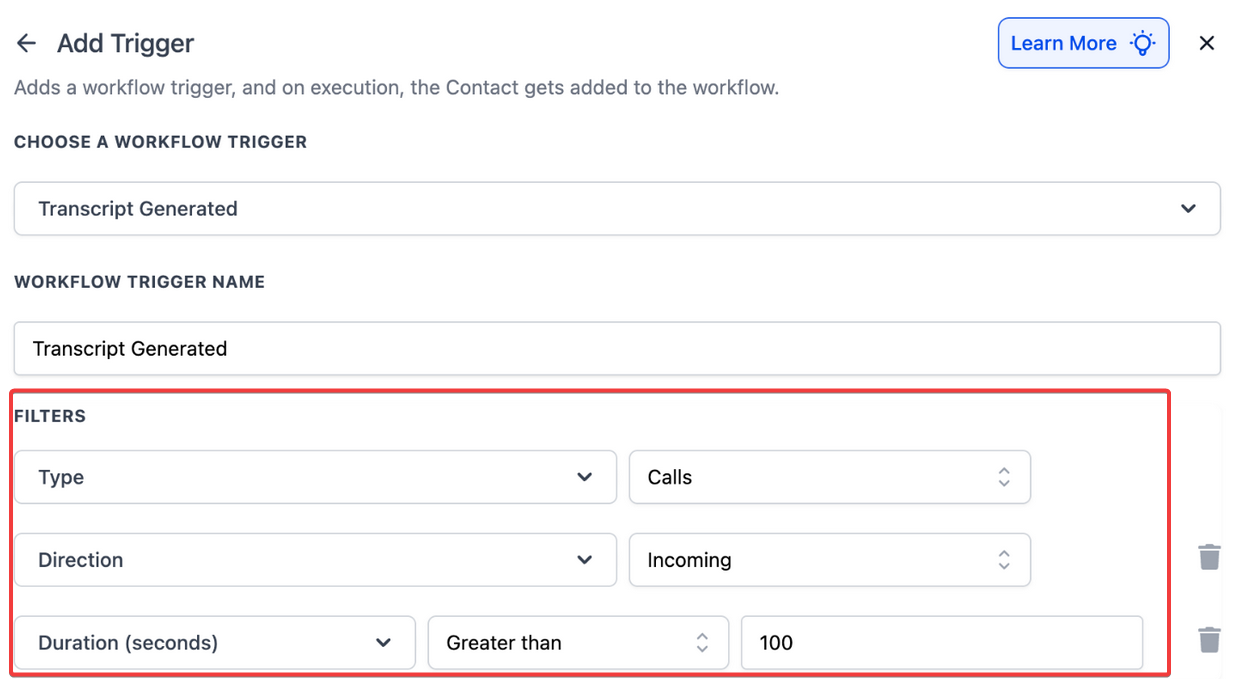
- Apply filters to control trigger behavior:
- Call Type: Voice AI, IVR, or Normal Call
- Call Direction: Inbound or Outbound (optional)
- Call Duration: Minimum time filter (optional)
Step 4: Utilize Transcript Data in the Workflow
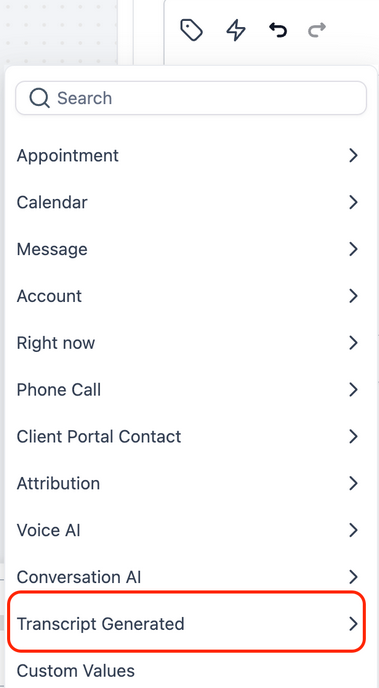
- Insert conditions or custom actions using:
- Full Call Transcript
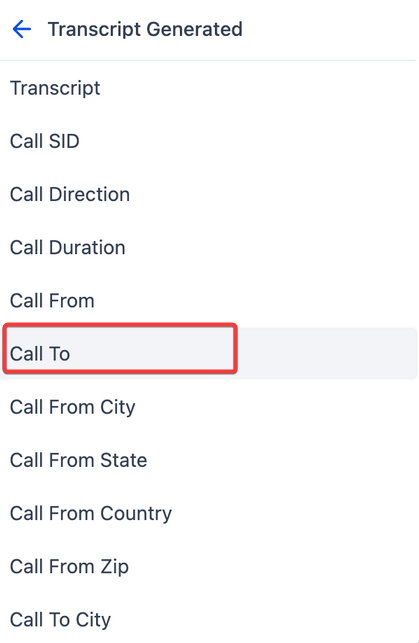
- Call Metadata (status, timestamps, direction)
- Caller Location & User Info
- Access values using the Custom Value Picker or If/Else Conditions.
FAQ
Q1: Does the trigger work for both inbound and outbound calls?
Yes, the trigger supports both directions. You can filter by call direction if needed.
Q2: Is transcription enabled automatically?
Transcription is enabled by default for Voice AI calls. For IVR and standard calls, you may need to enable it manually within the trigger setup.
Q3: Can I access the full transcript in the workflow?
Yes, the full transcript is available through the Custom Value Picker and can be used in messages, tasks, or conditions.
Q4: What if a call transcript contains sensitive information?
Ensure your automation respects privacy policies. Avoid sending full transcripts via insecure channels or to unauthorized users.
Q5: Can I combine this trigger with others in the same workflow?
Yes, you can nest this trigger within larger workflows or chain it with other triggers for more complex automation flows.