
Reputation Management: Review Setup Wizard
The Review Setup Wizard is a comprehensive tool designed to simplify the process of launching your reputation management strategy. It guides you step-by-step through the necessary actions to ensure that your business is set up for success in collecting, managing, and responding to reviews. With this wizard, you can get started quickly, without the complexity of navigating multiple steps manually.
Key Features and Benefits of the Review Setup Wizard
- Step-by-Step Setup Process: The wizard walks you through the process from start to finish, making it easy for first-time users to get their review collection system up and running.
- Integration with Key Platforms: Easily connect your Google Business Profile (GBP) and Facebook Pages to enable review collection from major platforms.
- AI-Powered Review Responses: Set up automated, AI-generated review responses to save time and ensure your replies are timely and personalized.
- Customizable Review Widget: Create a fully customizable review widget to showcase your feedback on your website, making it easy to display reviews.
- Expandable Reach: Optionally connect more platforms for review collection, expanding your review strategy to multiple channels.
- Clutter-Free Experience: The wizard disappears automatically once the core steps are completed, ensuring a clean, user-friendly interface.
How to Use the Review Setup Wizard
Step 1: Connect Your Accounts
- Head over to the Reputations tab from the left menu.
- Navigate to the Overview Tab where the Review Setup Wizard is located.
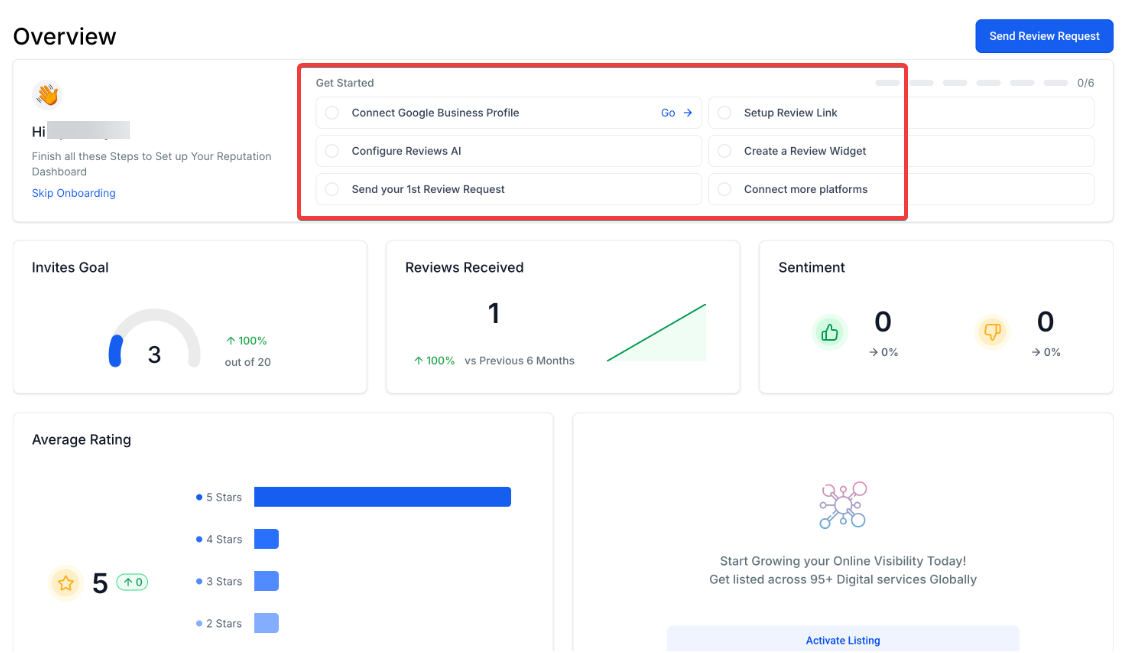
- Connect your Google Business Profile (GBP) or Facebook Page by following the prompts.
- Redirect: The wizard will guide you to the Integrations Page to complete the connection.
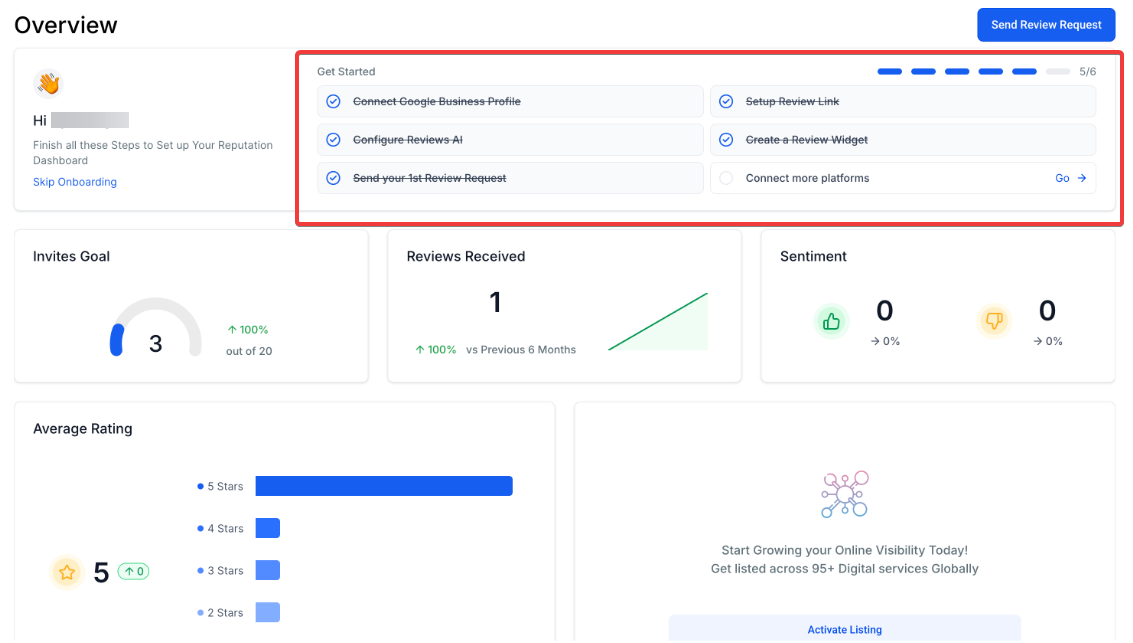
- Once you’re done the wizard with show completion bars based on your setup
Step 2: Set Up Your Review Link
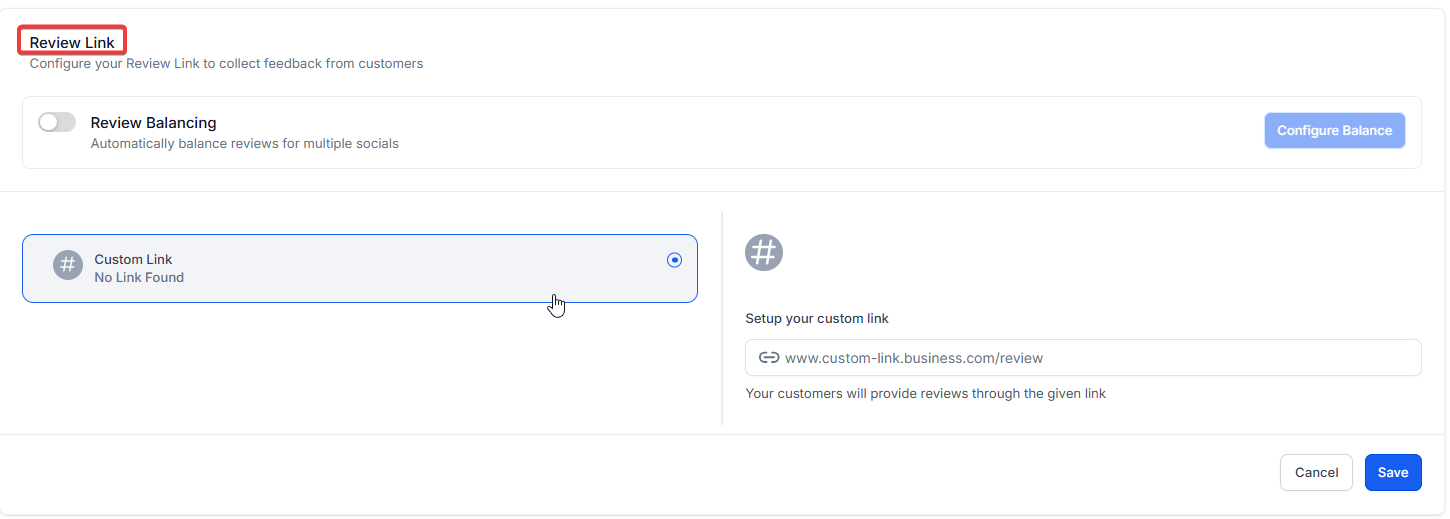
- Configure your Review Request URL, which is the link you'll share with customers to collect reviews.
- Redirect: You’ll be taken to the Settings → Review Link Page to finalize the URL setup.
Step 3: Send Your First Review Request
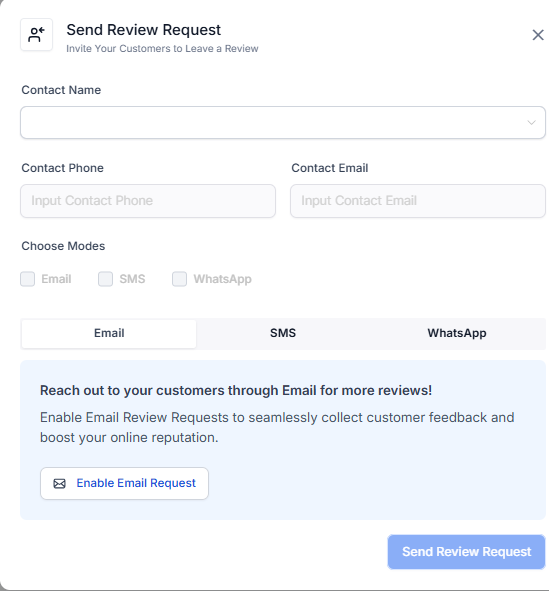
- Start your review strategy by sending the first review request to a customer.
- Redirect: This step takes you to the Review Request Page, where you can send your first request.
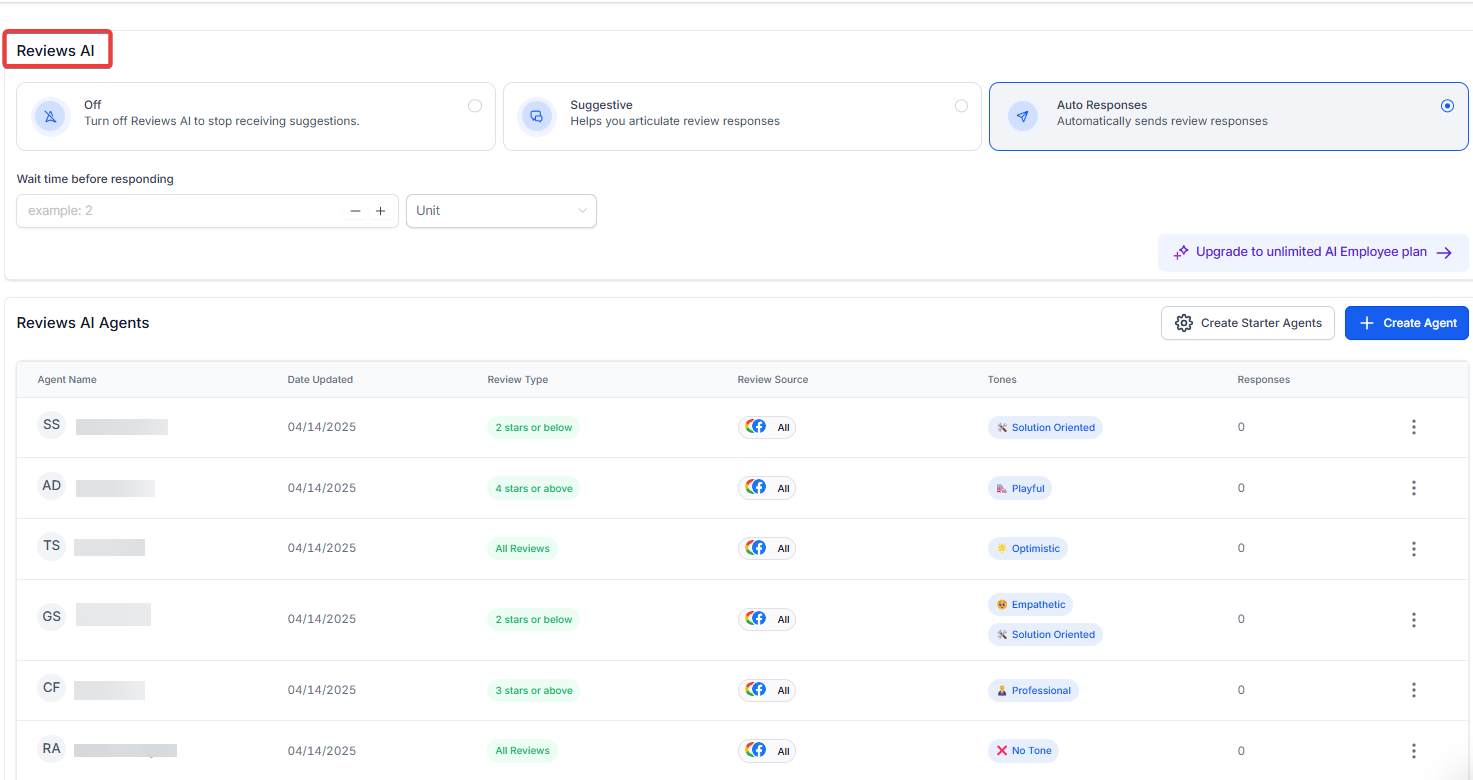
Step 4: Configure Reviews AI
- Enable AI-generated review responses and set up Review Agents to automatically manage responses.
- Redirect: You’ll be taken to Settings → Review AI Page for configuration.
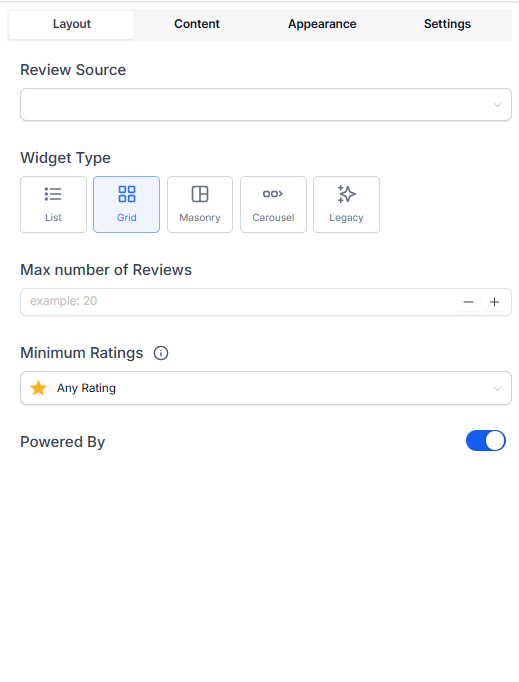
Step 5: Create Your Review Widget
- Customize your review widget to display reviews directly on your website.
- Redirect: This will direct you to the Widgets Tab, where you can design and implement the widget.
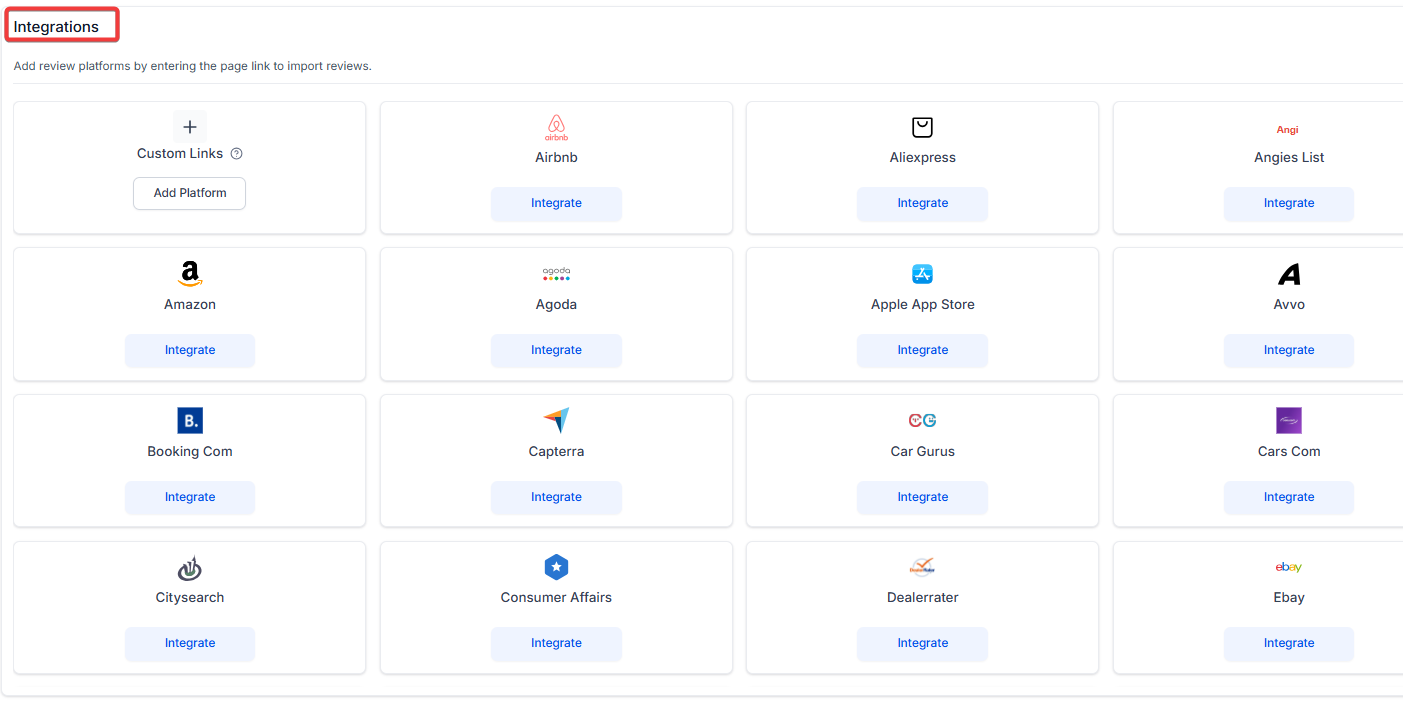
Step 6: Connect More Platforms (Optional)
- Expand your review collection strategy by connecting more platforms for review gathering.
- Redirect: This action takes you back to the Integrations Page.
Once all the steps are completed, the wizard will disappear, leaving you with a clean interface and an optimized review collection setup.
Pro Tips for Efficient Setup
- Connect Multiple Accounts Early: When prompted to connect your Google Business Profile (GBP) or Facebook Page, do so as soon as possible to maximize your review collection from the start.
- Customize Review Request Messages: Personalize your review request messages to increase the likelihood of customer engagement.
- Monitor Review Responses: Utilize AI-generated review responses for timely replies, but also keep track of customer sentiment and make adjustments as necessary.
- Leverage Custom Widgets: Use the Review Widget on your website to increase visibility for customer feedback, reinforcing trust in your brand.
Frequently Asked Questions (FAQ)
Q1: How does the Review Setup Wizard help me?
The Review Setup Wizard simplifies the process of connecting accounts, setting up review links, and configuring AI responses, allowing you to launch your review strategy with minimal effort.
Q2: What happens after I complete the setup?
Once all core steps are completed, the wizard disappears, and you’ll have a fully set-up review collection strategy, with an automated process for requesting and responding to reviews.
Q3: Can I expand my review collection beyond Google and Facebook?
Yes, after completing the initial setup, you have the option to connect additional platforms for review collection, broadening your reach and feedback opportunities.
Q4: How do I configure the AI-generated review responses?
You can configure Reviews AI by enabling it in the Review AI Page under Settings, allowing you to automate responses and create personalized Review Agents for different types of feedback.
Q5: Can I customize the look of the review widget?
Yes, the Review Widget is fully customizable, allowing you to match it with your website’s branding and design preferences, ensuring consistency in your user experience.
Q6: How can I ensure timely replies to reviews?
Enable the AI-generated review responses for automated, timely replies, and personalize them as needed to suit your business's tone.