
Dashboard: Create widget using Custom Objects
Understanding your business data starts with how you visualize it. For organizations that manage processes or relationships beyond standard elements, Custom Objects offer the flexibility to structure and track unique data types. With the Custom Objects Widgets in Dashboards and Reports, users can build tailored visualizations that reflect their specific business workflows, processes, or entities, unlocking deeper insights and better reporting clarity.
Whether you’re tracking pets, vehicles, memberships, assets, or any custom data structure, this feature makes it easy to design dashboards that align perfectly with your operations.
Key Features & Benefits
- Custom Object Widgets: Create visual components (charts, graphs, metrics) based on custom objects you define.
- Data-Specific Widgets: Track key metrics like count, sum, and average of custom object records.
- Full Design Control: Customize filters, visual types, and themes to match your dashboard’s design and reporting needs.
- Centralized Insights: Combine standard data with custom object metrics for a comprehensive analytics experience.
- Schedule Reports: Share custom-object-based dashboards via scheduled reports.
How to Use
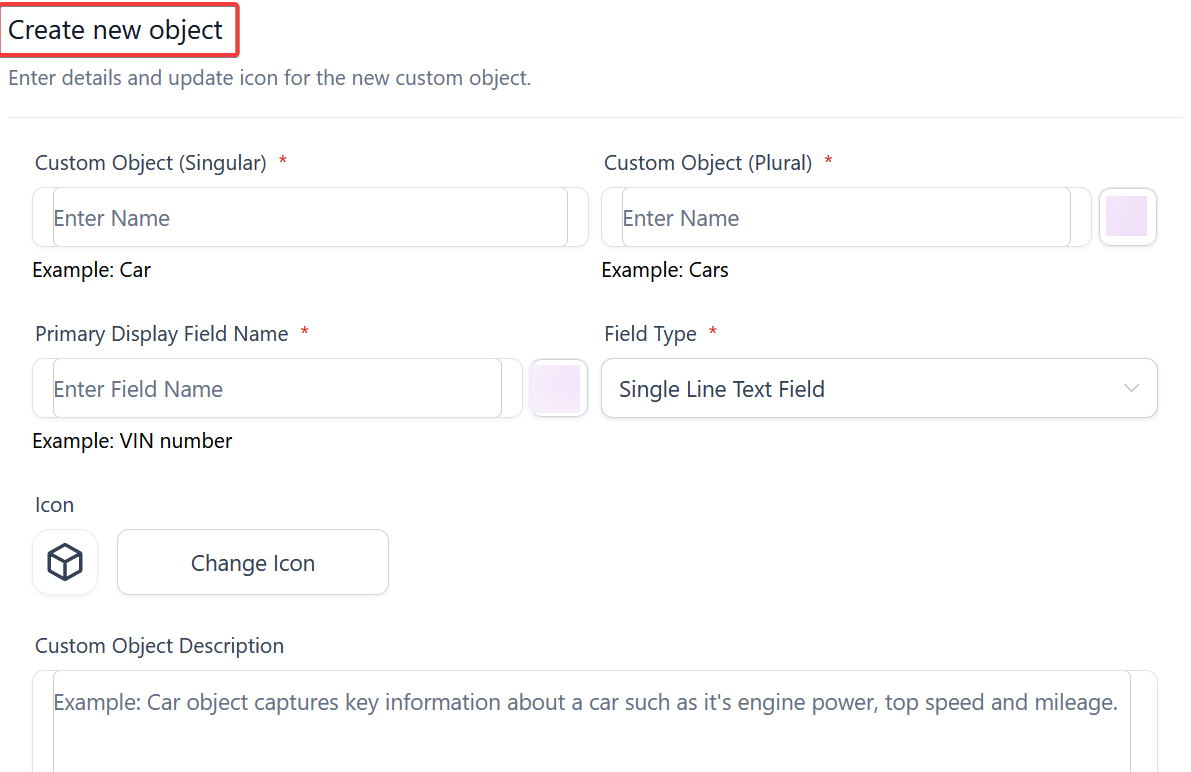
Step 1: Create a Custom Object
- Navigate to > Settings > Objects.
- Click Add Custom Object.
- Fill in the object details:
Singular Name: e.g., Pet
Plural Name: e.g., Pets
Internal Name: Auto-generated (editable via the </> icon)
Primary Display Field Name: e.g., Pet Name or Pet ID
Icon & Description: Choose an icon and write a short description to help identify its purpose.
Click Create Custom Object.
Step 2: Add the Custom Object Widget to a Dashboard or Report
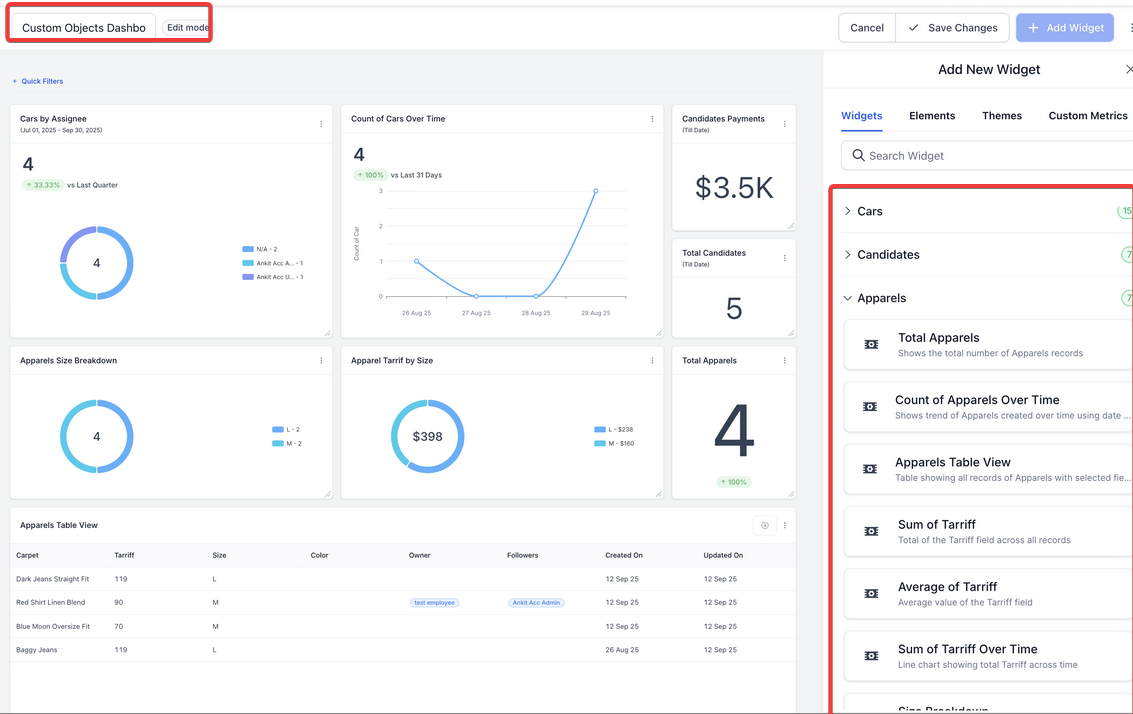
- Open an existing Dashboard or Report.
- Click Edit → Add Widget.
- Scroll to the Custom Objects section and select the object-specific widget you want.
- Customize:
Apply filters
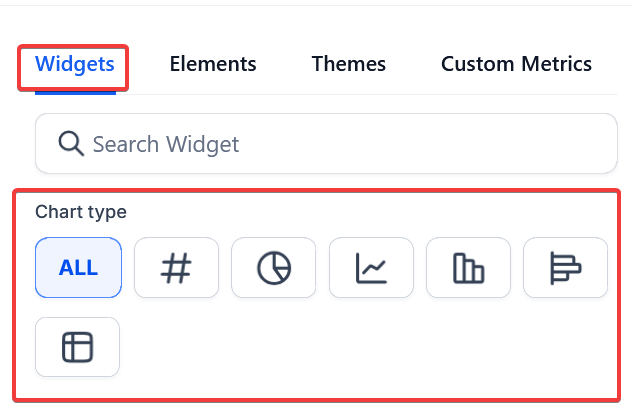
Choose chart type (bar, pie, line, etc.)
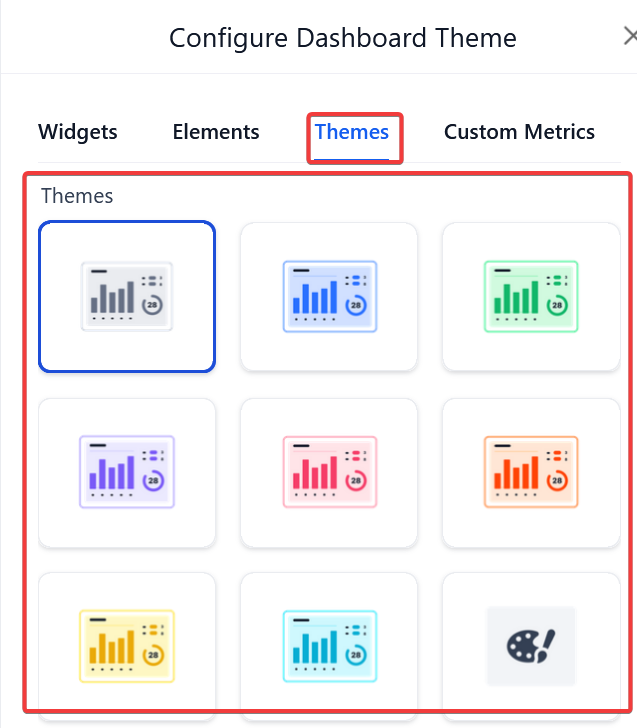
Set themes and labels
- Click Save to apply changes to your dashboard/report.
Optional: Schedule Reports
- Once the dashboard/report includes your widget, you can schedule it to be delivered regularly via email to users or teams.
FAQ
1. What is a Custom Object?
A custom object is a user-defined data structure that allows you to store and track information outside of standard objects like Contacts, Opportunities, or Deals.
2. Can I edit a custom object after creating it?
Yes, you can edit the internal name, display name, icon, and description after creation, though structural changes should be made cautiously.
3. Are there limits to how many widgets I can create?
There is no hard limit, but performance may vary based on the number of widgets and complexity of filters.
4. What metrics can I track using custom object widgets?
You can track count, sum, and average of numeric fields in the object records.